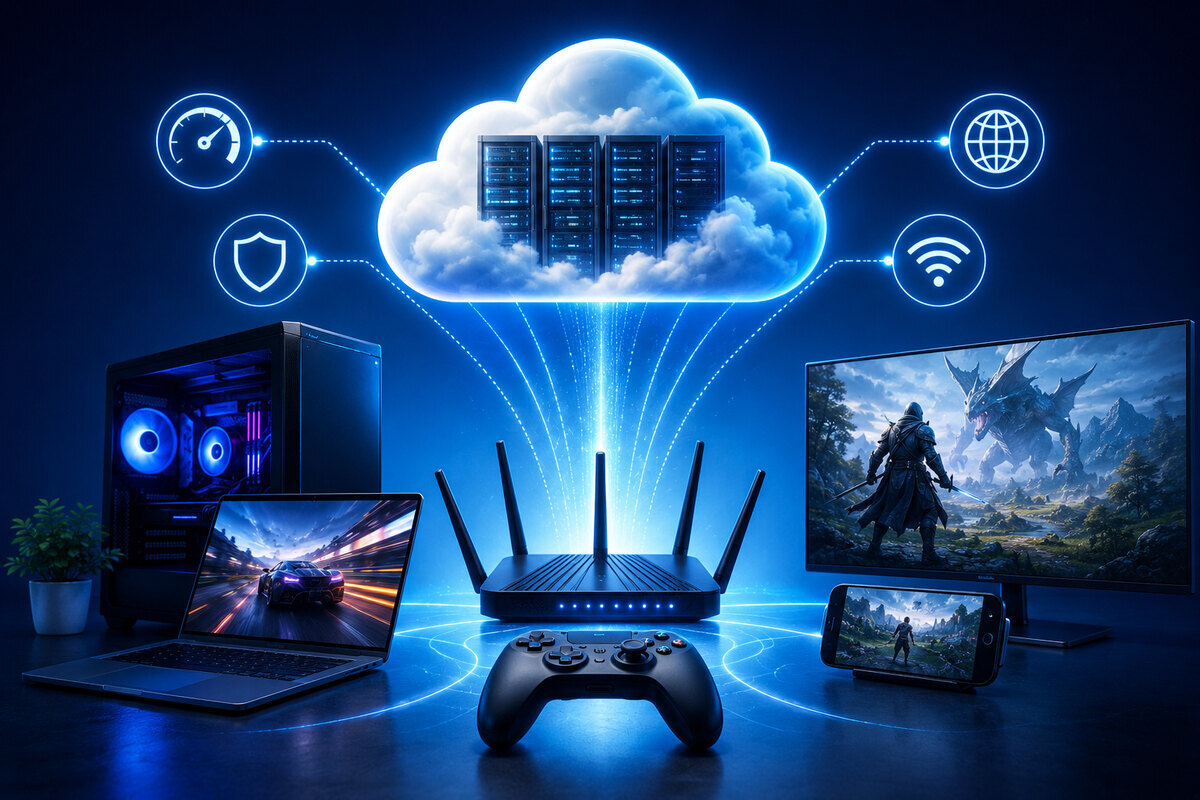
Cloud gaming is amazing and one of the coolest gaming experiences you can have without actually having a gaming setup, until the lag hits. Blurry streams, sluggish controls, random
disconnects. These issues can ruin a session fast. And most of the time, your network is
what’s holding you back.
The good news is you don’t need to be a networking expert to fix it. This guide walks you
through practical steps to optimize your network for cloud gaming, reduce latency,
eliminate stuttering, and get the smoothest experience possible from services like Xbox
Cloud Gaming, GeForce NOW, Boosteroid and more..
Why Your Network Matters for Cloud Gaming.
With local gaming, your console or PC does all the heavy lifting. With cloud gaming, a
powerful server runs the game and streams the video directly to your screen — in real time.
That means every button press travels from your device, up to a data center, gets processed,
and comes back to you. If your network is slow or unstable, you feel every millisecond of
that delay.
This is why cloud gaming is far more sensitive to network quality than regular game
downloads or streaming movies. A shaky connection doesn’t just slow things down — it
actively breaks your gameplay.
Check Your Internet Speed First
Before tweaking anything, know what you’re starting with. Run a speed test and write down your download speed, upload speed, and ping.
Here’s a quick reference for the most pupular cloud gaming speed requirements:
| Service | Minimum Speed | Recommended Speed |
|---|---|---|
Xbox Cloud Gaming | 10 Mbps | 20+ Mbps |
GeForce NOW | 15 Mbps | 25+ Mbps (4K: 35 Mbps) |
Boosteroid | 15 Mbps | 25+ Mbps |
Amazon Luna | 10 Mbps | 15+ Mbps |
PlayStation Plus Premium | 5 Mbps | 15+ Mbps |
But here’s the thing — raw speed isn’t everything. A 200 Mbps connection with high
latency and packet loss will feel worse than a 25 Mbps connection that’s rock-solid stable.
What you really want is low ping (ideally under 40ms), minimal packet loss, and a
consistent connection throughout your session.
Check our Cloud Gaming internet Speed Guide for a deeper breakdown of what each
service needs.
Use Ethernet Whenever Possible
This is the single biggest improvement you can make, and it costs almost nothing.
Plug your device directly into your router with an Ethernet cable, and you’ll instantly get
lower latency and a far more stable connection. Wi-Fi introduces wireless interference,
signal fluctuations, and added latency. Even a strong Wi-Fi signal can spike unpredictably,
and in cloud gaming, those spikes translate directly into input lag and stuttering.
Ethernet doesn’t fluctuate. It’s consistent, low-latency, and reliable.
If running a cable to your room isn’t realistic, a powerline adapter is a solid workaround. It
uses your home’s electrical wiring to create a wired-style connection between rooms — no
drilling required.
Upgrade Your Wi-Fi Setup
If Ethernet genuinely isn’t an option (as the case for me and many others), here’s how to get the best performance from Wi-Fi.
1. Use 5 GHz, Not 2.4 GHz
Always connect your gaming device to the 5 GHz band. It’s faster and far less congested than 2.4 GHz. The tradeoff is range,5 GHz doesn’t travel through walls as well, so move closer to your router if signal strength is an issue.
2. Fix Your Router Placement
Place your router in an open, central, elevated location. Avoid tucking it behind a TV, inside
a cabinet, or near thick concrete walls. Every physical barrier weakens your signal.
3. Consider Wi-Fi 6 (or even 7)
If your router is more than four or five years old, a Wi-Fi 6 (802.11ax) upgrade is more than enough can make a real difference. Wi-Fi 6 offers lower latency, better performance in busy households with lots of connected devices, and more efficient handling of multiple streams at once, all of which matter for cloud gaming.
4. Reduce Network Congestion
Even fast internet gets choked when too many devices compete for it at once. Someone streaming 4K Netflix, a family member on a video call, and a background Windows update all happening while you’re gaming? That’s your bandwidth getting split multiple ways, and your cloud gaming stream suffers for it.
Here’s how to manage it:
- Schedule downloads during off-hours. Set your console or PC to download updates
overnight. - Pause active downloads while gaming. Even a partial download running in the
background eats into your bandwidth. - Disconnect idle devices. That smart TV on standby, the tablet no one is using they’re still connected and pulling data.
- Coordinate with your household. Ask others to hold off on heavy streaming during
your sessions.
Optimize Your Router Settings
now after you knew the basics on how to manage your enveiremtns, lets get a deep dive on how to get the best out of your devices, and your router is the #1 priority.
Your router settings can have a bigger impact on cloud gaming than most people realize.
1. Enable Quality of Service (QoS)
QoS lets your router prioritize certain traffic — like gaming — over everything else. When it’s set correctly, your gaming data gets through first even when other devices are active.
Log into your router’s admin panel (usually at 192.168.1.1 or 192.168.0.1 ) and look for
QoS settings. You can often prioritize by device. Set your gaming device as the top priority.
2. Update Your Firmware
Outdated router firmware causes stability issues and can introduce security vulnerabilities. Most modern routers update in one click from the admin panel. Check for updates and install them, this takes about two minutes.
3. Switch Your DNS Server
Your ISP’s default DNS server is often slow. Switching to Cloudflare (1.1.1.1) or Google (8.8.8.8) can slightly reduce connection setup times and improve responsiveness. If needed You can change this in your router settings or directly on your gaming device’s network configuration.
4. Choose the Right Cloud Gaming Server Region
Every cloud gaming service connects you to a data center. The closer that data center is to you, the lower your ping — and the better your experience. Even within the same service, ping can vary dramatically between regions. If you’re in
Europe and accidentally connecting to a US East server, your latency could jump from 20ms to over 100ms.
Check your service’s settings and verify you’re connecting to the nearest region. On GeForce NOW, you can manually select your server location. Xbox Cloud Gaming autoselects, but it’s worth testing different regions if you’re near a geographic border.
💡 Lower ping equals faster response, which equals smoother cloud gaming. It’s that direct.
note: By default, most cloud gaming services will automatically connect your device to the nearsest server – but always make sure you’re settings is set to that, otherwise manually select your nearest server.
5. Use a Wired Controller
Bluetooth controllers add a small but measurable delay. It’s usually just a few milliseconds,
but in fast-paced competitive games, that can be the difference between landing a hit and
missing it.
6. Turn On Game Mode
Enable Game Mode on your TV or monitor. This disables heavy post-processing that adds
display lag. On most modern TVs, Game Mode can cut display latency from 60–80ms down
to under 15ms. It’s usually found under Display or Picture settings.
Common Cloud Gaming Problems and Fixes
1. High Latency
Symptoms: Delayed button response, sluggish movement, controls that feel disconnected.
Fixes: Switch to Ethernet, connect to the nearest server region, disable your VPN while gaming (VPNs can add significant latency), and enable QoS on your router.
2. Stuttering Streams
Symptoms: Video pauses briefly, frames freeze or skip during gameplay.
Fixes: Check for background downloads, limit active devices on your network, move closer to your router or switch to 5 GHz, and do a full router restart.
3. Blurry Video Quality
Symptoms: Washed-out colors, muddy textures, compressed-looking visuals.
Fixes: Run a speed test, you may not have enough bandwidth for the quality setting you’re using. Reduce 4K streaming on other devices to free up bandwidth, or lower your cloud gaming resolution setting temporarily.
4.Random Disconnects
Symptoms: Sessions cut out without warning, reconnection loops.
Fixes: Check your router logs for connection drops, swap out your Ethernet cable (they can degrade over time), update router firmware, and contact your ISP if it keeps happening.
Best Network Setup for Cloud Gaming — Quick Checklist
Quick Checklist — Run through this before your next session
- Speed and latency test passes 15+ Mbps, under 40ms ping
- Ethernet cable connected directly to router
- Using 5 GHz Wi-Fi if Ethernet isn’t possible
- QoS enabled and gaming device set as top priority
- Background downloads paused or scheduled
- Unnecessary devices disconnected from Wi-Fi
- Router firmware up to date
- Nearest server region selected in your cloud gaming service
- Game Mode enabled on your display
- Wired controller connected or Bluetooth paired close range
Typical Cloud Gaming Network Targets
| Metric | Ideal Value for Cloud Gaming |
|---|---|
Latency (Ping) | < 50 ms |
Jitter | < 10 ms |
Packet Loss | < 0.5% |
Bandwidth | 25 Mbps (1080p), 45+ Mbps (4K) |
Conclusion
Optimizing your network for cloud gaming doesn’t require networking expertise or expensive equipment. A few targeted changes, switching to Ethernet, enabling QoS, selecting the right server region, and keeping your network clear of congestion can make a dramatic difference in how your sessions feel. Start with the checklist, tackle the easiest wins first, and use the troubleshooting section
whenever something specific goes wrong. A smoother, lower-latency cloud gaming experience is genuinely within reach and now you know exactly how to get there.
Useful Tools
FAQs
Most services run well at 15–25 Mbps for 1080p. For 4K at 60fps, aim for 35 Mbps or more. Beyond raw speed, a stable connection with low ping (under 40ms) matters more than having 500 Mbps that fluctuates wildly.
Yes, always. Ethernet provides lower, more consistent latency and zero wireless interference. If you can physically run a cable, it's worth it. Powerline adapters are a good middle ground.
Use Ethernet, select the nearest server region, enable QoS on your router, avoid VPNs during gaming, and close background downloads or streaming on other devices.
Usually a bandwidth issue. Run a speed test and check what else is using your connection. Multiple 4K streams running simultaneously can reduce the bandwidth available for your cloud gaming session.
Yes, many people play on Wi-Fi without major issues. Use 5 GHz, position your device close to the router, reduce congestion from other devices, and you'll be in decent shape. Wired is still better, but Wi-Fi is workable.
On the unforgiving battlefields of Crimson Desert, there is no single path to victory. With every strike and move, forge your own way in a world where a split second can decide your fate in fast-paced, visceral battles.
Find More Games →
 GeForce NOW
  Xbox Cloud Gaming
  Amazon Luna
  Shadow
  Boosteroid
  PlayStation Plus
  AirGPU
GeForce NOW
Xbox Cloud Gaming
Amazon Luna
Shadow
Boosteroid
PlayStation Plus
AirGPU
AirGPU
GeForce NOW
Xbox Cloud Gaming
Amazon Luna
Shadow
Boosteroid
PlayStation Plus
AirGPU