Cloud gaming is amazing when it works correctly, but few things are more frustrating than launching a game and seeing “controller not detected.” I’ve run into this myself more times than I’d like to admit, especially when switching between GeForce NOW, Xbox Cloud Gaming, and different devices.
The good news? In most cases, the fix is simple once you check things in the right order.
This guide walks you through real-world, step-by-step troubleshooting — from quick basic checks to deeper fixes — across Windows, macOS, Android, and iOS, with platform-specific tips that actually matter.
Quick Checks: The First Steps to Controller Detection
Before changing drivers or digging into system settings, try these first. They solve a surprising number of issues.
1. Check Power and Battery
Low battery = unstable connection. Even if your controller turns on, it may not stay connected.
- Recharge wireless controllers for a few minutes.
- Replace AA batteries if applicable.
2. Inspect the Cable and Port
Bad cables are more common than people think.
- Try a different USB cable.
- Plug into another USB port.
- Avoid USB hubs — connect directly to your device.
3. Restart Everything
Restart your PC, phone, or console. Unplug the controller, reboot, and reconnect.
4. Test on Another Device
If it works elsewhere, the problem is software-related. If not, it may be hardware.
👉 If your controller still isn’t detected after these steps, move on — but always start here.
1. Bluetooth Pairing Problems and Fixes
Common Bluetooth Pairing Issues:
- 1Controller not appearing in device list
- 2Paired but not connecting
- 3Intermittent disconnects or lag
- 4Controller connects to wrong device
Step-by-Step Fix
-
1
Enable Bluetooth and Pairing Mode
Make sure Bluetooth is turned on in your device’s settings. For Xbox controllers, press and hold the pairing button until the Xbox logo flashes rapidly. For PlayStation controllers, hold the PS and Share buttons until the light bar flashes. For third-party controllers, consult the manual for pairing instructions. -
2
Remove Old Pairings
If your controller was previously paired with another device (console, phone, etc.), it may not connect automatically. Remove the controller from your device’s Bluetooth list and re-pair. -
3
Proximity and Interference
Stay close to your device during pairing. Move away from other active Bluetooth devices, USB 3.0 ports, and Wi-Fi routers, which can cause interference. -
4
Update Bluetooth Drivers
Outdated or corrupted Bluetooth drivers are a top cause of connection problems, especially after OS updates (notably Windows 11 24H2). Update drivers via Device Manager or your device manufacturer’s website. -
5
Reset Bluetooth Stack
If all else fails, uninstall the Bluetooth adapter in Device Manager, restart your device, and let Windows reinstall the driver automatically. -
6
Platform-Specific Bluetooth Quirks
• Windows 11 24H2: Known issues with Bluetooth reconnection and device detection. Try rolling back to 23H2 if possible, or use a USB Bluetooth dongle as a workaround.
• Android/iOS: Ensure your OS is up to date. On Android, toggle Bluetooth off and on, and clear Bluetooth cache if available. On iOS, restart the device and re-pair. - ✓ Bluetooth issues can be stubborn, but methodically working through these steps resolves most problems.
2. Wired Connection Issues and USB Troubleshooting
Common Issues:
- 1Controller not recognized when plugged in
- 2Random disconnects during gameplay
- 3Buttons or sticks unresponsive
- 4LED lights not turning on
Step-by-Step: Fix Wired Controller Connection Issues
-
1
Inspect the Cable and Port
Check for physical damage to the cable and USB connector. Try a different cable and port. Avoid USB hubs and connect directly to the device. -
2
Scan for Hardware Changes
In Windows, open Device Manager, expand Universal Serial Bus controllers, and click “Scan for hardware changes.” This can prompt Windows to recognize newly connected devices. -
3
Disable USB Selective Suspend
Windows power management can turn off USB ports to save energy, causing controllers to disconnect. Disable USB selective suspend in Power Options. -
4
Update or Reinstall USB Drivers
Outdated or corrupted USB drivers can block controller detection. Update drivers via Device Manager, or uninstall and restart to force Windows to reinstall them. -
5
Check for Physical Damage
If none of the above works, inspect the controller’s USB port for bent pins or loose connections. If possible, open the controller and check for loose solder points or corrosion. -
6
Test with Online Gamepad Tester
Use web-based tools like Cloud Loadout Gamepad Tester to verify if your controller is detected and all buttons/sticks register input. - ✓ Wired connection issues are often hardware-related, but driver and power settings play a big role too.
3. Driver and OS-Level Settings (Windows, macOS, Android, iOS)
Windows
- Update controller, Bluetooth, and USB drivers via Device Manager.
- Check for optional driver updates in Windows Update.
- Disable power-saving on USB and Bluetooth devices.
- Make sure Bluetooth services are set to Automatic.
macOS
- Update macOS.
- Remove the controller from Bluetooth, restart, and re-pair.
- Some macOS updates break controller detection temporarily — firmware updates usually fix this.
Android
- Toggle Bluetooth.
- Use an OTG cable for wired controllers.
- Make sure cloud gaming apps have Bluetooth and USB permissions.
iOS
- Remove old pairings and re-pair.
- iOS 13+ supports most Xbox and PlayStation controllers via Bluetooth.
4. Update Controller Firmware (This Fixes More Than You Think)
Why Update Controller Firmware?
- 1Fixes input lag and responsiveness issues
- 2Resolves compatibility problems with new games and platforms
- 3Improves battery life and wireless stability
- 4Adds support for new features (e.g., haptic feedback, adaptive triggers)
How to Update Firmware?
-
1
Xbox Controllers
• Windows PC: Download the Xbox Accessories app from the Microsoft Store. Connect your controller via USB and follow prompts to update firmware.
• Xbox Console: Go to Settings > Devices & connections > Accessories > Update. -
2
PlayStation Controllers
• PS5 DualSense: Connect via USB-C to PS5, go to Settings > Accessories > Controllers > Update Firmware.
• PS4 DualShock 4: Connect via USB to PS4, go to Settings > Devices > Controllers > Update Software. On PC, use DS4Windows or PlayStation Accessories software. -
3
Nintendo Switch Pro Controller
Connect to Switch, go to System Settings > Controllers and Sensors > Update Controllers. -
4
Third-Party Controllers
Use manufacturer’s configuration software or check their website for firmware updates. Some brands (e.g., 8BitDo, PowerA) offer dedicated update tools. -
5
Firmware Update Tips
• Always use a USB cable for updates—wireless updates can fail or “brick” the controller.
• Don’t disconnect during the update process.
• If an update fails, try a factory reset or rollback via the manufacturer’s app. - ✓ Firmware updates are a powerful fix for many detection and compatibility issues.
5. Platform-Specific Quirks
Xbox Cloud Gaming
- Best supported controller: Xbox Wireless Controller.
- Bluetooth on PC can be unreliable — USB or Xbox Wireless Adapter works better.
- Some games require XInput — third-party controllers may need remapping tools.
GeForce NOW
- Most Xbox and PlayStation controllers are supported.
- Connect your controller before launching the game.
- Steam can interfere — close it if using PlayStation controllers.
Amazon Luna
- Luna Controller works best via USB or Wi-Fi Direct mode.
- Bluetooth may not work reliably on all platforms.
6. Third-Party Controllers and Mapping Tools
Common Issues
- 1Controller not detected or recognized as a generic device
- 2Buttons mapped incorrectly
- 3No vibration or advanced features
Step-by-Step: Controller Mapping & Compatibility Tools
-
1
DS4Windows
• Lets you use PlayStation controllers (DualShock 4, DualSense) on Windows by emulating an Xbox controller.
• Supports button remapping, dead zone adjustment, and profile switching.
• Essential for cloud gaming platforms that only support XInput. -
2
x360ce
• Emulates Xbox 360 controller input for DirectInput devices.
• Useful for older or generic controllers that aren’t natively supported. -
3
Steam Controller Settings
• Steam’s Big Picture mode allows for extensive controller configuration and mapping.
• Enable “Generic Gamepad Configuration Support” for non-Xbox controllers. -
4
AntiMicroX, JoyToKey
• Advanced mapping tools for custom button assignments and macros. -
5
Calibration Tools
• Use online testers like Our game Tester or DualShock Calibration GUI to check for stick drift, dead zones, and button response. -
6
Tips for Third-Party Controllers
• Always check for firmware updates from the manufacturer.
• Use mapping tools to ensure proper button layout and compatibility.
• Test with online gamepad testers before launching cloud gaming apps. - ✓ Third-party controllers can work great with cloud gaming, but may need extra setup.
7. Firmware and Hardware Diagnostics (Stick Drift, Buttons, Internal Faults)
Stick Drift
- Test with a gamepad tester.
- Clean around the stick with isopropyl alcohol.
- Calibrate via software.
- Persistent drift usually means hardware repair is needed.
Button Issues
- Clean with compressed air or alcohol.
- If unresponsive, internal contacts may be damaged.
Internal Faults
- No LED or power = likely hardware failure.
- Random disconnects = possible loose internal connections.
8. Resetting Controllers: Factory Reset and Hard Reset Steps
Resetting Your Controller (Last Resort Fix)
Xbox Controllers
- Soft reset: Hold Xbox button 10–15 seconds.
- Hard reset: Power off console, unplug, reconnect, resync.
- Factory reset: Xbox Accessories app.
PlayStation Controllers
- Press the reset button on the back for 5 seconds.
- Reconnect via USB and re-pair.
Third-Party Controllers
- Follow manufacturer reset instructions.
9. Mobile-Specific Tips (Android, iOS) for Cloud Gaming Controllers
Android
- Use Android 9+.
- Pair via Settings → Connected Devices.
- Use OTG cable for wired controllers.
- Grant Bluetooth and USB permissions.
iOS
- iOS 13+ required.
- Pair via Bluetooth settings.
- Not all games support controllers — check compatibility.
10. Windows 11 24H2 Bluetooth Known Issues and Workarounds
The latest Windows 11 update (24H2) has introduced widespread Bluetooth problems.
Common Issues
- 1Devices fail to reconnect after being powered off
- 2Bluetooth menu missing “Connect” or “Disconnect” buttons
- 3Audio devices produce distorted or intermittent sound
- 3Bluetooth services set to manual instead of automatic
Workaround
-
✔
Unpair and Re-pair Devices
Manual re-pairing is often required after each disconnect. -
✔
Set Bluetooth Services to Automatic
Useservices.mscto set Bluetooth Support Service, Audio Gateway Service, and User Support Service to Automatic. -
✔
Update Drivers
Install the latest Bluetooth drivers from your device or motherboard manufacturer. -
✔
Use USB Bluetooth Dongle
If built-in Bluetooth fails, try a high-quality USB dongle as a workaround. -
✔
Roll Back to 23H2
If all else fails, rolling back to the previous Windows version may restore functionality.
Testing and Verification Steps
How to Test Your Controller:
- Online Gamepad Tester: Use web tools to check if your controller is detected and all buttons/sticks register input.
- Windows Game Controller Settings: Press Windows + R, type joy.cpl, and test your controller in the Properties dialog.
- Test on Another Device: Connect your controller to a different PC, console, or mobile device to rule out hardware failure.
- Calibration: Calibrate sticks and triggers to check for drift or dead zones.
Test Your Gamepad Before Troubleshooting
Before diving into our troubleshooting guides, quickly identify what’s working and what’s not with our Online Gamepad Tester. This free tool lets you test all buttons, triggers, analog sticks, and D-pad inputs in real-time directly in your browser.
Best Practices and Preventative Tips for Stable Controller Use
Step-by-Step:
- 1 Update Firmware and Drivers Regularly: Stay current to avoid compatibility issues.
- 2 Use Quality Cables and Adapters: Cheap or damaged cables cause detection problems.
- 3 Avoid USB Hubs: Connect controllers directly to your device.
- 4 Keep Controllers Clean: Regularly clean sticks and buttons to prevent drift and sticking.
- 5 Test Periodically: Use online testers to catch issues early.
- 6 Monitor Battery Levels: Low batteries cause intermittent disconnects.
- 7 Power Cycle Devices: Restart controllers and devices after updates or connection issues.
- 8 Limit Background Apps: Close unnecessary software to avoid input conflicts.
- ✓ Preventative care saves time and frustration in the long run.
Conclusion
Controller detection issues are frustrating — but almost always fixable.
Start with quick checks, move through Bluetooth and USB troubleshooting, update firmware and drivers, and apply platform-specific fixes. With the right steps, you can get back into your game in minutes instead of giving up in frustration.
Cloud gaming is about convenience, don’t let a missing controller ruin your session.
FAQ: Common Questions Gamers Ask
Bluetooth issues are often caused by low battery, outdated drivers, interference from other devices, or OS-level bugs (especially after updates like Windows 11 24H2). Try re-pairing, updating drivers, and restarting your device. If issues persist, use a USB Bluetooth dongle or roll back to a previous OS version.
Xbox Cloud Gaming officially supports Xbox Wireless Controllers. PlayStation and third-party controllers may work, but some games require XInput support. For browser-based gaming, Xbox controllers are recommended.
- Xbox: Hold the Xbox button for 10-15 seconds to turn off, remove batteries, wait, reinsert, and turn back on. For a hard reset, power off the console, unplug, wait, reconnect, and sync via USB. - PlayStation: Use a pin to press the reset button on the back for 5 seconds, reconnect via USB, and turn on.
Yes, GeForce NOW supports PS5 DualSense and DualShock 4 controllers via Bluetooth or USB. Advanced features like adaptive triggers and haptics are not supported, and button prompts may default to Xbox layout. Exit Steam before launching GeForce NOW to avoid conflicts.
Some platforms (e.g., Xbox Cloud Gaming on Windows) only support USB connections for certain controllers. Bluetooth detection may be blocked by OS-level bugs, outdated drivers, or platform restrictions.
Clean around the stick with isopropyl alcohol, calibrate using PC or manufacturer’s app, and test with online gamepad testers. If drift persists, the stick module may need replacement.
Random disconnects are often caused by low battery, power management settings, outdated drivers, or interference from other devices. Disable USB selective suspend, update drivers, and keep your controller charged
Yes, most modern controllers support Bluetooth pairing with Android and iOS devices. For wired connections, use an OTG cable on Android. Check game compatibility before troubleshooting
On the unforgiving battlefields of Crimson Desert, there is no single path to victory. With every strike and move, forge your own way in a world where a split second can decide your fate in fast-paced, visceral battles.
Find More Games →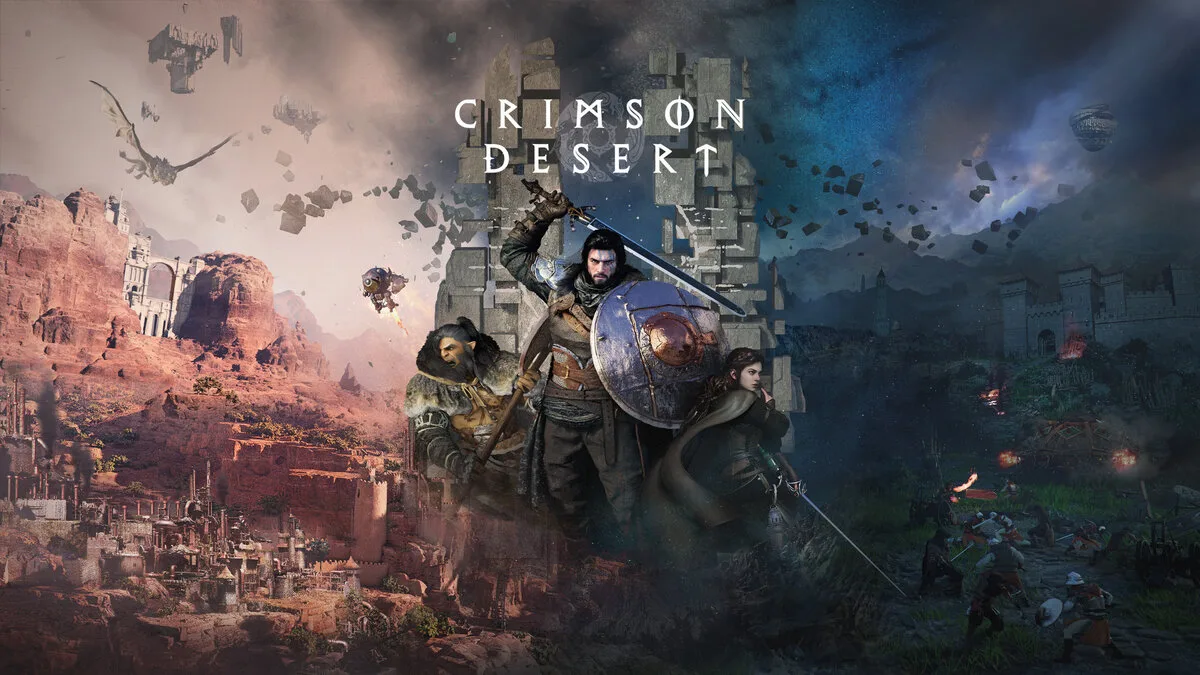
 GeForce NOW
  Xbox Cloud Gaming
  Amazon Luna
  Shadow
  Boosteroid
  PlayStation Plus
  AirGPU
GeForce NOW
Xbox Cloud Gaming
Amazon Luna
Shadow
Boosteroid
PlayStation Plus
AirGPU
AirGPU
GeForce NOW
Xbox Cloud Gaming
Amazon Luna
Shadow
Boosteroid
PlayStation Plus
AirGPU