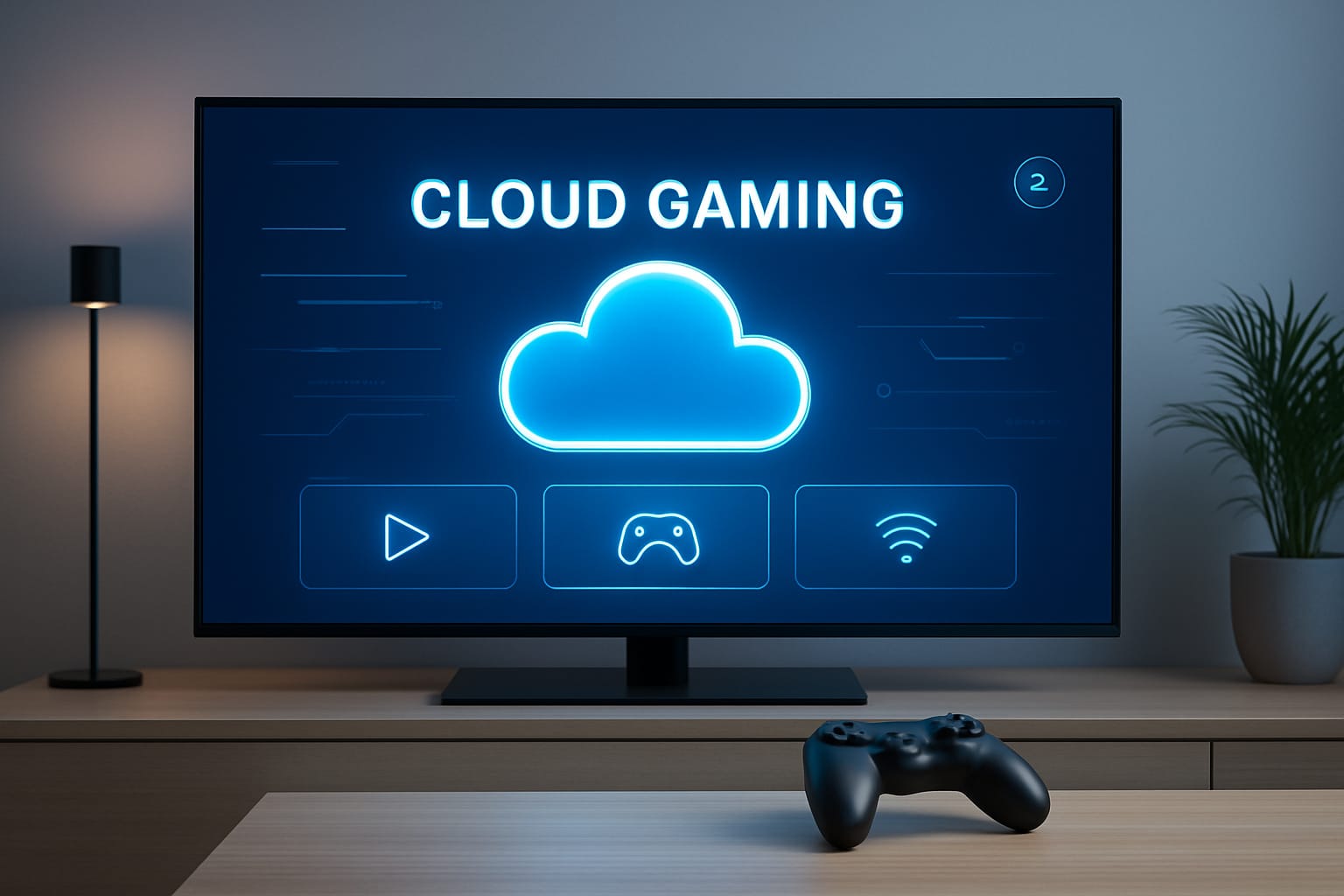
Whether you’re a seasoned gamer or just curious about streaming the latest blockbusters without a console, this guide will walk you through every step from checking compatibility and installing apps to optimizing your network and troubleshooting common cloud gaming TV related issues. By the end, your Samsung TV will be transformed into a next‑gen gaming powerhouse.
What Is Cloud Gaming on Smart TV?
Cloud gaming allows you to play high‑end titles on your Samsung TV by streaming them directly from powerful remote servers. Instead of investing in a console or gaming PC, your TV becomes the gateway to thousands of games. All you need is:
- A compatible Samsung Smart TV
- A controller
- A stable internet connection
Why It Matters
Cloud gaming eliminates the barriers of expensive hardware, endless downloads, and limited storage. With platforms like Xbox Cloud Gaming, NVIDIA GeForce NOW, and Amazon Luna, you can dive into AAA blockbusters or indie gems instantly—right from your living room.
Compatibility: Which Samsung TVs Support Cloud Gaming?
Before you dive in, it’s crucial to check if your Samsung TV supports cloud gaming and the Samsung Gaming Hub. Compatibility depends on your TV’s model year and software version.
How to check your model:
Go to your TV’s “Settings” > “Support” > About This TV. Compare your model and software version with the table above.
Why compatibility matters?:
Only compatible TVs can run the Gaming Hub and cloud gaming apps natively. If your TV isn’t supported, you can still enjoy cloud gaming by connecting a device like Chromecast, Fire TV Stick, or NVIDIA Shield.
Supported Cloud Gaming Services on Samsung TV?
Samsung’s Gaming Hub brings together the top cloud gaming platforms, letting you access thousands of games from one place.
Why this is Great?:
You can access Xbox exclusives, PC blockbusters, indie gems, and retro classics—all from your TV, with no extra hardware.
Step-by-Step: Installing and Launching Cloud Gaming Apps
Ready to play? Here’s how to get started with cloud gaming on your Samsung TV.
-
1
Access the Samsung Gaming Hub
– Press the Home button on your Samsung TV remote.
– Look for the Gaming Hub icon in the sidebar or main menu.
– Select it to open the Gaming Hub interface.
Tip: On 2022+ models, Gaming Hub is pre-installed. On some 2021 models, look for it in the Apps section or update your TV’s firmware. -
2
Install Your Preferred Cloud Gaming App
– In the Gaming Hub, browse available apps (Xbox, GeForce NOW, Luna, etc.).
– Select the app you want (e.g., Xbox).
– If not already installed, choose Install.
– Once installed, open the app from the Gaming Hub or Apps menu.
Pro tip: You can pin your favorite gaming apps to the home screen for quick access. -
3
Sign In and Set Up Your Account
– Open the cloud gaming app (e.g., Xbox).
– Sign in with your account (Microsoft, NVIDIA, Amazon, etc.).
– If you don’t have an account, follow the on-screen prompts to create one.
– For Xbox, you can use the on-screen QR code to log in via your phone or browser. -
4
Pair Your Controller
– Put your Bluetooth controller into pairing mode.
– On your TV, go to Settings > Bluetooth Devices or use the Gaming Hub’s controller menu.
– Select your controller from the list and follow prompts to complete pairing. -
5
Launch and Play!
– In the app, browse or search for a game.
– Select a title and hit Play.
– Enjoy instant gaming—no downloads, no updates, just pure fun! - ✓ Quick recap: Access Gaming Hub → Install app → Sign in → Pair controller → Play!
Account Setup and Subscriptions
To access most cloud gaming services, you’ll need an active subscription and an account with the provider.
Controller Pairing: Supported Controllers and How to Connect
A controller is essential for most cloud gaming experiences. Samsung TVs support a wide range of Bluetooth and USB controllers.
How to Pair a Bluetooth Controller:
-
1
Put the controller in pairing mode:
• Xbox: Hold the pairing button until the light blinks.
• PlayStation: HoldShare+PSbutton until the light flashes.
• Others: Refer to the controller’s manual. -
2
On your Samsung TV:
• Go to Settings > Bluetooth Devices or open the Gaming Hub’s controller menu.
• Select Add Bluetooth Device.
• Choose your controller from the list and confirm pairing. -
4
Test the connection:
• use the controller to navigate the Gaming Hub or app menus.
USB Controllers:
Just plug the controller into a USB port on your TV. Most are recognized instantly.
Tips for Best Performance:
- Keep your controller firmware updated.
- Charge your controller before long sessions.
- For the lowest latency, use a wired USB connection if possible.
Multi-player:
You can connect up to 4 Bluetooth controllers at once (or 2 if using a Bluetooth sound device).
TV Settings for Best Performance: Game Mode, Low Latency, HDR, and Refresh Rate
Samsung TVs offer advanced settings to enhance your cloud gaming experience.
Enable Game Mode
- What it does:
Reduces input lag, disables unnecessary image processing, and optimizes visuals for gaming. - How to enable:
- Press “Home” > “Settings” > “General” > “External Device Manager” > “Game Mode Settings” > “Game Mode: On“
- On newer models: “Settings” > “All Settings” > “Advanced Features” > “Game Mode Settings“
- Auto Low Latency Mode (ALLM):
Many Samsung TVs switch to Game Mode automatically when a gaming app is launched.
Adjust Picture and Sound Settings
- HDR:
Enable HDR or HDR Game Mode for richer colors and better contrast. - Refresh Rate:
Some 2025 OLED models support up to 165Hz for ultra-smooth motion (with compatible games). - FreeSync/G-SYNC:
Enable for adaptive sync and reduced screen tearing (requires compatible GPU and TV). - Game Bar:
Use the Game Bar for quick access to FPS, input lag, and other gaming stats.
Audio Settings
- Use “Game” or “Standard” sound mode for clear, immersive audio.
- Connect a Bluetooth headset or soundbar for enhanced sound.
Pro tip:
Experiment with picture presets (Standard, Dynamic, Movie) and fine-tune brightness, contrast, and sharpness for your room.
Troubleshooting Common Issues
Even with the best setup, you might encounter hiccups. Here’s how to fix the most common problems:
Lag or Latency:
- Check your internet speed and latency.
Use a wired connection if possible. - Move your router closer to the TV.
- Limit background network usage.
- Restart your router and TV.
- Disable VPNs and ad-blocking DNS services.
Controller Disconnects:
- Keep your controller charged.
- Stay within range of the TV.
- Reduce Bluetooth interference (move other wireless devices away).
- Try a wired USB connection for critical games.
App Crashes or Won’t Launch:
- Restart your TV.
- Update your TV’s firmware and the app.
- Clear the app cache (“Settings” > “Apps” > “System Apps” > [App] > “Clear Cache”).
- Reinstall the app if issues persist.
Poor Visual Quality:
- Check your streaming resolution in the app settings.
- Ensure your internet speed meets requirements.
- Switch to a higher tier subscription for 4K streaming (GeForce NOW Ultimate).
- Adjust TV picture settings for optimal clarity.
Can’t Find the Gaming Hub or Apps:
- Update your TV’s software to the latest version.
- Check if your model is supported.
- For older TVs, use an external streaming device.
Advanced Setups: Using External Devices
If your Samsung TV doesn’t support Gaming Hub or you want more flexibility, you can use external devices for cloud gaming.
Setup is simple:
Plug the device into your TV’s HDMI port, connect to Wi-Fi or Ethernet, install the cloud gaming app, and pair your controller.
Why use an external device?
- Adds cloud gaming to older or unsupported TVs.
- May offer better app support or performance.
- Portable—take your gaming setup anywhere.
💡 Router placement matters: Keep your router in a central, elevated spot, away from thick walls and electronic interference.
Game Availability and Limitations
What Games Can You Play?
- Xbox Cloud Gaming:
400+ games, including Halo, Forza, Minecraft, and many day-one releases. See the full list at xbox.com/play or cloudbase.gg. - GeForce NOW:
Play games you own on Steam, Epic, Ubisoft, and more. 4,000+ supported titles, including Cyberpunk 2077, Fortnite, and Destiny 2. - Amazon Luna:
Curated channels with family, indie, and AAA games. Ubisoft+ channel adds even more. - Utomik, Antstream, Blacknut:
Focus on indie, retro, and family-friendly games.
- Some games or services may not be available in all countries.
- Game libraries can vary by region and subscription tier.
- Check the Gaming Hub or service website for up-to-date availability.
Limitations
- Not all games support cloud saves or cross-progression.
- Some features (like mods or local multiplayer) may be limited.
- Input latency may affect fast-paced or competitive games.
Comparison: Cloud Gaming on Samsung TV vs Other Smart TVs
How does Samsung stack up against the competition?
Samsung TV (Tizen OS)
PROS
- Best-in-class Gaming Hub with native Xbox, GeForce NOW, Luna, and more.
- Wide controller support.
- Advanced gaming features (Game Mode, FreeSync, G-SYNC, Game Bar).
- Frequent updates and strong app ecosystem.
CONS
- Some older models lack support.
- Regional app availability may vary.
LG TV (webOS)
PROS
- GeForce NOW and Xbox apps available on 2022+ models.
- Excellent OLED displays for deep blacks and fast response.
CONS
- Fewer cloud gaming apps.
- Slightly higher input lag in some models.
Android TV / Google TV
PROS
- Broadest app support (Xbox, GeForce NOW, Luna, Stadia).
- Easy sideloading of apps.
CONS
- Interface may be less streamlined for gaming.
- Variable performance depending on hardware.
Verdict:
Samsung’s Gaming Hub delivers one of the most console‑like experiences for cloud gaming in 2025. With robust app support and advanced features, it transforms your Smart TV into a powerful gaming platform—no console required.
Optimizing Performance: QuickTips
Want the smoothest, most responsive cloud gaming experience? Apply these pro‑level tweaks:
- Use Ethernet whenever possible The gold standard for low latency and stable connections.
- Upgrade to Wi‑Fi 6 or Wi‑Fi 6E Faster speeds, reduced interference, and better performance for streaming games.
- Prioritize your TV in router QoS settings Ensures gaming traffic gets top priority over other devices.
- Limit background downloads and streaming Pause Netflix, YouTube, or large file transfers during gaming sessions.
- Choose the nearest data center in your cloud gaming app Shorter distance = lower latency and smoother gameplay.
- Keep your TV and apps updated Firmware and app updates often improve performance and fix bugs.
- Try a wired controller for competitive games Wired connections deliver the lowest possible input lag.
Final Thoughts
Cloud gaming on Samsung TV is shaping the future of living room entertainment. With just a compatible TV, a controller, and a solid internet connection, you can unlock thousands of games—no console or PC required.
Samsung’s Gaming Hub makes setup effortless, and with the right performance tweaks, you’ll enjoy responsive gameplay that rivals traditional hardware.
Ready to play? Check your TV, grab your controller, and dive into the world of cloud gaming today. If you run into issues, revisit this guide or drop your questions in the comments, Cloud Loadout is here to help you level up your gaming experience.
FAQs
All 2022 and newer Samsung Smart TVs and monitors support the Gaming Hub. Select 2021 models are being updated. Older TVs require external devices.
For 1080p, aim for at least 25 Mbps. For 4K, 45 Mbps or higher is recommended. Stability and low latency are just as important as raw speed.
Most Bluetooth and USB controllers are supported, including Xbox, PlayStation, Nintendo Switch Pro, and popular third-party models.
Yes, most cloud gaming services require a subscription (e.g., Xbox Game Pass Ultimate, GeForce NOW Ultimate). Some offer free tiers with limitations.
Use an external device like Chromecast, Fire TV Stick, or NVIDIA Shield to access cloud gaming apps.
Use a wired Ethernet connection, connect to 5 GHz Wi-Fi, prioritize your TV in router settings, and limit background network usage.
No, game libraries and app availability can vary by country and subscription tier.
Yes, use the Game Rating Lock and app locks in the Gaming Hub. Each service also offers its own parental controls.
Yes, but always review privacy policies and manage your account settings for each service.
Yes! Many cloud games support online multiplayer, and you can connect multiple controllers for local co-op.
On the unforgiving battlefields of Crimson Desert, there is no single path to victory. With every strike and move, forge your own way in a world where a split second can decide your fate in fast-paced, visceral battles.
Find More Games →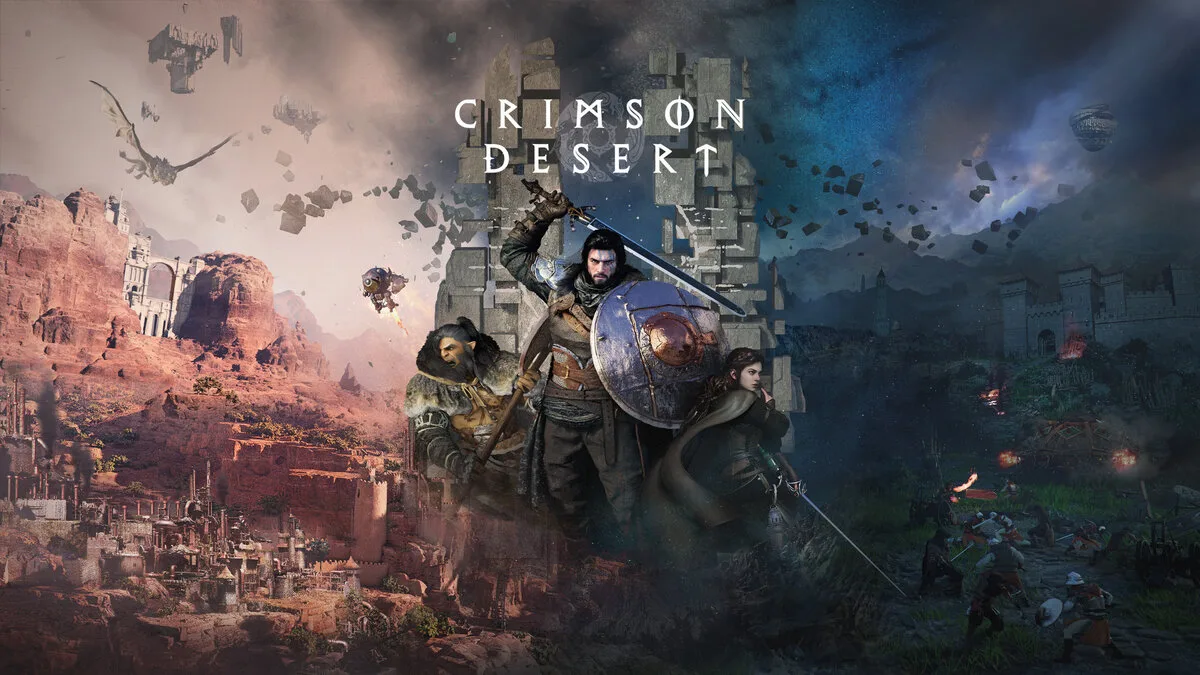
 GeForce NOW
  Xbox Cloud Gaming
  Amazon Luna
  Shadow
  Boosteroid
  PlayStation Plus
  AirGPU
GeForce NOW
Xbox Cloud Gaming
Amazon Luna
Shadow
Boosteroid
PlayStation Plus
AirGPU
AirGPU
GeForce NOW
Xbox Cloud Gaming
Amazon Luna
Shadow
Boosteroid
PlayStation Plus
AirGPU