


For cloud gamers, few things are more frustrating than lag, stuttering, or sudden disconnects during a crucial online match. Modern games demand stable, low‑latency connections, yet today’s home networks are often crowded with multiple users streaming, downloading, or video calling. In this environment, your game’s data packets end up competing for bandwidth.
This guide provides a clear, step‑by‑step walkthrough:
- What QoS is and why it matters for gaming
- How to configure QoS on popular routers (Netgear, ASUS, TP‑Link)
- Advanced prioritization strategies for competitive players
- Tips for monitoring and maintaining performance over time
Whether you’re a competitive gamer chasing every millisecond or simply want a lag‑free casual session, this guide will demystify QoS and help you get the most out of your home network.
What is QoS? How Does Quality of Service Work?
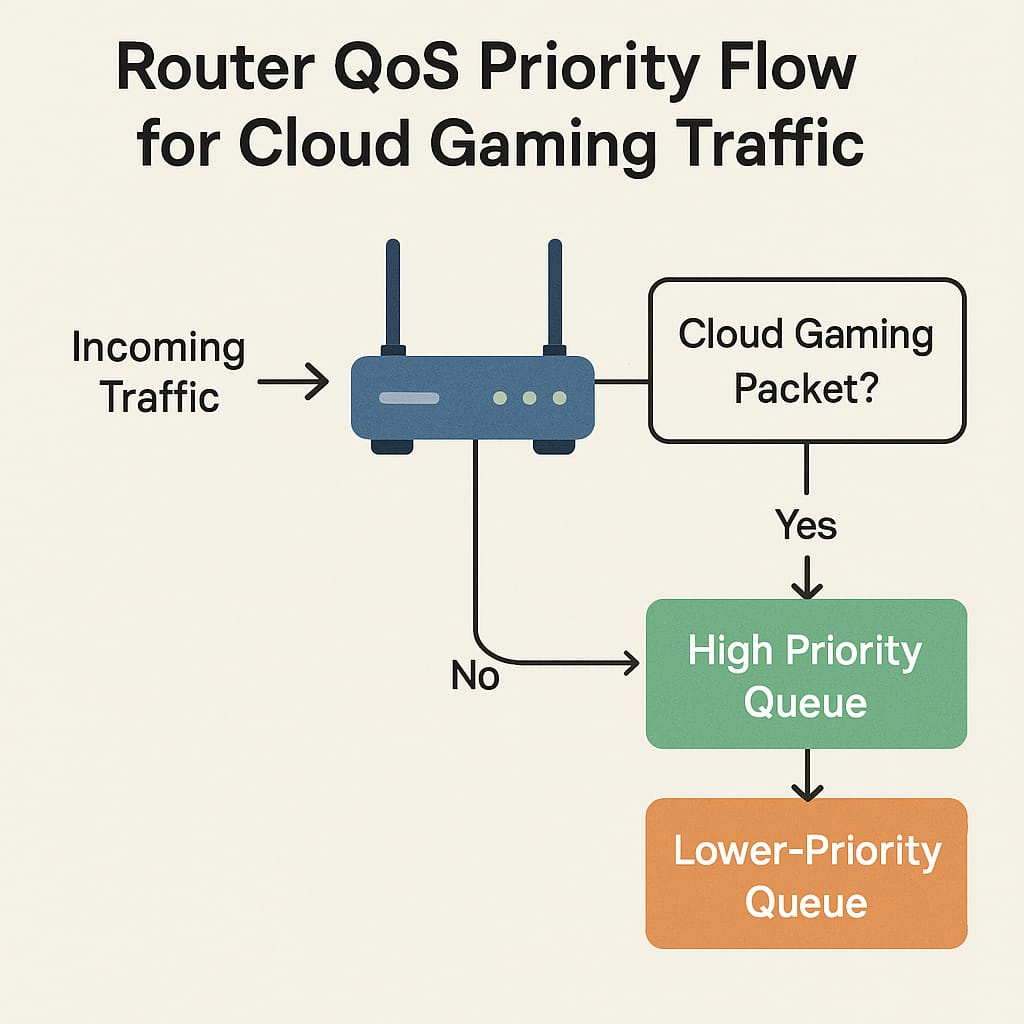
Quality of Service (QoS): What It Is
Quality of Service (QoS) is a router feature that lets you prioritize important traffic, like gaming or video calls, so it gets through first. Think of it as a traffic cop: your gaming packets get the fast lane, while background downloads wait their turn.
Without QoS, routers often split bandwidth equally, which can choke delay‑sensitive activities like gaming. With QoS rules, you can tell your router: “Xbox traffic first, Netflix later.”
Routers usually let you prioritize by:
- Device: Pick your console or PC.
- Application/Port: Target specific games or chat apps.
- Traffic Type: Auto‑detect gaming, streaming, or VoIP.
A well‑tuned QoS setup reduces ping, stabilizes jitter, and prevents packet loss, all key for smooth online play.
Why Use QoS for Cloud Gaming
Cloud gaming is especially sensitive because all gameplay, video, and inputs stream in real time. Even tiny delays can cause lag spikes, rubberbanding, or disconnects.
QoS helps by:
- Reducing lag/ping: Gaming packets go first.
- Preventing packet loss: Keeps your connection steady.
- Stabilizing jitter: Ensures consistent timing.
- Managing congestion: Stops streaming or downloads from ruining your match.
- Customizing rules: Prioritize consoles, PCs, or specific apps.
Best use cases:
- Connections under 250 Mbps.
- Households with multiple users online.
- Even gigabit homes benefit during peak hours.
QoS Fundamentals: Key Concepts
- Priority queues: Virtual “lines” where high‑priority traffic moves first.
- Priority levels: Set gaming traffic to High or Highest.
- Bandwidth limits: Reserve or cap bandwidth for devices.
- Device vs. app priority: Choose by MAC/IP or by game ports (e.g., 3074 for Xbox Live).
- DSCP tagging: Advanced option for power users, marking packets for consistent priority across networks.
Measuring Bandwidth and Knowing Your Needs
Measuring Bandwidth and Knowing Your Needs
Before setup, measure your actual bandwidth:
- Disconnect heavy network use.
- Connect a PC directly to the router via Ethernet.
- Use Speedtest.net or Fast.com.
- Run multiple tests throughout the day.
- Convert Mbps to Kbps (multiply by 1000).
Set QoS bandwidths at 80–90% of measured max. Setting too high prevents QoS from shaping traffic effectively.ly, if set too high, the router can’t “shape” traffic because it never creates a virtual bottleneck for prioritization.
Preparing to Configure QoS
- Check compatibility: Ensure your router supports QoS.
- Update firmware: Install the latest updates for stability.
- Find router login: Common IPs are 192.168.1.1 or 192.168.0.1.
Step-By-Step: How to Set Up QoS for Gaming
Universal Steps
- 1 Access router settings via browser or using your router’s IP address.
- 2 Locate QoS settings (“Advanced” > “Traffic Management” > “QoS”).
- 3 Enable QoS.
- 4 Enter measured bandwidth (80–90% of actual).
- 4 Prioritize devices/apps (set gaming PC/console to High or Highest).
- 4 Save and apply changes.
- ✓ Test and fine‑tune with ping tests or bufferbloat tools.
Detailed QoS Configuration: Popular Router Brands
Netgear Routers (Nighthawk and Similar Models)
Netgear’s implementation typically allows prioritization by device, application (by name or port), or even ethernet port. Their Nighthawk series offers “Upstream QoS”, optimized for reducing upload lag, which is key for gaming chat and action.
http://routerlogin.net (or manufacturer default).- Prioritize by application (select “Online Gaming”), device MAC address, or Ethernet port.
- Set the priority (Highest, High, Normal, Low), then click Apply.
- Highest: VoIP
- High: Gaming
- Normal: Web traffic
- Low: Torrents
ASUS Routers (Adaptive QoS and Traditional QoS)
ASUS routers stand out with their “Adaptive QoS,” designed for both easy and customizable prioritization:
http://192.168.1.1 standard).- Adaptive QoS for drag-and-drop priorities (recommended).
- Traditional QoS for custom rule creation.
TP-Link Routers (QoS & Gaming Modes)
On TP-Link routers, QoS can be set by device or traffic class, with some offering “Gaming Mode” on higher-end (Archer/X series, etc.) hardware.
192.168.0.1 or tplinkwifi.net).- On supported models, select “Gaming Mode” the router will automatically prioritize gaming traffic.
- Select your gaming console/PC, set as “High Priority,” and optionally set a duration.