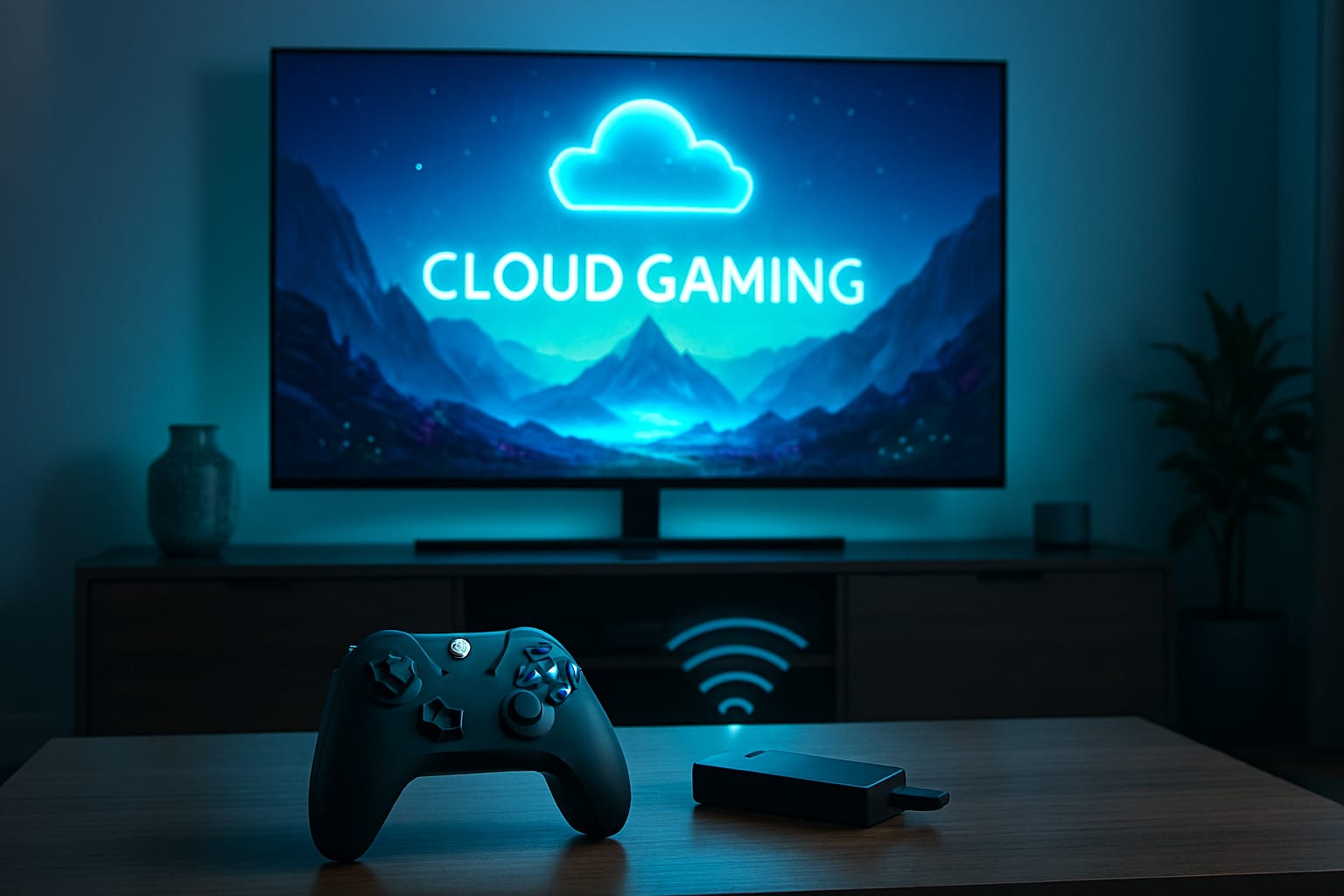
Cloud gaming has rapidly transformed the living room landscape, empowering users to play blockbuster games on their smart TVs—no console or high-end PC required. As of 2025, thanks to advances in TV hardware, internet connectivity, and cloud infrastructure, it’s easier and more compelling than ever to jump into games like Fortnite, Forza Horizon, or Halo Infinite directly from your television. With mainstream platforms like Android TV, Google TV, Samsung Tizen, LG webOS, Amazon Fire TV, and even Roku now supporting the latest cloud gaming services—such as NVIDIA GeForce NOW, Xbox Cloud Gaming, and Amazon Luna—your TV can be your new game console.
The Basics: What Is Cloud Gaming (Game Streaming)?
Cloud gaming, also called game streaming, lets you play console- or PC-level games by streaming them from remote, high-powered servers to your TV. The actual game runs in the cloud; your TV receives a video/audio stream of the action while your controller inputs are sent back to the server. This means:
- No high-end GPU/CPU required on your TV
- No downloads or local storage needed
- Access games instantly—even AAA blockbusters
- Play on a wide range of devices with only a controller and solid internet connection
For more: see our “Cloud Gaming 101: Everything you need to know” explainer.
Why Cloud Gaming on Smart TVs Is Exploding
Smart TVs have become gaming powerhouses, with brands like Samsung, LG, Sony, and TCL baking in faster processors, advanced Wi-Fi (Wi-Fi 5/6), dedicated gaming modes, and native app stores3. According to recent industry forecasts:
- The global TV and cloud gaming market is projected to reach $45 billion by 2033, fueled by widespread smart TV adoption and cloud tech evolution.
- By 2025, over 450 million users worldwide engage in cloud gaming, with rapid growth in emerging markets thanks to affordable smart TVs and robust streaming infrastructure.
Major drivers include:
- No need for expensive gaming consoles or PCs
- No hardware upgrade treadmill—play the latest games on your TV for a monthly subscription
- Seamless switching between devices
- Instant access to a vast library of games
- Frequent updates and platform improvements
Bottom line: If you own a smart TV and can connect a controller and decent internet, you already have a next-gen gaming machine in your living room.
How Cloud Gaming Works on Smart TVs
- Your TV connects to the cloud gaming service via app or browser.
- You select a game from the streaming platform.
- The service runs the game on remote servers, streams visuals/audio to your TV, and receives/controller input from you.
- No hardware upgrades—the TV handles only video decoding and controller signals.
Overview Table: Smart TV Platform, Supported Cloud Gaming Services, and Setup Requirements
| Smart TV OS / Platform | Supported Cloud Gaming Services | App Store / Hub Location | Controller Support | Internet (Min / Recommended) | Unique Setup Notes |
|---|---|---|---|---|---|
| Android TV / Google TV | GeForce NOW Blacknut Sideload: Xbox Cloud, Luna | Google Play Store | Xbox, PlayStation, Luna | 15 Mbps / 25 Mbps HD 40+ Mbps 4K | Xbox/Luna requires sideload or browser |
| Samsung Tizen | GeForce NOW Xbox Cloud Amazon Luna Blacknut Boosteroid | Samsung Gaming Hub | Xbox, PlayStation, Luna, PDP Replay | 25 Mbps HD 40 Mbps 4K | Full app integration on 2022+ models |
| LG webOS | GeForce NOW Xbox Cloud Amazon Luna | LG Content Store, Game Portal | Xbox, PlayStation, Luna | 25 Mbps HD 40 Mbps 4K | Xbox requires webOS 2022+, Luna 2021+ |
| Amazon Fire TV | Amazon Luna GeForce NOW (browser) Blacknut | Amazon Appstore | Luna, Xbox, PlayStation | 10 Mbps HD 35 Mbps 4K | Luna controller offers lower latency |
| Roku TV | Workarounds Only Browser/Cast | Roku Channel Store | Xbox, PlayStation via Bluetooth | 20 Mbps HD 35 Mbps 4K | Not officially supported; may have more lag |
| Google Chromecast (Google TV) | GeForce NOW Blacknut Boosteroid | Google Play Store | Xbox, PlayStation, Luna | 25 Mbps HD 40 Mbps 4K | Luna requires sideload currently |
Top Smart TVs for cloud gaming – Our Pick:

Sony 65 Inch 4K Ultra HD TV X90L Series
- ☁️ Cloud Ready
- 4K 120Hz
- Dolby Vision
- LED
See a vivid, crisp picture while you watch and game, all powered by the intelligent Cognitive Processor XR™. Full Array LED and XR Contrast Booster precisely controls zones of LEDs expanding the contrast range for deep, detailed blacks and increased peak brightness.
Check Price on Amazon
Samsung QN90C Neo QLED
- ☁️ Cloud Ready
- 8K 120Hz
- DOLBY ATMOS
- QLED
Watch it all in gorgeous 8K with the ultra-premium Samsung Neo QLED 8K. These ultra-sharp 8K screens use innovative precision-controlled Quantum Mini LEDs that bring you intense contrast for breathtaking detail in a wide spectrum of brilliant colors.
Check Price on amazon
LG 48-Inch Class OLED evo
- ☁️ Cloud Ready
- 4k 120Hz
- HDR10
- Full Array
Experience gaming at its best with the LG OLED evo C5-Series. Powered by the exclusive α9 AI Processor Gen7, the OLED evo C5 delivers lifelike contrast, perfect black, and rich color with over 8.3 million self-lit pixels.
Check Price on Amazon
TCL 55-Inch QM6K QLED
- ☁️ Cloud Ready
- 4k 120Hz
- Dolby Atmos
- Qled
TCL QM6K QD-MINI LED TV SERIES – AFFORDABLE PREMIUM PERFORMANCE FOR SPORTS, GAMING & STREAMING. Experience superior contrast, rich color, and ultra-smooth motion with TCL’s QD-Mini LED technology.
Check Price on Amazon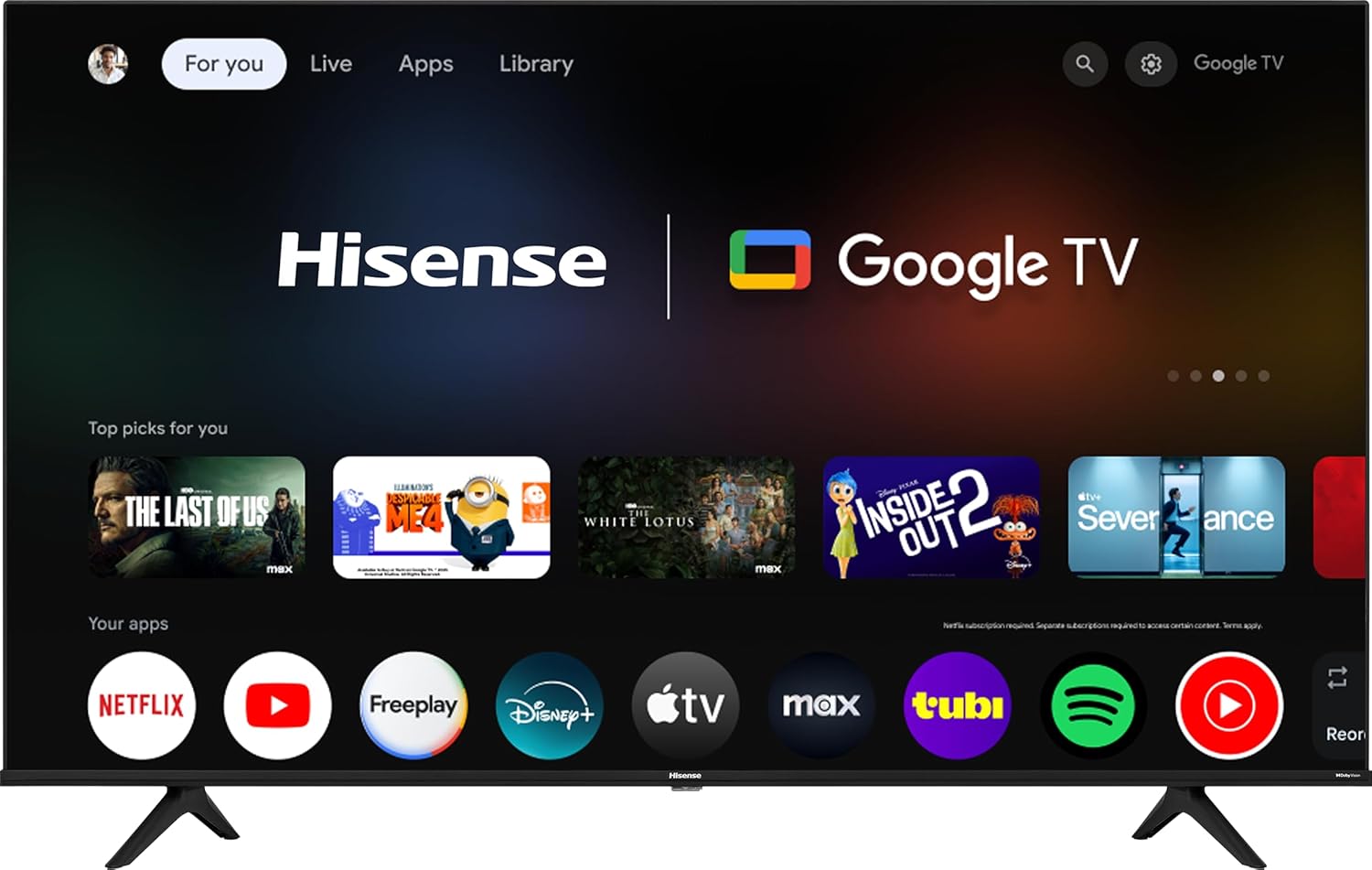
Hisense 50-Inch Class A6 Series
- 4K 60Hz
- Dolby Vision HDR
- LCD
- Google TV
The Hisense A6 series adds more picture quality enhancements and an operating system upgrade for the perfect 4K fit for consumers looking for options and affordability.
Check Price on AmazonPlatform notes:
- Any solid smart TV from 2020 onward can handle cloud gaming without a dedicated GPU or CPU.
- Newer TVs (2021+) are more likely to get full support for 4K streaming and all major cloud gaming services. Always update firmware before setup.
Hardware Requirements for Cloud Gaming on Smart TVs
Unlike PC or traditional console gaming, cloud gaming shifts nearly all the processing power to remote servers. For your TV, the “hardware requirements” are much lighter than you might expect:
- Smart TV manufactured 2020 or newer (for best support of apps and firmware updates)
- Quad-core CPU or better (almost all modern TVs have this)
- 2GB+ RAM (standard on post-2019 models)
- Wi-Fi 5/6 (802.11ac/ax) or gigabit Ethernet for optimal performance
- Bluetooth 4.0+ for controller pairing
- At least one USB port (optional, for wired controllers)
You do NOT need a high-end GPU or CPU for the TV itself, as the graphic rendering is handled in the cloud. Your TV only decodes video—a task even entry-level models do capably as long as they support H.265/HEVC or VP9 video formats.
Software & Operating System Compatibility
Key requirement: Your TV’s operating system (OS) must support the cloud gaming service’s app, or a compatible browser (for web-based gaming).
- Android TV/Google TV: Most flexible — direct app installation from Google Play. Sideloading possible for Xbox or Luna with APKs911.
- Samsung Tizen: 2022+ models support the “Gaming Hub,” offering dedicated apps for GeForce NOW, Xbox, Luna, Blacknut, Boosteroid, etc. Older Tizen versions may need firmware updates.
- LG webOS: GeForce NOW and Luna run on 2021+ TVs; Xbox app (and Game Portal) available on 2022 and newer models. Web app workarounds for older webOS possible, but limited.
- Amazon Fire TV: Full Luna app and controller integration; basic browser-based support for others. Update Fire OS for best compatibility.
- Roku TV: No official native app for GeForce NOW or Xbox. Use a browser (laggy) or cast/screen-mirror from a phone or PC. Input delay is higher.
Pro tip: Always update your TV firmware before installing new apps for maximum compatibility and performance.
Network & Connectivity Requirements
Cloud gaming is fundamentally reliant on a robust internet connection—your data travels to/from cloud servers constantly, with every button press needing to feel instant for a smooth experience.
- Minimum recommended speeds:
- 1080p: 15–25 Mbps download
- 4K: 40–50 Mbps download
- Latency: < 40ms ideal (under 80ms is acceptable but not ideal for fast-paced games)
- Connection type: Wired Ethernet is best. If using Wi-Fi, a 5 GHz network is essential.
- Data usage: Expect ~10–20 GB/hour for 4K streaming—plan for unlimited data if possible.
Optimization tips:
- Use Gigabit Ethernet or position your router for strong, direct Wi-Fi signal.
- Minimize active devices on your network during game sessions.
- Enable “Game Mode” on your TV to reduce internal processing lag.
- Close other bandwidth-heavy apps, streaming, or file downloads.
Check this guide to learn more: How to Optimize Your Network for Cloud Gaming
Controller Compatibility: Which Gamepads Work?
Most major smart TVs support external controllers via Bluetooth or USB. The following are widely compatible and recommended:
- Xbox Wireless Controller (Bluetooth-enabled)
- PlayStation DualShock 4 / DualSense 5
- Amazon Luna Controller (with Cloud Direct or Bluetooth connection)
- NVIDIA Shield Controller
- Logitech F710/F310, PDP Replay, PowerA MOGA XP5-X Plus, Razer Kishi for mobile sideload, etc.
Setup process:
- Put controller into pairing mode (hold “Pair”/Share/PS/Xbox button as required).
- Navigate to your TV’s settings → Bluetooth devices.
- Select and pair the controller.
- Some services also allow USB-wired controllers (great for lower latency).
Note: Not all controllers support all cloud gaming services. For example, the Luna controller is most effective with Amazon Luna but can also work as a generic Bluetooth controller elsewhere.
Cloud Gaming Service Compatibility
Let’s review the major services and their experience on smart TV platforms:
NVIDIA GeForce NOW
- Supported TVs: Android TV, Google TV, select Samsung Tizen (2020+), LG webOS (2020+)
- 4K streaming: Only on supported Ultimate plan/devices (e.g., LG, Samsung, NVIDIA Shield, some browsers)
- Game Library: Syncs with Steam, Epic Games, Ubisoft, and supports hundreds of AAA/indie titles
- Controller: Excellent compatibility; Xbox, PlayStation, official Shield, many third-party gamepads
- Setup: Download from TV app store or Gaming Hub (on Samsung), then log in and connect a controller.
Step-by-step (Samsung example):
- Open Samsung Gaming Hub or App Store.
- Install GeForce NOW app.
- Sign in with NVIDIA account.
- Connect a controller via Bluetooth/USB.
- Link Steam/Epic accounts for game access.
Xbox Cloud Gaming (Xbox Game Pass Ultimate)
- Supported TVs: Samsung Tizen (2022+, Gaming Hub), LG webOS (2022+), Amazon Fire TV (US/UK/most EU via Xbox app)
- Browser workaround: Xbox cloud gaming can run in supported browsers on Android TV, Fire TV, select LGs (not perfect, but works in many regions)
- Requirements: Xbox Game Pass Ultimate account, Microsoft login, compatible controller
- Feature highlights: Access to hundreds of rotating games (including Halo, Forza, Starfield). No installation needed for new games.
- Setup (Samsung example):
- Access the Xbox app via Gaming Hub
- Sign in or create a Microsoft account
- Connect controller as above
- Browse and play!
Amazon Luna
- Supported TVs: Amazon Fire TV (built-in), select Samsung Tizen (2021+, via app), LG webOS (2021+, via app), Android TV (beta support via sideloading), browser on Chromebook/macOS/Windows/iOS
- Unique feature: Luna Controller’s “Cloud Direct” mode connects straight to Amazon servers, reducing latency for Fire TV and browsers
- Game Library: Luna+, Ubisoft+, Jackbox subscriptions; some free games for Amazon Prime subscribers
- Best for: Casual & family games, retro/party gaming, Ubisoft fans, those wanting “pick up and play” + voice controls via Alexa
- Setup:
- On Fire TV: Download Luna app, log in with Amazon account, pair Luna controller
- On Samsung/LG: Install from app store or Gaming Hub, connect controller, log in
Platform-Specific Cloud Gaming Setup Guides
Each smart TV OS has its own store/app layout and controller/connection quirks. Below is a practical “quick start” for each major flavor:
Android TV and Google TV
- Connect TV to strong Wi-Fi or Ethernet.
- Update OS via Settings > About > System Updates.
- Enter Google Play Store:
- Install GeForce NOW, Blacknut, or other available cloud gaming apps.
- For Xbox or Luna, sideload APK if official app isn’t in store (how-to: [link to detailed sideloading guide]).
- Pair your preferred Bluetooth controller in TV Settings.
- Open the game app, sign into your account, and play.
Pro tip: Use “Game Mode” or “Low Latency Mode” on compatible TVs for the lowest input lag.
Samsung Tizen (Samsung Gaming Hub)
- Update TV firmware to latest version.
- Navigate to “Gaming Hub” from main TV menu.
- Select desired cloud gaming app: GeForce NOW, Xbox, Luna, Boosteroid.
- Download and install the app if needed.
- Pair controller (Bluetooth/USB; see supported list above).
- Log in to the cloud gaming app with your service credentials.
- Browse, select game, play.
Unique: Samsung’s Gaming Hub supports single-controller passthrough, so you can use the same controller for both streaming and local console gaming (Switch, PS5, etc.).
LG webOS
- Update TV firmware and ensure support for current webOS version (2021+ webOS 6.0 or later ideal).
- Open the LG Content Store or Gaming Portal.
- Download GeForce NOW, Luna, or Xbox (as compatible).
- Connect controller.
- Follow app sign-in and start gaming.
Tip: For Xbox Cloud Gaming on older LGs, look for webOS browser-based workarounds (e.g., Better xCloud on webOS 22+).
Amazon Fire TV
- Open Amazon Appstore and download Luna (native app).
- For GeForce NOW, use Silk browser to access play.geforcenow.com (performance less optimal than on native app).
- Pair Luna, Xbox, or PlayStation controller as desired.
- Sign into cloud gaming service in app or browser.
Voice: Luna uniquely allows Alexa voice control to launch games. Example: “Alexa, play Fortnite on Luna.”
Roku TV
Roku currently does not offer direct native apps for cloud gaming. Instead, use:
- Option 1: Built-in web browser (not optimal—high input lag and lower compatibility)
- Option 2: Screen mirroring/casting from an Android device or Windows/Mac PC that’s running the cloud gaming app
Account Creation, Subscriptions & Cross-Platform Access
- Sign Up: Each cloud gaming service requires its own account:
- GeForce NOW: NVIDIA account, free or paid tier
- Xbox Cloud Gaming: Microsoft/Xbox account, Game Pass Ultimate subscription
- Amazon Luna: Amazon account, optional Luna+/Ubisoft+/Jackbox subscription
- Family Sharing: Some platforms (Luna, Blacknut) allow family account management.
- Game purchases: GeForce NOW streams games you already own (Steam/Epic), while Luna and Xbox Game Pass provide an “all-you-can-play” subscription to their respective libraries.
- Payment & Renewals: All services offer monthly/annual billing; Luna and Xbox sometimes bundle free trials with new TVs or controllers.
- Account Management: Use TV apps or companion mobile apps to update payment methods, renew subscriptions, and manage cloud saves.
Comparison Table: Cloud Gaming Services on Smart TVs
[su_table responsive=”yes” alternate=”no”]
| Service | Supported TV Platforms | Game Library/Access | Max Streaming Res/FPS | Trial/Free Option | Controller Support | Notable Limitations |
| NVIDIA GeForce NOW | Android TV, Samsung, LG | Stream own Steam/Epic games | Up to 4K/120fps (Ultimate) | Free (1hr); paid tiers | Xbox, PS, SHIELD, others | 4K only on some TV models |
| Xbox Cloud Gaming (xCloud) | Samsung, LG, Fire TV, Android (workaround) | Game Pass Library | 1080p/60fps | With Game Pass Ultimate | Xbox, PlayStation, PDP, others | 4K not yet available, some TVs unsupported |
| Amazon Luna | Fire TV, Samsung, LG, Android (beta) | Luna+, Ubisoft+, Jackbox | 1080p/60fps | Prime free games, Luna+ trial | Luna, Xbox, PlayStation | 4K in early rollout, limited outside Amazon ecosystem |
| Blacknut | Android TV, Samsung, LG | 500+ casual/family games | 1080p/60fps | 7 day trial | Xbox, PlayStation, generic | Fewer AAA/indie hits |
| Boosteroid | Samsung, Android TV | Bring own or subscribe | 1080p/60fps | Yes | Wide | Service region-dependent |
Always refer to the latest service compatibility page as support is constantly improving and expanding.
[/su_table]
Troubleshooting & Common Issues
Lag or input delay?
- Switch to wired Ethernet if possible
- Move TV/router closer
- Test internet speed and latency (try < 40ms ping, 25+ Mbps)
Controller not connecting?
- Re-pair controller via Bluetooth settings
- Try a different USB cable or BT device
- Some TV models may need a firmware update or only support certain controllers—check support docs
Game won’t launch or crashes?
- Sign out, reboot app/TV
- Ensure your subscription is active
- Update the app to latest version
Poor video quality or stutter?
- Lower streaming resolution in app settings
- Pause downloads/streams on other networks
- Contact your ISP if speeds consistently test below requirements
Conclusion: Your Next Steps (and Why the Future Is Cloudy)
Smart TV cloud gaming isn’t a fad—it’s the clearest path to big-screen gaming for most users worldwide, regardless of their device or budget. With only a modern TV, controller, and good internet, you can enjoy console-quality games, try before you buy with service trials, and never worry about hardware limitations again.
With new platforms and partnerships appearing each year—Microsoft and Sony expanding into more TV OSes, NVIDIA pushing for 4K/120hz mainstream streaming, Amazon Luna adding new casual/family features—your television will only become more capable over time, not less.
Now, all that’s left is for you to jump in—and let the cloud do the heavy lifting. Happy gaming!
FAQs
Yes, 2020 or newer is best. Update firmware first.
Usually, yes! Most smart TVs support both via Bluetooth or USB.
Not for hardcore enthusiasts just yet, but for mainstream/casual and families, it’s already a true replacement.
25 Mbps for 1080p, 40-50 Mbps for 4K per device.
You can add an Android TV box, Chromecast, or Fire Stick for $40–$100 and gain full support.
On the unforgiving battlefields of Crimson Desert, there is no single path to victory. With every strike and move, forge your own way in a world where a split second can decide your fate in fast-paced, visceral battles.
Find More Games →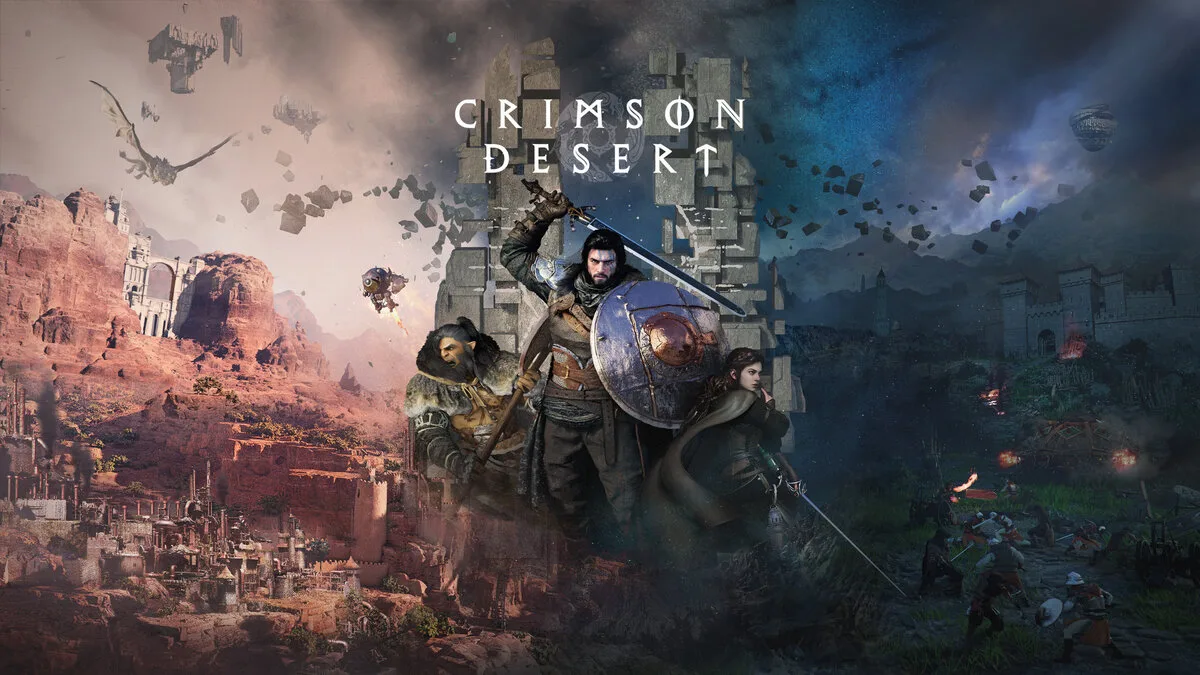
 GeForce NOW
  Xbox Cloud Gaming
  Amazon Luna
  Shadow
  Boosteroid
  PlayStation Plus
  AirGPU
GeForce NOW
Xbox Cloud Gaming
Amazon Luna
Shadow
Boosteroid
PlayStation Plus
AirGPU
AirGPU
GeForce NOW
Xbox Cloud Gaming
Amazon Luna
Shadow
Boosteroid
PlayStation Plus
AirGPU