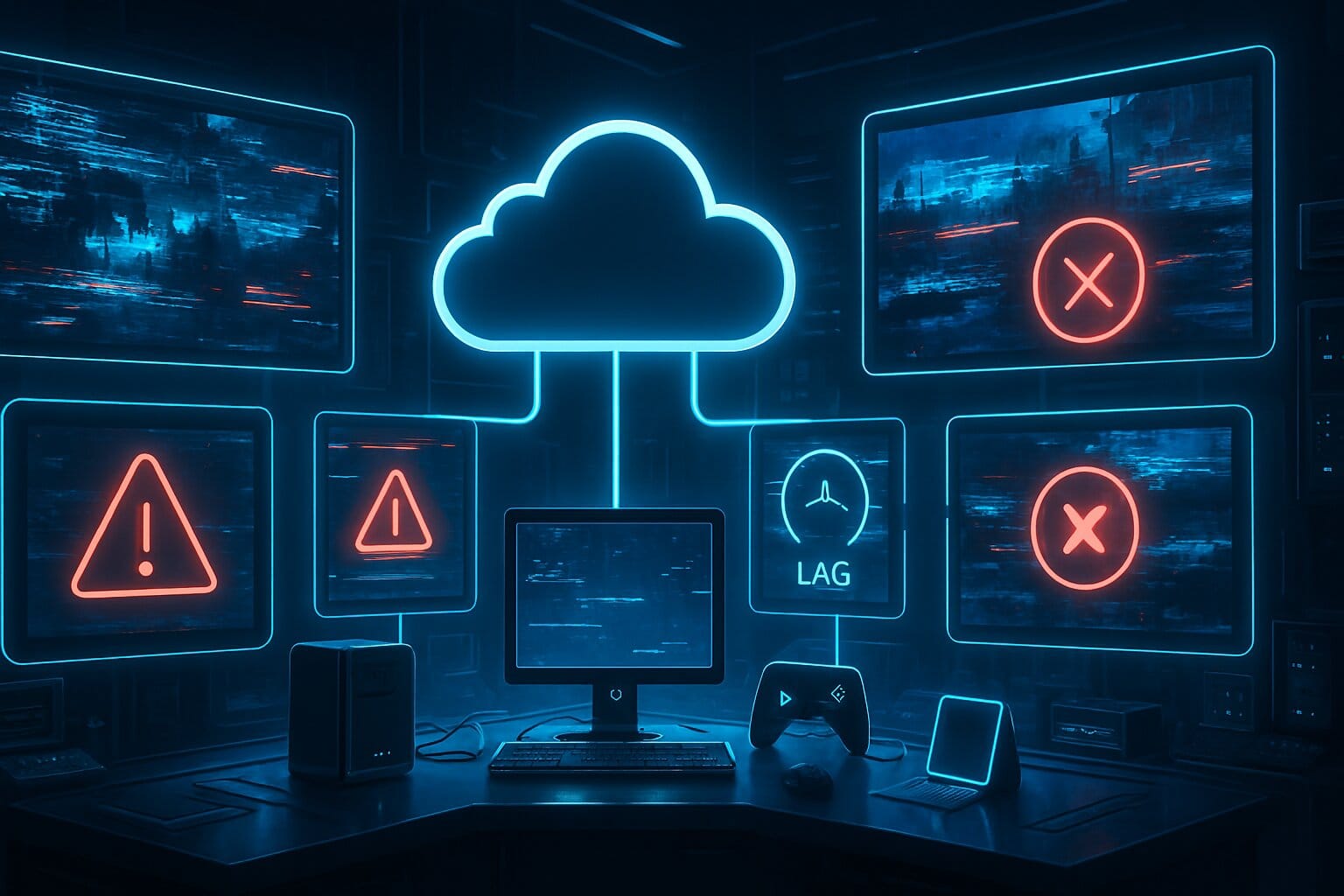
Cloud gaming delivers console-quality play without the expensive hardware—but lag, input delay, and random disconnects can derail a session fast. This guide walks you through the Top 10 Cloud Gaming Issues & How to Fix Them with quick wins and deeper, platform-specific solutions. Whether you’re on GeForce NOW, Xbox Cloud Gaming, Amazon Luna, Boosteroid, or PlayStation’s streaming, you’ll find clear steps to stabilize and speed up your setup.
Cloud Loadout specializes in performance tuning and troubleshooting, so we’ll keep things practical, current, and tested across real-world scenarios.
Top 10 Cloud Gaming Issues & How to Fix Them: Quick Reference
| Issue | Symptoms | Fast Fix | Deep Fix |
| High Latency & Jitter | Input delay, rubberbanding | Use Ethernet, nearest region | Optimize routing, test peering, escalate to ISP |
| Weak/Unstable Wi‑Fi | Stutters, drops | Move closer, 5 GHz/6 GHz | Wi‑Fi 6/6E/7 mesh, channel tuning, firmware |
| Bandwidth Saturation | Pixelation, buffering | Pause downloads/streams | QoS rules, plan upgrade, traffic shaping |
| ISP Throttling/Peering | Evenings slow, quality dips | Test with/without VPN | Ask ISP about peering; change plan or provider |
| Device or Software Limits | Crashes, choppy playback | Update OS/app/driver | Enable hardware accel, upgrade aging device |
| Controller Input Lag | Slow/unreliable inputs | Use wired USB | Update firmware, low-latency BT, TV passthrough |
| Background Processes | Random hitches/stutter | Close apps/tabs | Schedule updates/scans; clean startup |
| Display/TV Processing | Visual delay/ghosting | Enable Game Mode | Disable motion smoothing; choose low-lag panel |
| Server Congestion/Region | Spikes at peak hours | Play off-peak | Switch regions/platforms; monitor status |
| Browser/Client Issues | Crashes, artifacts | Use supported browser | Clear cache, enable HW accel, try native app |
1. High Latency (Ping) and Jitter
- Symptoms: Noticeable input delay, rubberbanding, or an action that triggers a fraction of a second too late.
- Common Causes: Long physical distance to the server, inefficient routing, congested hops, Wi‑Fi instability, or VPN overhead.
Fast Fixes
- Use Ethernet: Plug in directly to eliminate wireless variability.
- Pick the nearest region: In-platform region selectors reduce distance.
- Reduce interference: If you must use Wi‑Fi, use 5 GHz/6 GHz and keep line-of-sight.
Deep-Dive Fixes
- Trace your route:
- Tools: Use PingPlotter/WinMTR.
- Goal: Identify high-latency or lossy hops.
- Optimize Wi‑Fi:
- Router: Enable QoS (Quality of Service), choose DFS channels where permitted, and use an 80 MHz width on 5 GHz or 160 MHz where stable. Update firmware.
- Rethink topology:
- Alternatives: Powerline (HomePlug AV2) or MoCA if Ethernet runs aren’t possible.
- ISP escalation:
- Ask about peering: Better paths to cloud providers can cut ping and jitter.
Platform Notes
- GeForce NOW: Settings → Server Location → Auto vs Nearest; enable Packet Loss overlay for diagnostics.
- Xbox Cloud Gaming: Settings → Network; ensure “Latency” and “Packet loss” are green before play.
- Amazon Luna: Preferences → Region; set Stream Quality to match connection stability.
- Boosteroid: Profile → Connection Test; switch region if consistently high ping.
- PlayStation Streaming: Network → Test Internet Connection; pick closer data center if available in your region.
Tools to Verify
- Speedtest, PingPlotter/WinMTR, Router admin page for signal/channel stats.
When to Escalate
- Persistent >80 ms ping or heavy jitter after home optimizations—contact ISP for routing/peering options or try another provider.
2. Weak or Unstable Wi‑Fi Signal
- Symptoms: Micro-stutters, sudden drops, or fluctuating bitrates despite good ISP speed.
- Common Causes: 2.4 GHz congestion, walls/obstructions, legacy routers, or crowded apartments.
Fast Fixes
- Switch bands: Use 5 GHz or 6 GHz (Wi‑Fi 6E/7) for lower interference.
- Move closer: Shorten distance and avoid obstacles.
- Simplify: Disconnect idle devices hogging airtime.
Deep-Dive Fixes
- Upgrade hardware:
- Routers: Wi‑Fi 6/6E/7 with beamforming, MU‑MIMO, and modern chipsets.
- Mesh: Add nodes for even coverage; wire the backhaul if possible.
- Tune channels:
- DFS channels: Less crowded (region-dependent).
- Channel width: 80 MHz for 5 GHz; 160 MHz only if clean spectrum.
- Security and compatibility:
- WPA2/WPA3: Avoid legacy protocols that limit speed/stability.
- Firmware updates: Keep router/AP firmware current.
Platform Notes
- All platforms benefit from stable signal; some clients reveal “Network quality” or “Packet loss” overlays—use them during gameplay.
Tools to Verify
- Wi‑Fi analyzer apps, Router admin, in-app network overlays.
When to Escalate
- Frequent disconnects despite tuning—switch to Ethernet, Powerline, or MoCA.
This article covers everything you need to know about Wi‑Fi vs. Ethernet: don’t miss it.
3. Bandwidth Saturation and Quality Drops
- Symptoms: Sudden pixelation, resolution downshifts, or buffering.
- Common Causes: Competing downloads/streams, video calls, or cloud backups saturating upstream/downstream.
Fast Fixes
- Pause heavy tasks: Stop downloads/updates on PCs, consoles, and smart TVs.
- Prioritize traffic: Enable router QoS and tag your gaming device as high priority.
Deep-Dive Fixes
- Right-size your plan:
- Guidelines (varies by platform):
- 720p: 10–15 Mbps
- 1080p60: 20–35 Mbps
- 1440p60: 35–50 Mbps
- 4K60: 45–75+ Mbps
- Upload: Keep ≥10 Mbps for control/stream stability.
- Guidelines (varies by platform):
- Smart scheduling:
- Updates/backups: Run overnight outside play hours.
Platform Notes
- GeForce NOW: Settings → Streaming Quality → Bitrate; select “Ultra” only if your line supports it consistently.
- Xbox Cloud Gaming: Network test shows “Bandwidth”—ensure it stays in green.
- Luna/Boosteroid/PlayStation: Offer quality presets—pick “Balanced” during busy hours.
Tools to Verify
- Speedtest, Router traffic graphs, In-app bitrate overlays.
When to Escalate
- Persistent downshifts even when alone on the network—consider a higher-tier plan or better router.
Need to go in-depth into the best bandwidth settings! Check: The Ultimate Guide to Bandwidth, Bitrate & Streaming Settings
4. ISP Throttling or Poor Peering
- Symptoms: Evenings cause massive slowdowns; streaming traffic flagged and de-prioritized.
- Common Causes: Traffic shaping on video-like streams, congested peering with cloud providers.
Fast Fixes
- A/B test a VPN: If performance improves with a VPN, throttling/peering is likely.
- Play off-peak: Reduce the likelihood of shaping during prime time.
Deep-Dive Fixes
- Talk to your ISP:
- Ask: Do you throttle streaming classes? What peering exists with cloud gaming providers?
- Change plan/provider:
- Options: Business-lite or gamer plans with better peering.
- Static routing (advanced):
- Routers with policy-based routing: Prefer clean paths where available.
Platform Notes
- Some platforms publish status pages; check for regional issues before assuming ISP trouble.
Tools to Verify
- Speedtests over time, PingPlotter during peak, VPN comparisons.
When to Escalate
- Consistent prime-time degradation only on your ISP—file a ticket, consider switching providers.
5. Device Limitations or Outdated Software
- Symptoms: App crashes, slow UI, tearing/choppy playback.
- Common Causes: Old CPUs, limited RAM, outdated OS or drivers, or disabled hardware acceleration.
Fast Fixes
- Update everything: OS, GPU drivers, controller firmware, and the cloud client.
- Use supported clients: Prefer native apps or supported browsers (Chrome, Edge).
Deep-Dive Fixes
- Enable hardware acceleration:
- Chrome/Edge: Settings → System → “Use hardware acceleration when available.”
- Check device specs:
- Baseline: Dual‑core 2.0 GHz+, 4–8 GB RAM, modern iGPU with video decode acceleration.
- Upgrade path:
- Low-cost wins: Newer Chromebooks/TV sticks, or a compact PC with modern decode support.
Platform Notes
- Smart TVs: Keep TV firmware and app versions updated; older models may cap performance.
Tools to Verify
- Task Manager/Activity Monitor, Browser GPU page (chrome://gpu), Client diagnostics.
When to Escalate
- Repeated crashes or decoding bottlenecks—consider a newer streaming device.
6. Controller Input Lag
- Symptoms: Buttons feel “mushy” or delayed; stick response is inconsistent.
- Common Causes: Bluetooth latency, TV passthrough processing, old firmware, USB hubs.
Fast Fixes
- Go wired: USB cable beats Bluetooth for latency.
- Update firmware: Xbox/DualSense updates can materially cut delay.
- Avoid hubs: Plug straight into the device.
Deep-Dive Fixes
- Low-latency Bluetooth modes:
- Android/TV: Enable “Low latency” controller options when present.
- TV passthrough:
- Settings: Enable Game Mode; disable ALLM conflicts; prefer eARC passthrough if using receivers.
- Platform mapping:
- PC: Use Steam Input or platform-specific mappings for consistent behavior.
Platform Notes
- GeForce NOW: PC app supports wired controllers best; on TV apps, use brand-recommended gamepads.
- Xbox Cloud Gaming/PlayStation: Official controllers + wired generally yield the best results.
Tools to Verify
- Controller firmware utilities, In-game input latency tests, USB polling tools (advanced).
When to Escalate
- Persistent delay on Smart TVs—use a dedicated streaming device or PC with a wired controller.
7. Background Processes and Resource Hogs
- Symptoms: Stutters, frame pacing issues, or sudden slowdowns despite good network stats.
- Common Causes: OS updates, antivirus scans, file sync, or many open tabs consuming CPU/GPU.
Fast Fixes
- Close the noise: Shut down extra apps/tabs, pause cloud backups.
- Pause updates: Temporarily stop OS/game launcher updates during sessions.
Deep-Dive Fixes
- Startup hygiene:
- Windows: Task Manager → Startup Apps → Disable non-essentials.
- Scheduled maintenance:
- Antivirus/Backups: Run overnight.
- Browser discipline:
- Extensions: Disable heavy extensions while streaming.
Platform Notes
- Low-cost streaming sticks can struggle with many background services—keep them lean.
Tools to Verify
- Task Manager/Activity Monitor, Resource Monitor, Browser Task Manager.
When to Escalate
- Chronic CPU spikes—upgrade to a device with stronger decode and more RAM.
8. Display and TV Processing
- Symptoms: Visual lag, soap-opera effect, ghosting, or desync between input and action.
- Common Causes: Post-processing (motion smoothing, noise reduction), high-latency picture modes.
Fast Fixes
- Enable Game Mode: Bypass heavy processing to cut input lag. Check [Cloud gaming TV set up].
- Disable processing: Turn off motion smoothing, dynamic contrast, and noise reduction.
Deep-Dive Fixes
- Input-specific settings:
- HDMI labels: Some TVs unlock reduced latency per input when labeled “PC” or “Game.”
- Panel choice:
- Low-lag displays: Seek monitors/TVs with <10 ms measured input lag.
- Match frame rate:
- VRR/ALLM: Where supported, reduce judder and mode-switch lag.
Platform Notes
- TV vendor UIs vary; search for “Game Mode,” “ALLM,” or “PC mode.”
Tools to Verify
- Display reviews for lag numbers, TV OSD to confirm Game Mode, Controller latency tests.
When to Escalate
- Unavoidable TV lag—switch to a gaming monitor or low-latency mode device.
9. Server Congestion or Region Mismatch
- Symptoms: Random spikes, inconsistent image quality, or queues at login.
- Common Causes: Peak-hour demand, overloaded data centers, or automatic assignment to a suboptimal region.
Fast Fixes
- Play off-peak: Early mornings/late nights often stabilize sessions.
- Manual region: Pick the closest/least congested region if the app allows.
Deep-Dive Fixes
- Region testing:
- Rotate regions: Log comparative ping/quality over a few days.
- Platform diversity:
- Try others: If one platform is busy in your area, test alternatives.
Platform Notes
- GeForce NOW/Boosteroid: Often expose region selectors.
- Xbox/Luna/PlayStation: Typically auto-assign; rely on off-peak play and platform status pages.
Tools to Verify
- In-app latency/bandwidth overlays, Third-party latency tests.
When to Escalate
- Weeks of congestion—consider alternate platforms or raise a ticket with provider support.
10. Browser or Client App Issues
What it looks like
- Symptoms: Crashes, artifacting, or inconsistent performance in certain browsers or app versions.
Why it happens
- Common Causes: Unsupported browsers, disabled hardware acceleration, corrupted cache, or clashing extensions.
Fast Fixes
- Use supported clients: Chrome/Edge or the official native app.
- Clear cache/cookies: Remove corrupt state.
- Disable extensions: Especially ad blockers, privacy tools, or video helpers during sessions.
Deep-Dive Fixes
- Enable hardware acceleration:
- Chrome/Edge: Settings → System → “Use hardware acceleration.”
- Reset profiles:
- New browser profile: Test clean extensions.
- Try native app:
- PC/TV apps: Often more stable and offer better controller support.
Platform Notes
- GeForce NOW: Native apps for Windows/macOS/TVs; browser fallback supports WebRTC with HW decode. See [Link: GeForce NOW Setup].
- Xbox Cloud Gaming: Best in Edge/Chrome; look for “Use hardware acceleration” enabled. See [Link: Xbox Cloud Gaming Guide].
Tools to Verify
- chrome://gpu, about:flags checks, Client diagnostics pages.
When to Escalate
- Frequent crashes after resets—reinstall the client or switch device.
Pro Tips and Quick Wins Checklist
- Network first:
- Ethernet over Wi‑Fi: Use wired where possible; fall back to Powerline or MoCA if running cable is impossible.
- Aim for the right metrics:
- Latency: Sub‑40 ms feels great; >80 ms often adds visible input delay.
- Bandwidth: 1080p60 needs roughly 20–35 Mbps; 4K60 can need 45–75+ Mbps (varies by platform).
- Tune the router:
- QoS (Quality of Service): Prioritize your gaming device.
- Channels/DFS: Reduce interference; keep firmware updated.
- Keep devices lean:
- Background apps off: Schedule updates and scans for off-hours; limit browser extensions while streaming.
- Display settings matter:
- Game Mode on: Disable motion smoothing; prefer low input-lag panels.
- Understand NAT (Network Address Translation):
- Open/Moderate/Strict: While cloud gaming uses outbound connections, restrictive NAT or UPnP issues can still affect stability—ensure UPnP is on or forward required ports when advised by your platform.
FAQs
Because latency and jitter matter more than raw speed. You can have 500 Mbps and still suffer if your ping is 90 ms with unstable routing. Fix: Use Ethernet, choose the nearest region, enable QoS, and test for ISP peering issues.
Usually bad, sometimes good. VPNs add overhead and can raise ping, but they may bypass throttling or poor peering. Test both ways; keep the version that’s measurably better. See [Link: VPN Guide].
Prioritize the gaming device with QoS, update firmware, use 5 GHz/6 GHz bands, pick clean (DFS) channels, and reduce channel width if your environment is noisy. See [Link: Router QoS].
Not strictly, but it helps. A strong 5 GHz link can do 4K, but Wi‑Fi 6/6E/7 improve stability, capacity, and latency—especially in busy homes.
1080p60: ~20–35 Mbps; 4K60: ~45–75+ Mbps depending on codec, platform, and game complexity. Always leave headroom for other devices.
TV processing and Bluetooth latency. Turn on Game Mode, disable motion smoothing, and if possible plug your controller in via USB or use a low-latency wireless mode.
Conclusion and Next Steps Fixing cloud gaming problems is a methodical process: identify the bottleneck → apply the fast fix → verify with tools → escalate only if needed. Start with the network (Ethernet, region, QoS), then stabilize the device (updates, hardware acceleration), and finish with the display (Game Mode) and controller.