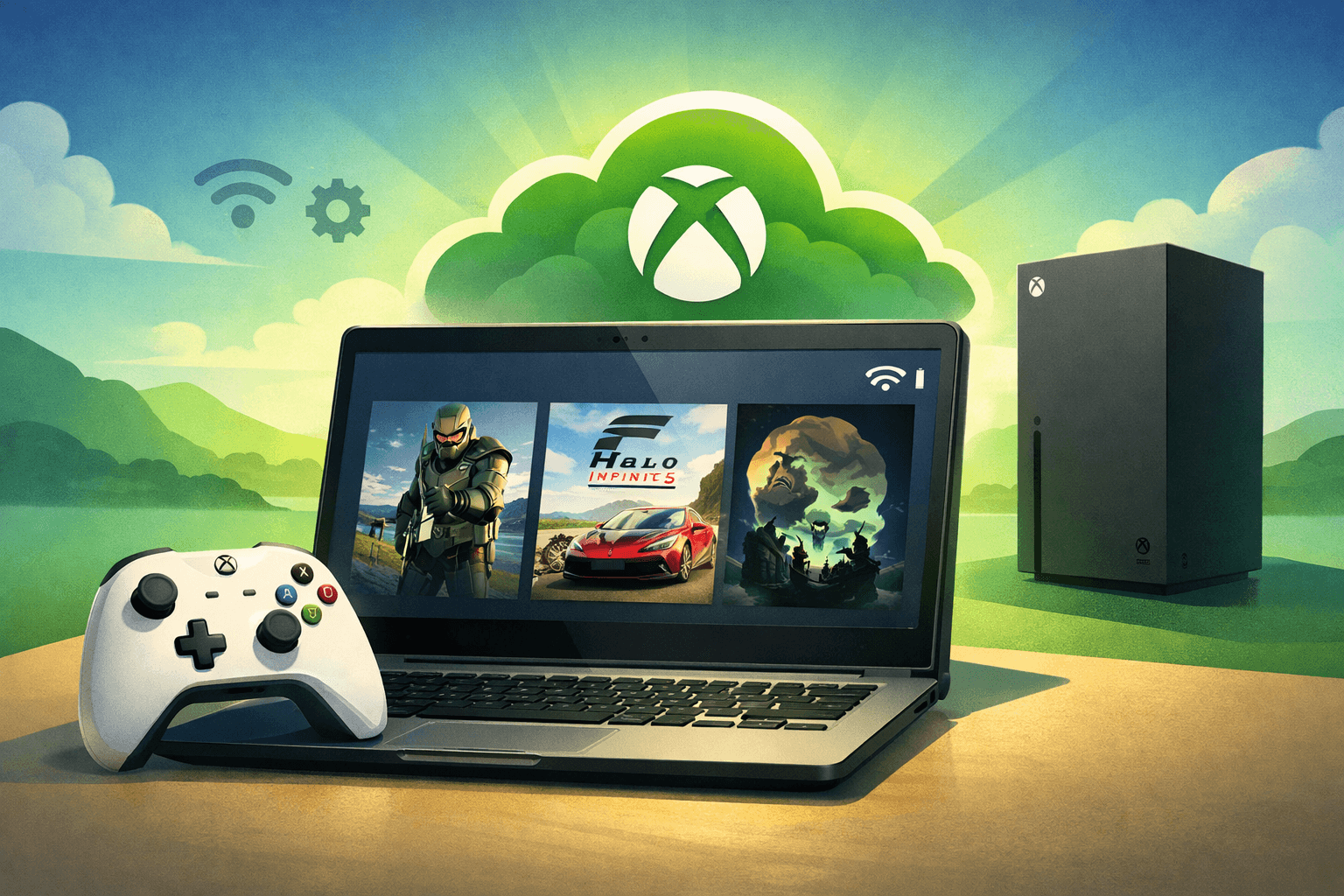
Xbox Cloud Gaming now lets you stream a massive library of Xbox titles including brand‑new releases and cult classics straight to your Chromebook, even if your device doesn’t have the specs normally required for modern PC gaming.
as of 2025, Xbox Cloud Gaming has matured significantly, offering 1080p resolution, higher frame rates, and smoother setup than ever before. For students, travelers, and budget‑conscious gamers, Chromebooks paired with cloud gaming have become the go‑to option for portable, affordable play.
In this guide, i’ll show you:
- How to set up Xbox Cloud Gaming on a Chromebook
- How to fix common issues that users encounter
- How to optimize performance for the best possible experience
All explained in short, digestible steps with up‑to‑date insights tailored for 2025 and beyond.
Requirements at a Glance
Before jumping into the step-by-step guide, make sure your Chromebook and setup meet these requirements:
| Requirement | Cloud Gaming Needs |
|---|---|
| Device | Chromebook (ChromeOS version 85 or above) |
| Browser | Google Chrome v85+, Microsoft Edge (Chromium), or Progressive Web App (PWA) |
| Subscription | Xbox Game Pass Ultimate (required for most games) |
| Internet Connection | Minimum 10 Mbps (mobile); 20–25 Mbps recommended (Wi‑Fi/PC) |
| Controller | Bluetooth controller (Xbox, PlayStation, Stadia, or compatible 3rd‑party) |
| Extra (optional) | Wired connection for best performance; school block workaround method if needed |
Note: Some games support touch controls; more on that later.
Let’s break down and explain why these factors matter.
A. Device & Operating System
- Google’s updates continue to improve performance, but older or locked‑down school models may cause barriers.
- Most modern Chromebooks (built after 2017) handle cloud gaming well.
- Make sure you’re running ChromeOS v85+ for best compatibility.
- Google’s updates continue to improve performance, but older or locked‑down school models may cause barriers.
B. Browser
- On Chromebooks, Chrome is the best choice thanks to mature video acceleration and full compatibility.
- Xbox Cloud Gaming officially supports Chrome, Edge, and in some cases Firefox and Safari.
C. Subscription
- In 2025, Microsoft is testing a free, ad‑supported tier that may allow limited play without a subscription.
- You’ll need an active Xbox Game Pass Ultimate subscription for full access.
- ⚠️ Details can change quickly—always check for the latest updates.
D. Internet Connection
- Raw speed matters, but stability and low latency are even more critical.
- For best results:
- Expect to use 7–10 GB of data per hour at 1080p/60fps—monitor usage if you’re on a capped plan.
E. Controller
- While some titles support touch controls, most games require a Bluetooth controller.
- Best experience: Xbox Wireless Controller
- Other supported options: PlayStation DualShock 4, Google Stadia Controller, and USB wired controllers
- We’ll show you how to pair them step‑by‑step below.
Our Pick

Acer Chromebook Plus 515 Laptop
Chrome OS • 10 Hours Battery Life • Wi-Fi 6E
The Best of Google, in a Laptop: Chromebooks run ChromeOS, the fast, secure operating system from Google, with built-in Google apps like Gmail, Gemini, Docs, Photos, YouTube, and more.
Step-by-Step: Setting Up Xbox Cloud Gaming on Chromebook
1. Browser-Based Cloud Gaming: The Main Method
The browser-based method is Microsoft’s official and most-stable route for Chromebook. Here’s how to get Xbox Cloud Gaming running on any compatible ChromeOS device:
| Step | Instructions |
|---|---|
| Step 1 |
Get Xbox Game Pass Ultimate
|
| Step 2 |
Open the Official Xbox Cloud Gaming Portal
|
| Step 3 |
Save Xbox Cloud Gaming as a Web App (Optional, but Recommended)
You’ll now find Xbox Cloud Gaming in your Chromebook launcher. For easier access, right-click and select “Pin to shelf.” Why use this method? This setup makes Xbox Cloud Gaming feel like a native app. It keeps your session isolated and improves focus and stability. |
| Step 4 |
Connect and Pair Your Controller A controller is essential for most games. Here are the two best ways to connect an Xbox Wireless Controller to your Chromebook: Bluetooth Pairing
Wired Pairing (USB)
If you use a different Bluetooth controller (PlayStation DualShock, Stadia, or a 3rd party device), follow the manufacturer’s pairing steps. Most are detected easily, but always check compatibility for niche or older models. |
| Step 5 |
Adjust Display and Network Settings
|
| Step 6 |
Start Gaming!
|
2. App-Based Methods (Third-Party and Experimental)
There is currently no official Xbox Cloud Gaming Android app or native extension for ChromeOS supported by Microsoft. Cloud gaming services, including Xbox, prioritize browser-based solutions for Chromebooks, ensuring compatibility and maintenance ease.
Can I Use the Android Xbox App on Chromebook?
- The Xbox app in the Google Play Store is optimized for smartphones, not Chromebooks or ChromeOS tablets. You can install it via the Play Store, but it will run in a mobile layout and not take full advantage of your screen or ChromeOS features. For best results, always use the browser method.
What About Third-Party Tools or PWAs?
- Progressive Web Apps (PWAs): By creating a shortcut in Chrome with “Open as window,” you’re already using a PWA-equivalent experience. Chromebooks treat this as an installable app, which delivers optimal functionality.
- Better xCloud extension: Some advanced users leverage open-source browser extensions that modify or enhance the streaming experience (for features like mouse and keyboard support, sharper visuals, or custom touch overlays). Use these at your own risk and note they are not officially supported by Microsoft. However, no reports of bans or penalties have been cited for using them as of late 2025.
3. School or Managed Chromebook Workarounds
Accessing Xbox Cloud Gaming on a school chromebook like the HP Chromebook may be restricted due to administrator blocks, extension policies, or network firewalls.
Quick Tips for School Chromebooks:
- VPN or Proxy: A VPN may circumvent regional or school blocks but may also introduce latency and further issues. Some schools actively monitor and block VPN usage.
- Guest Mode: Sometimes, launching your Chromebook in Guest mode or using a personal, unmanaged account can bypass certain restrictions.
- Browser Extensions: Some browser extensions or cloud gaming “unblocker” websites claim to allow access to xCloud. Results vary with the latest school security policies, so approach with caution.
- Mobile Hotspot: If the network blocks all cloud gaming traffic, using your phone’s mobile data or a portable WiFi hotspot (if allowed) might let you access Xbox Cloud Gaming, albeit with potential latency and limited data.
Supported Browsers and Best Settings
| Browser | Supported on Chromebook | Notes |
|---|---|---|
| Google Chrome | Yes (v85+) | Officially recommended for ChromeOS. Keep up to date. |
| Microsoft Edge | Yes | Chromium version only. May offer “Clarity Boost” feature. |
| Firefox | Limited | Not widely supported for cloud gaming on ChromeOS; try Chrome. |
| Opera GX | Community-recommended | Optimized for gaming; generally works if based on Chromium. |
| Safari | No | Not available on ChromeOS. |
Pro Tips:
– Clarity Boost: If using Microsoft Edge (Chromium), “Clarity Boost” offers higher video quality and sharper visuals, but Chrome remains the standard for most Chromebook users.
– Hardware Acceleration: Ensure hardware acceleration is enabled in Chrome/Edge for smooth decoding—find this in your browser Flags or Settings for peak performance.
Touch Controls and Keyboard/Mouse Support
Native Touch Controls
Some Xbox Game Pass titles now offer native touch controls, designed specifically for Chromebooks with touchscreens. This makes gaming on the go easier—no controller required.
- Simply select a supported title and use the on‑screen controls.
- Many games allow you to customize layouts and sensitivity for comfort.
- Ideal for casual play or portable sessions when carrying a controller isn’t practical.
Mouse & Keyboard Support
As of 2025, official mouse and keyboard support in Xbox Cloud Gaming is mostly limited to Windows and macOS.
For Chromebook users:
- You can experiment with third‑party tools like the Better xCloud extension or the Steam Beta (when supported).
- Expect inconsistent performance and compatibility—these are unofficial solutions.
- The best experience remains with a Bluetooth controller, especially for fast‑paced or competitive titles.
Network Performance Optimization and Troubleshooting: QUICK Tips
Cloud gaming’s Achilles’ heel is network quality. Even with Xbox’s recommended minimums (10 Mbps for mobile, 20 Mbps for PC/tablet, under 60ms latency), real-world playability may demand 25 Mbps or more—especially for fast action or competitive games.
Cloud Gaming Pre‑Test Checklist
- ✅ Connect to 5GHz WiFi or Ethernet: 2.4GHz bands may be crowded and slower.
- ✅ Reduce Network Congestion: Pause downloads, streaming, and video calls on all devices in the household during sessions.
- ✅ Quality of Service (QoS) Modern routers often allow you to prioritize gaming traffic for smoother performance
- ✅ Router Placement: Move your Chromebook close to your router for a stronger, steadier signal.
- ✅ Peak Hours Caution: Cloud gaming services may lag in the evening or weekends due to server loads. If possible, play during off-peak hours for a more consistent connection.
Xbox Cloud Gaming on Chromebook: Quick Fixes Table
| Problem | Solution(s) |
|---|---|
| Input Lag | Wired connection, QoS, close apps/tabs, controller update, display Game Mode |
| Login Errors | Check subscription, network stability, clear cache, sign out everywhere, update browser/OS |
| Unsupported Browser | Use JavaScript-enabled Chrome v85+, try Edge, update OS, incognito mode, disable VPN |
| Controller Issues | Re-pair/reconnect, check cable, firmware update, try another controller |
| Stuttering/Buffers | 5GHz WiFi, Ethernet, schedule downloads, off-peak hours, updated router, lower resolution |
After reviewing this table, remember: most issues stem from unstable connections, outdated software, or using unsupported devices/browsers.
Top Quick Fixes Explained
Even with the right setup, cloud gaming can sometimes throw errors or feel sluggish. Here are the most effective fixes to keep your Chromebook gaming smooth and responsive.
1. Restart Your Router & Chromebook
- Power cycling clears up many glitches input lag, “unsupported” errors, or random sign‑outs.
- Unplug your router for 60 seconds, then restart.
- Restart your Chromebook too for a clean slate.
2. Clear Browser Cache & Cookies
- Corrupted cache or session data often causes browser‑based issues and unexpected logouts.
- In Chrome: Settings → Privacy → Clear browsing data.
- Relaunch the browser to resolve streaming hiccups.
3. Use a Wired Controller if Bluetooth is Flaky
- Bluetooth controllers can suffer from lag or disconnects.
- Switch to a wired USB connection for near‑zero input lag.
- Especially useful on older or lower‑spec Chromebooks.
4. Keep Everything Updated
- Check for system, browser, and controller firmware updates.
- Xbox regularly improves compatibility updates often fix lag or recognition bugs.
5. Check Internet Speed, Ping & Congestion
- Run tests on Speedtest.net or Fast.com.
- Aim for at least 20 Mbps for smooth Chromebook streaming.
- Ping should ideally be below 60 ms for responsive gameplay.
6. Disable VPNs
- VPNs may trigger region blocks or “unsupported” messages.
- They also increase latency.
- Disconnect VPN services when using Xbox Cloud Gaming.
7. Sign In to Only Your Active Device
- If you game on multiple devices, sign out everywhere else.
- Simultaneous logins can cause persistent sign‑out loops or error messages.
Best Budget Chromebook – Our Pick
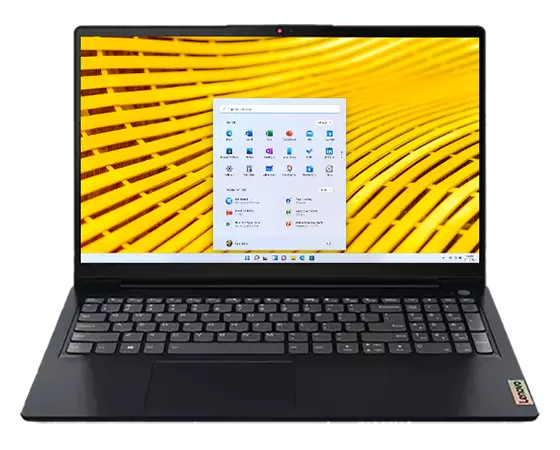
Lenovo IdeaPad 3i
Chrome OS • 10 Hours Battery Life • Wi-Fi 6
TOP PERFORMANCE, POWERFUL CPU SLEEK DESIGN: Experience smooth multitasking and speedy performance with the Lenovo IdeaPad 3i Chromebook, perfect for work or play on the go
Conclusion
Xbox Cloud Gaming on Chromebook is more accessible and powerful than ever. With a modern Chromebook, a supported browser, an active Game Pass Ultimate subscription, a stable internet connection, and any major Bluetooth or USB controller, you can stream hundreds of Xbox titles without expensive hardware upgrades.
And if issues arise? Quick fixes like clearing your browser cache, updating ChromeOS, optimizing your Wi‑Fi or Ethernet connection, and re‑pairing your controller will solve nearly all common problems.
Cloud gaming continues to evolve, and Chromebooks are now a legitimate platform for both casual and competitive players. Stay tuned to Cloud Loadout for the latest setup guides, troubleshooting tips, performance insights, and breaking news on subscription changes.
🎮 Your Chromebook is no longer just for school or work—it’s now a full‑fledged gaming machine.
FAQs
It depends. Many school Chromebooks restrict installing extensions, creating shortcuts, or accessing certain websites—sometimes all cloud gaming services are blocked. If your device allows opening xbox.com/play, you might succeed. Try Guest Mode or use a personal account if possible. For stubborn blocks, some students use VPNs or mobile hotspots, but these may not always work, especially as schools update their security settings proactively.
Yes—Game Pass Ultimate is typically required for full access to cloud streaming. However, Microsoft is piloting a free, ad-supported cloud gaming tier, but this currently offers limited games and session time, and is not rolled out globally.
Yes! Many Xbox Cloud Gaming titles support touch controls. These games feature custom touchscreen overlays and controls for Chromebook tablets or convertible laptops, making controller-free gaming possible.
No—cloud gaming always needs a live connection. Neither downloaded games nor installed cloud gaming “apps” will run offline; your game is streamed in real-time from Xbox servers to your device.
Not natively on Chromebook. Xbox Cloud Gaming natively supports keyboard/mouse play only on PC and Mac (with Edge or Chrome browsers), where indicated. Chromebook users may experiment with third-party extensions for some mouse/keyboard functionality, but controllers remain the official, fully-supported input method
Yes—expect 7–10GB per hour for 1080p/60fps streaming, depending on game complexity and resolution. Consider switching to a lower stream quality if you have capped internet or data plans.
Any modern, updated Chromebook (typically 2017 and newer) should work for cloud streaming. However, devices with more RAM and better processors (e.g., 8GB RAM, 11th-gen Intel, or AMD Ryzen CPUs) yield better stability and multitasking. For the best experience, look for Chromebooks aimed at gamers or with robust WiFi/network features, like the HP Dragonfly Pro or Acer Chromebook 516 GE.
On the unforgiving battlefields of Crimson Desert, there is no single path to victory. With every strike and move, forge your own way in a world where a split second can decide your fate in fast-paced, visceral battles.
Find More Games →
 GeForce NOW
  Xbox Cloud Gaming
  Amazon Luna
  Shadow
  Boosteroid
  PlayStation Plus
  AirGPU
GeForce NOW
Xbox Cloud Gaming
Amazon Luna
Shadow
Boosteroid
PlayStation Plus
AirGPU
AirGPU
GeForce NOW
Xbox Cloud Gaming
Amazon Luna
Shadow
Boosteroid
PlayStation Plus
AirGPU