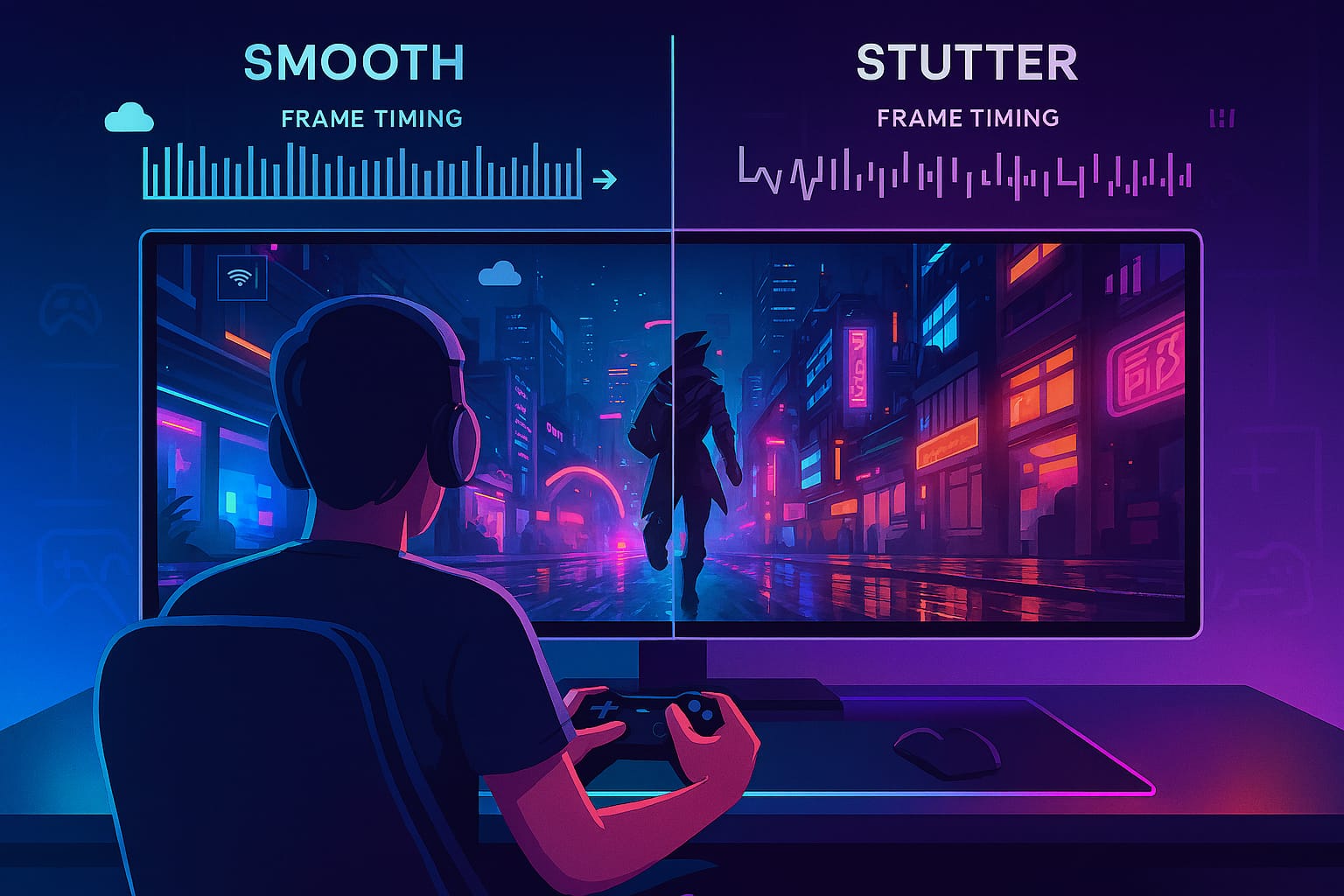
You are locked into a match when the screen suddenly feels uneven. Not a freeze or big frame drop, but a subtle stutter that throws off your timing. That is frame pacing failing.
In cloud gaming, every frame is rendered remotely and streamed to you. Consistent delivery matters as much as high FPS. Even at 60 or 120 FPS, poor pacing makes gameplay choppy and frustrating.
The good news is you can learn what frame pacing is, why it matters, and how to fix stutter across platforms like Xbox Cloud Gaming, GeForce NOW, Amazon Luna, and PlayStation Remote Play.
By the end of this guide, you will have clear steps to diagnose and optimize your setup for smooth, stutter‑free cloud gaming.
What Is Frame Pacing?
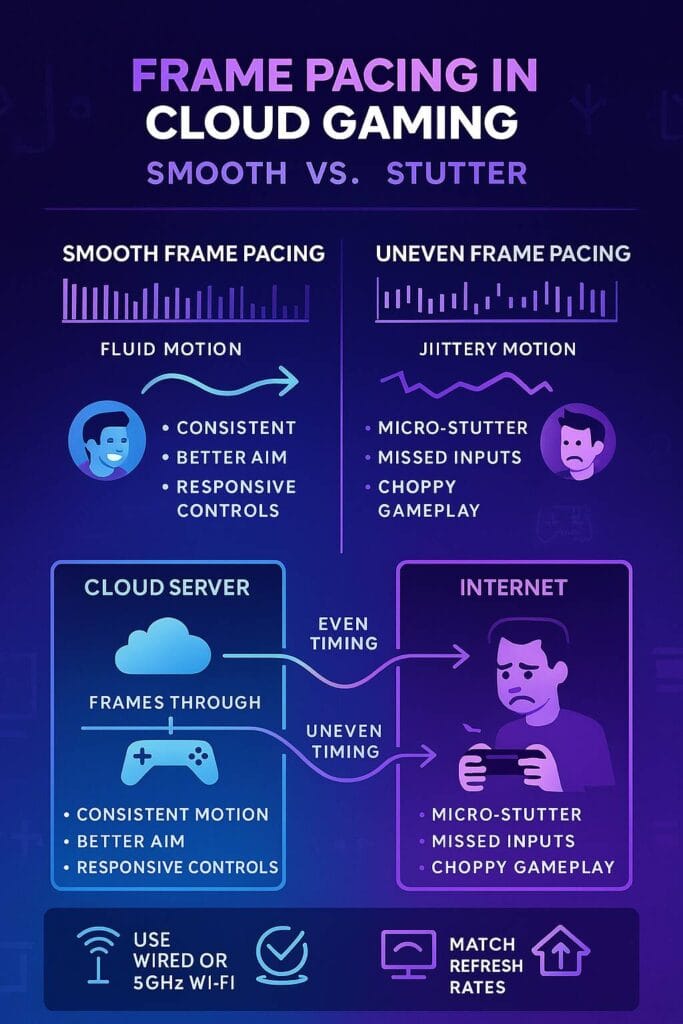
Frame pacing is about how evenly frames reach your screen, not just the FPS count.
At 60 FPS, each frame should appear every 16.67 ms. If timing varies, motion looks uneven and stuttered — what gamers call micro‑stutter or visual jank.
In cloud gaming, pacing is harder because frames travel from remote servers, across the network, through your device, and onto your display. Any delay can disrupt smooth delivery.
💡Key takeaway: High FPS alone does not ensure smoothness. What matters is consistent frame delivery.
Why Frame Pacing Matters in Cloud Gaming
In traditional gaming, smoothness depends mainly on your hardware keeping up. In cloud gaming, the pipeline is more complex:
- Game logic and graphics are calculated on a remote server.
- Each frame is rendered, compressed into video, and sent over the internet.
- Your device decodes the stream and displays frames as they arrive.
Any hiccup, rendering stalls, brief network congestion, or an out‑of‑sync display, can disrupt pacing. Unlike local games that can buffer or slow subtly, cloud gaming exposes these inconsistencies directly, making stutter harder to hide. can produce visible (and frustrating) jitter, stutter, or frame drops, especially during periods of network instability. When frame pacing is poor, gameplay feels jerky even if your internet speed is good and your device is powerful enough
Frame Pacing vs. Frame Rate vs. Latency
It is easy to confuse these terms, but each affects gameplay differently:
- Frame Rate The average number of frames per second. Higher FPS usually means smoother visuals, but high FPS with uneven pacing can still feel rough.
- Frame Pacing How evenly frames are delivered. Two games at 60 FPS can feel very different if one has consistent pacing and the other does not.
- Latency The delay between your input and seeing the result on screen. Even with good FPS and pacing, high latency makes controls sluggish, especially in fast or competitive games.
Example: A game may look like it is running smoothly at high FPS, but if pacing or latency is poor, it will still feel choppy.0”, bad frame pacing is the likely culprit. If your actions feel laggy but frames look steady, high latency is probably the issue.
How do you know you have a Poor Frame Pacing?
Here’s how poor frame pacing often manifests for cloud gamers:
- Stuttering: The game appears to pause or jump periodically, even with steady FPS readings.
- Micro-stutter: Rapid, barely visible skips in motion, especially noticeable panning the camera or turning.
- Rubber-banding: Sudden jumps in action, usually due to a burst of slow and then fast frames.
- Screen Tearing: Broken frames where the top and bottom halves of the screen are out of sync, often tied to pacing and refresh mismatch.
- Input Delay (when combined with latency): Game controls feel “sticky” or unresponsive when frame pacing is inconsistent.
You may encounter these issues across cloud gaming platforms, sometimes as a result of network congestion, sometimes due to rendering hiccups on the server side, and other times due to local device settings or mismatched refresh rates.
Common Causes of Frame Pacing Issues
Let’s take a quick look at the most common reasons why frame pacing goes wrong in cloud gaming:
| Source | Example Symptom | Typical Cause |
|---|---|---|
| Network Instability | Stutter, pauses | High jitter, bandwidth drops, packet loss |
| Server-Side Delays | Random stutter | Server overload, rendering spikes, encoding delays |
| Display/Refresh Rate Mismatch | Judder, tearing | Monitor/TV rate not matching frame rate |
| Device Resource Contention | Micro-stutter | Overloaded CPU, background apps |
| Software Configuration | Jitter, delay | VSync/Adaptive Sync off or mismatched settings |
| Buffer Settings | Choppy or latent | Too small (not hiding jitter), too large (delays inputs) |
Frame Pacing Issues, and Fixes
| Frame Pacing Issue | Common Cause | Recommended Fix |
|---|---|---|
| Output Stutter | Network jitter, encoding spikes | Use wired Ethernet, optimize Wi-Fi, switch servers, try bigger buffers |
| Micro-stutter (even FPS) | Display refresh mismatch, buffering issues | Enable Adaptive Sync, match display/game rates |
| Judder/Rubber-banding | Network drops, server processing stalls | Pause downloads, increase buffer size, check provider/server status |
| Tearing | VSync off, high FPS/refresh mismatch | Enable VSync or Adaptive Sync, match refresh to FPS |
| Choppiness on 60 FPS/120 FPS game | Device hardware acceleration off or driver issues | Enable GPU/video acceleration, update drivers |
| Input lag + stutter | Buffer too large, high network latency | Reduce buffer size, prioritize traffic, check ping |
How to Identify Frame Pacing Problems
Don’t just trust FPS counters! Even if your counter is stuck at 60, irregular intervals reveal real problems. Here’s how to spot the signs:
- Use frame time monitoring tools: On PC, apps like MSI Afterburner with RivaTuner Statistics Server (RTSS), NVIDIA FrameView, or CapFrameX display not just FPS but frame times (the interval between each frame). Sudden spikes in these graphs mean poor pacing.
- Look for built-in platform diagnostics: Cloud platforms often include built-in network and performance diagnostics that can report both FPS and more subtle stutter/jitter conditions. GeForce NOW, Xbox Cloud, and PlayStation Cloud have native testing tools in their clients.
- Try online refresh rate tests: Browser tools like ScreenTester.uk let you see frame pacing and refresh issues with a live graph.
- Subjective checks: Slowly pan the camera or move across a game world and watch for uneven, skipped, or double frames, even when FPS reads as normal.
If your FPS is steady, but your frame time line looks like a heartbeat instead of a flatline, you’ve got frame pacing trouble.
Troubleshooting: Fixing Frame Pacing in Cloud Gaming
Now that you know what frame pacing is and how to identifyit, let’s tackle the fixes. These steps apply to ANY cloud gaming platform:
1. Optimize Your Network Connection
- Use wired Ethernet whenever possible. It’s more stable, with lower latency and almost zero jitter or packet loss compared to Wi-Fi.
- If you must use Wi-Fi, connect over 5GHz or 6GHz (Wi-Fi 6/6E) and keep your router close, in line of sight.
- Limit network congestion. Pause household downloads, streaming, or heavy uploads during gaming.
- Use router QoS (Quality of Service): Prioritize gaming devices or ports used by your cloud gaming app for the lowest ping and consistent frame delivery. (Example: GeForce NOW uses ports 49003–49006.)
Learn: how to use router QOS to optimize and prioritize your cloud gaming experience
2. Minimize Latency & Jitter
- Run both a standard speed test and your platform’s own diagnostic tool at the times you typically play.
- Aim for latency (ping) less than 30 ms and jitter below 10 ms for a competitive experience. Even if your speed is “fast,” high jitter will ruin pacing
- For persistent issues, try switching your DNS to Google (8.8.8.8) or Cloudflare (1.1.1.1) for better routing.
3. Optimize Device Resources
- Close unused background apps to free up CPU/RAM and avoid resource contention.
- Enable hardware video acceleration (in Chrome/Edge, Windows, macOS system settings, or the cloud gaming client) to reduce decoding lag.
- Keep your GPU/network drivers up to date for smooth decoding and compatibility.
4. Tweak Display & Sync Settings
- Enable ‘Game Mode’ on TVs or monitors. This cuts image processing and significantly reduces display input lag.
- Match your monitor’s refresh rate to your desired streaming FPS, i.e., set your monitor to 60 Hz for 60 FPS streams, 120 Hz for 120 FPS, etc.8
- Enable Adaptive Sync (G-SYNC/FreeSync) or VSync in your system: Adaptive Sync handles variable FPS much better than plain VSync; it eliminates tearing and reduces stutter.
- Tune VSync/Adaptive VSync: For NVIDIA GPUs, Adaptive VSync in the control panel offers automatic handling, enabling VSync at high framerates (for smoothness) and disabling it at low FPS (to reduce stutter). If you have a VRR display, take advantage!
- Experiment with display sync settings; some setups run smoothest with VSync off at the system level and on in the app, or vice versa16.
5. Adjust Resolution and Streaming Bitrate
- Lowering your streaming resolution (e.g., 4K → 1080p or 720p) can help on marginal connections, as there’s less data to transmit, which results in more consistent frame delivery20.
- Select “Performance” or “FPS” mode (where available) in your display or gaming device settings for smoother, clearer motion.
Platform-Specific Frame Pacing Fixes and Optimizations
1. NVIDIA GeForce NOW
- Run GeForce NOW’s integrated network test (in settings). Its results are much more reliable for game streaming than generic speed tests because it checks ping and jitter directly to their servers.
- Select “Competitive” quality mode for the lowest latency and highest/stable frame rate (great for shooters/fast games).
- Set “Frame Rate” in streaming settings to match your display and desired experience (60, 120, or 240 FPS options supported for Ultimate members and suitable hardware).
- Adjust Max Bitrate: Experiment if you experience stutter, higher bitrates require more bandwidth but can help prevent frame drops in busy scenes.
- Enable Reflex/Ultra-Reflex: For supported games, GeForce NOW’s Reflex features reduce input lag and improve frame-to-frame response, smoothing out pacing even further.
- Adaptive VSync: Use Adaptive VSync instead of standard VSync, this prevents unnecessary stutter at lower framerates but keeps tearing away at higher FPS.
- Check streaming server location: GeForce NOW auto-selects the nearest server, but if you feel latency or pacing has worsened lately, check forums/status pages or switch servers in your client.
- Advanced users can tweak the streamer config file to force sync/buffering behaviors, but this is rarely necessary.
GeForce NOW Performance Tweaks: Settings & Network Adjustments
Xbox Cloud Gaming
- Use Microsoft Edge as your browser for cloud gaming. Edge supports Xbox Clarity Boost, improving both visual clarity and perceived smoothness for streaming.
- Prefer wired controllers or low-latency dongle-based wireless input, for the quickest, most responsive input-to-frame path.
- Monitor live Xbox status: Service disruptions sometimes masquerade as local stutter or frame pacing issues; check Xbox Status.
- Enable “Game Mode” on TV/monitor for Xbox devices to cut input lag and display processing.
- Close other streaming/background services on your Xbox or PC to ensure that cloud gaming gets all of your connection’s available bandwidth.
Fun fact: Microsoft now breaks down cloud streaming latency step-by-step in their labs (input, encoding, transport, decoding, rendering, display) and has made big improvements by using Direct Capture (lowering encoding delay) and WebRTC (for faster, more reliable streams). Keep your Xbox Cloud Gaming client and app up to date for newest optimizations.
Amazon Luna
- Recommended minimum: At least 10 Mbps for 1080p streaming, but 20 Mbps or higher is suggested for pooled household connections or higher resolutions.
- Use a wired or strong 5GHz Wi-Fi connection for more stable frame delivery.
- Make sure your device supports hardware acceleration: for browser (Chrome/Edge), turn it on via settings; for Fire TV, enable Game Mode.
- Turn off location services during gameplay if on macOS or iOS ,they can add background traffic and interruptions.
- Don’t use VPN (only if necessary)/proxy services, these can route your stream through slower connections, causing more stuttering/pacing issues.
- Restart your router if you notice a sudden drop in performance; sometimes bufferbloat or network path changes can disrupt smooth frame delivery.
Boosteroid
- Always use wired Ethernet for best results; Wi-Fi is possible, but only on uncongested 5GHz.
- Ensure your browser/device has hardware acceleration enabled for optimal video decoding (in browser/system settings).
- Frame pacing settings may be accessible through the Boosteroid app or third-party tools (see BoosteroidPlus Xposed module, for advanced users).
- Custom settings: With tools like BoosteroidPlus (an advanced Android/Xposed module), users can unlock custom frame rate, bitrate, and resolution options, choose a limit that matches your actual display refresh for best pacing.
- If you experience “fake 60 FPS” (overlay says 60 but feels like 30): This is often a display refresh mismatch or a browser video decoding issue, restart the client, ensure screen refresh is set, and double-check browser codecs/drivers.
- Contact support: Boosteroid’s official channels and Reddit community are very responsive to ongoing stutter/pacing bug reports, so don’t hesitate to reach out if problems remain.
PlayStation Cloud Streaming (and PlayStation Portal)
- Update your PlayStation devices and Portal to the latest firmware. Sony has recently rolled out updates specifically targeting micro-stutter and frame pacing on Portal devices, especially for streaming at 59.94 Hz8.
- Match display refresh rate: For PlayStation Portal, stuttering was tied to mismatched device refresh rates. The latest update now brings native 1080p60 streaming, ensure your display and streaming device are set to 60Hz when possible.
- Enable Game Mode on your TV or monitor for PlayStation Portal to help minimize input lag and frame delivery processing delays.
- For remote play or browser-based streaming, always check for the best-performing browser (Edge on PC is currently recommended for its hardware acceleration) and keep all drivers/OS updated.
Tip: Sony’s recent updates fixed long-standing pacing issues and allowed games like The Crew, Call of Duty: Black Ops 6, and others to stream cloud-smooth at 60 FPS.
Tools for Measuring Frame Pacing
- MSI Afterburner + RivaTuner Statistics Server (RTSS): Overlay real-time frame time graphs and export logs for deep analysis. Look for “spikes” or erratic intervals.
- NVIDIA FrameView: Measures FPS, frame times, power, and can graph frame pacing for any GPU, not just NVIDIA cards.
- CapFrameX: Free, detailed tool with in-depth frame time visualization, variance analysis, and percentile stats.
- PresentMon: Low-level tool (used by FrameView, CapFrameX) that tracks actual “present” commands to the GPU/display for frame-perfect pacing logs.
- ScreenTester.uk (web): See live browser Hz/frame pacing and take long-exposure “photo mode” to spot banding or dropouts in real time.
Using these tools, you can directly see if your setup is delivering smooth, even frame times, or if you need to keep tweaking.
Future Trends: Frame Pacing Tech in Cloud Gaming
Industry leaders are tackling frame pacing with new innovations. In the future, many of these issues may be solved automatically on the client side:
- NVIDIA Reflex and Frame Warp Reflex synchronizes CPU and GPU work to reduce input lag. Reflex 2’s Frame Warp adjusts frames at the last millisecond to better match input and network timing, lowering latency and improving pacing in fast shooters.
- Auto‑scaling buffers and dynamic encoding Cloud platforms are building smarter buffering algorithms that adapt in real time, balancing smoothness and responsiveness.
- Cloud‑native variable refresh support As VRR and Adaptive Sync become standard in cloud apps, streaming platforms will eliminate more stutter and tearing.
- Apple Game Mode on macOS These features aim to reduce background noise and prioritize gaming traffic for steadier performance, though results vary.
Conclusion: Enjoy a Smoother Cloud Gaming Experience
Frame pacing is the hidden key to cloud gaming that feels truly smooth. High FPS alone does not guarantee stutter‑free play. By understanding pacing, testing your setup, and applying simple tweaks across platforms, you can enjoy responsive, tear‑free cloud gaming.
Frame Pacing in Cloud Gaming FAQS
You’re seeing inconsistent frame pacing—frames are not arriving at evenly spaced intervals, which the FPS counter hides. Use a frame time graph to spot the spikes!
Absolutely. Jitter (ping variation), packet loss, or fluctuating bandwidth cause inconsistent delivery of frames, creating pacing problems even when “average” ping looks fine.
VSync prevents tearing, but can introduce input lag or mask pacing issues if your system/network can’t consistently hit the target FPS. Adaptive Sync, where available, is generally superior.
For smoother frame delivery on weaker/unstable networks, use “Performance”; “Quality” sends more data and can choke on limited bandwidth, increasing the risk of stutter.
It disables most image processing and focuses resources on fast, consistent display updates, reducing both input latency and display-induced pacing irregularities.
On the unforgiving battlefields of Crimson Desert, there is no single path to victory. With every strike and move, forge your own way in a world where a split second can decide your fate in fast-paced, visceral battles.
Find More Games →
 GeForce NOW
  Xbox Cloud Gaming
  Amazon Luna
  Shadow
  Boosteroid
  PlayStation Plus
  AirGPU
GeForce NOW
Xbox Cloud Gaming
Amazon Luna
Shadow
Boosteroid
PlayStation Plus
AirGPU
AirGPU
GeForce NOW
Xbox Cloud Gaming
Amazon Luna
Shadow
Boosteroid
PlayStation Plus
AirGPU