Unlike traditional gaming, where performance depends heavily on your console or PC, cloud gaming streams every frame from a remote server. That means latency, jitter, packet loss, and bandwidth directly impact how smooth and responsive your gameplay feels.
That being said, a cloud gaming speed test is your first step to diagnosing performance issues, optimizing your setup, and ensuring you’re getting the most from platforms like GeForce NOW, Xbox Cloud Gaming, Amazon Luna, Boosteroid, and PlayStation streaming.
1. Why Speed Testing Is Essential for Cloud Gaming
Cloud gaming platforms don’t send raw game code to your device. Instead, they stream gameplay as a live, interactive video while your controller inputs are sent back to a remote server. Every button press travels across the internet, gets processed, rendered, compressed, and returned as a video frame all in less than a blink.
If the connection falters, so does your experience: expect blurry visuals, laggy inputs, or rubber‑banding during fast action.
Why is this different from streaming movies? Unlike Netflix or YouTube, cloud gaming can’t buffer ahead. Every frame depends on your real‑time inputs, so latency and stability matter just as much as raw speed. A standard video speed test doesn’t guarantee smooth cloud gaming, you need metrics that reflect gaming’s real‑time demands.
2. Key Network Metrics: What They Mean for Gamers
Here are the five most important metrics and why they matter:
- Download Speed: How fast data comes from the server to you. Higher speeds improve video quality, but 25–50 Mbps is usually enough for a single stream.
- Upload Speed: How fast you send data to the server. Crucial for controller inputs and voice chat. Aim for 5–10 Mbps minimum.
- Latency (Ping): The round‑trip time for data to travel to the server and back. Lower ping = more responsive gameplay.
- Jitter: The variation in latency between packets. High jitter causes inconsistent, choppy play.
- Packet Loss: Dropped packets of data. Even small losses can cause glitches or disconnects. Target near zero for smooth gaming.
Table: Quick Reference of Ideal Metrics for Cloud Gaming
| Metric | Excellent | Good | Fair | Poor |
|---|---|---|---|---|
| Latency (Ping) | <20 ms | 20–50 ms | 50–100 ms | >100 ms |
| Jitter | <5 ms | 5–15 ms | 15–30 ms | >30 ms |
| Download | >50 Mbps (4K) | 25–50 Mbps (1080p) | 10–25 Mbps (720p) | <10 Mbps |
| Upload | >10 Mbps | 5–10 Mbps | 1–5 Mbps | <1 Mbps |
| Packet Loss | <0.1% | 0.1–0.5% | 0.5–2% | >2% |
3. Before you test
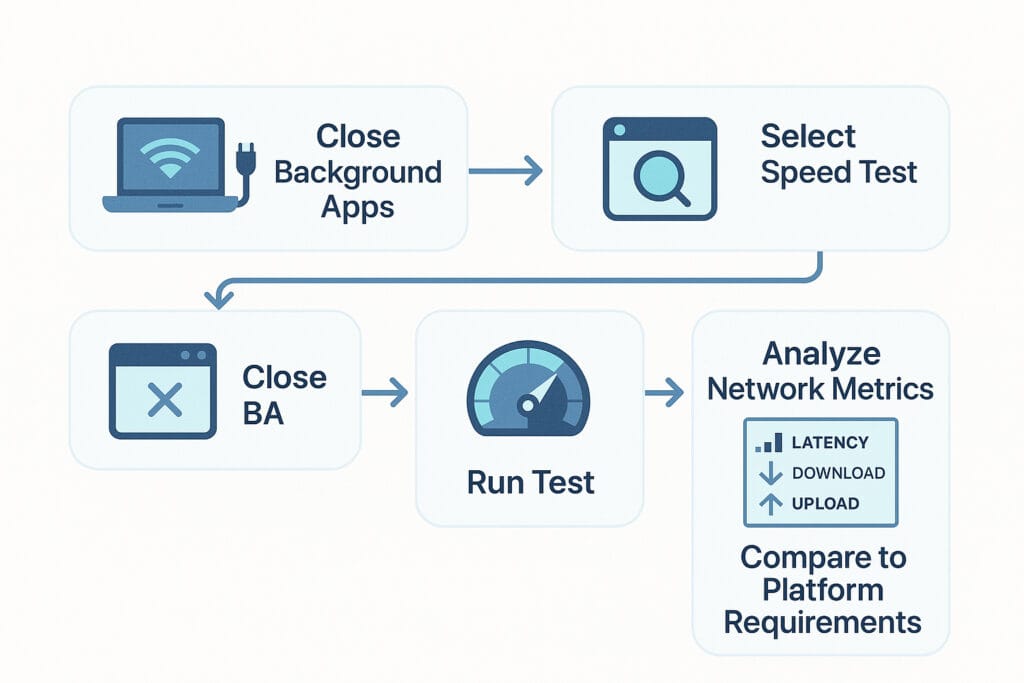
- Connect your device as you plan to game: Run the test from the same spot you usually play (Wi‑Fi in the living room, not just at the router).
- Close background apps and devices: Pause streaming, downloads, or calls so they don’t interfere with results.
- Prefer wired (Ethernet) if possible: A cable gives the most accurate results. If not, use 5 GHz Wi‑Fi and stay close to the router.
- Pick the right test:
- GeForce NOW → in‑app Test Network
- Xbox Cloud → diagnostics in app or console settings
- Other platforms → Speedtest.net, Cloudflare tool, or server pinger
- Check packet loss/jitter: Use a Packet Loss Test or similar tool.
- Record results: Note Download, Upload, Latency, Jitter, and Packet Loss, then compare with platform requirements.
4. Tools to Test Your Cloud Gaming Internet Connection
Cloud gaming isn’t just about the “Internet speed” your ISP advertises. Find tools that test the parameters that truly affect gaming, ideally targeting the specific platforms or servers you’ll play on.
General-Purpose Speed Test Tools
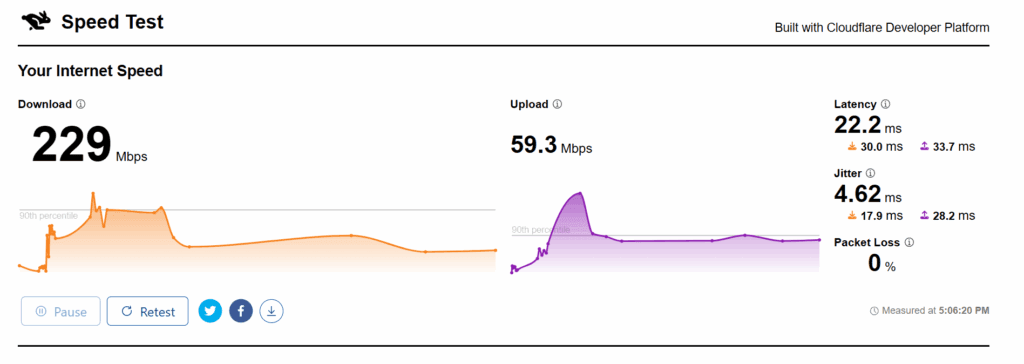
Tests download, upload, latency, jitter, and packet loss, and gives you a holistic view of your connection. The “Aggregated Internet Measurement (AIM)” is especially informative for rating streaming/gaming suitability.
2. Speedtest.net / Fast.com

Quick, simple, measures latency plus up/dl speed. Not always the best for cloud gaming because they might not check latency to the same datacenter the game uses7.
Platform-Specific / Gaming-Focused Tools
1. GeForce NOW Built-In Tester
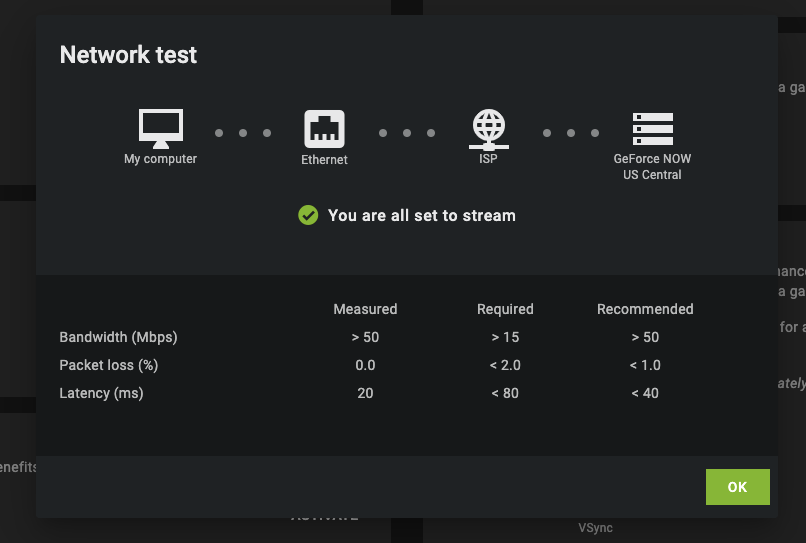
GeForce NOW clients on PC, Mac, Android, and NVIDIA SHIELD include a Test Network feature
(Click “Menu” > “Settings” > “GeForce NOW” > “Test Network”) to check bandwidth, packet loss, jitter, and ping to the actual NVIDIA server you’ll be using.
2. Xbox Cloud Gaming Latency Tools
Xbox app on PC and Xbox consoles have built-in network test features (“Settings” > “Network“) designed specifically for cloud gaming. Some Smart TVs and browsers include diagnostics too.
3. Boosteroid Speed Test
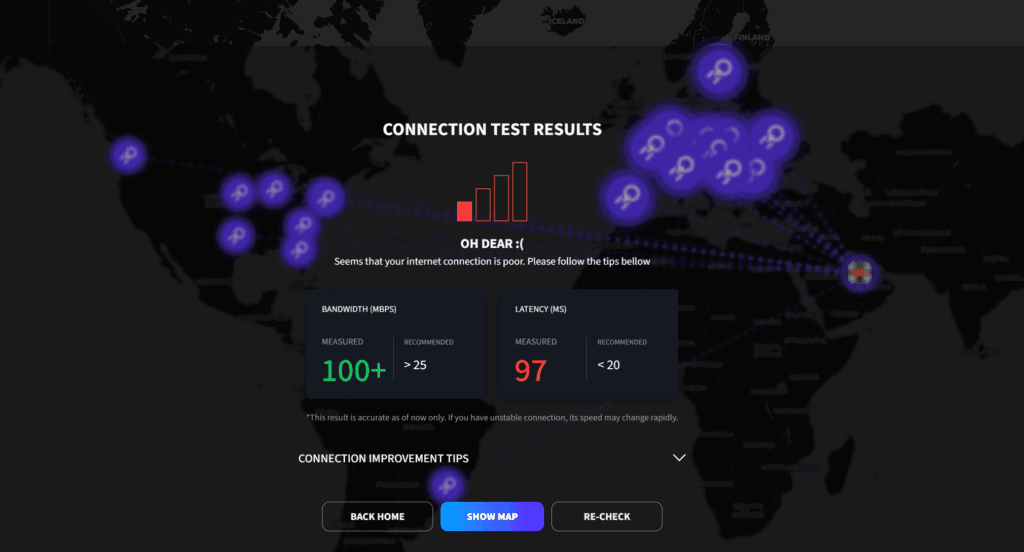
The Boosteroid platform provides a proprietary connection test (on web or in-app). While it’ll give you a baseline for bandwidth and latency to its servers, occasional community feedback suggests their speed test can sometimes be inconsistent, consider running multiple tests at different times.
Simply head to this link: “cloud.boosteroid.com/network-test“, click “Start” to test the network, and browse the results
4. Cloud Loadout Latency Tester (CLLT)

🎮 Meet the Cloud Gaming Latency Tester A browser-based ping tester for Xbox Cloud, Luna, Shadow, and Boosteroid. It runs 5 auto-pings to the actual cloud gaming endpoints and averages them.
to use this tool, head to Cloud Loadout Latency Tester, click “Start test”, and it will test your ping to the most cloud gaming platforms. For GeForce NOW, in-game (Ctrl+Alt+F6) is best due to ping blocks on browsers.
5. Packet Loss Test (packetlosstest.com)
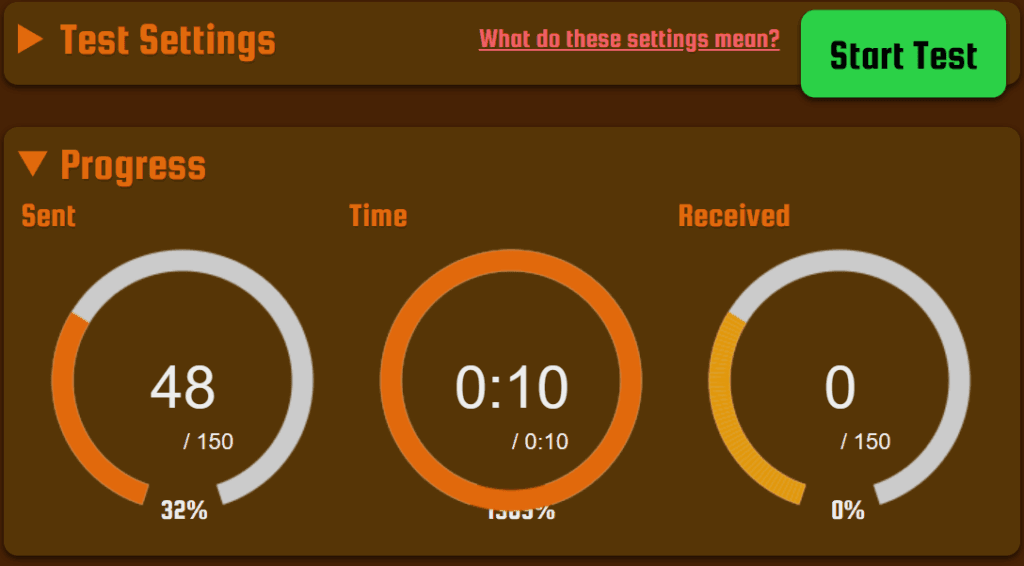
Specializes in detecting dropped packets and jitter using WebRTC, which is the technology behind many cloud services’ underlying networks.
5. Decoding Your Cloud Gaming Speed Test Results
Seeing numbers is one thing knowing what they mean for actual gameplay is the real win. Here’s how to interpret each metric like a pro:
Download Speed
Why it matters: This is how fast you receive video frames in real time.
- For 1080p gaming: 15–25 Mbps is usually enough.
- For 4K or high frame rates: 45–50 Mbps+ recommended, especially if others share your network.
Interpreting results: Below minimum = stutter, blurry video, or resolution drops. If speeds look fine but issues persist, check for spikes or inconsistency.
Upload Speed
Why it matters: Your inputs (button presses, voice chat, invites) travel upstream. If others are on Zoom or uploading files, this can bottleneck.
Interpreting results: Aim for at least 5–10 Mbps for smooth play.
Latency (Ping)
Why it matters: This is your “reaction time” to the server.
- Under 50 ms: Excellent for competitive play.
- Under 80 ms: Generally fine for most genres.
- High latency = sluggish inputs and feeling behind other players.
Pro tip: Speedtest may show low ping to a nearby server, but your cloud gaming platform could connect you to a farther one, raising actual latency.
Jitter
Why it matters: Even with good average latency, jitter makes gameplay choppy or unpredictable. It causes rubber‑banding, frame pacing issues, or “ghost inputs.”
Acceptable values:
- Under 5 ms: Excellent
- 10–15 ms: Usually tolerable
- Over 30 ms: Problematic
Packet Loss
Why it matters: Dropped packets mean missing data, skipped actions, freezing, or disconnects.
Interpreting results:
- Under 0.1%: Optimal
- Over 1%: Needs fixing before cloud gaming
6. How Network Type and Configuration Impact Your Results
Ethernet vs. Wi-Fi: The Eternal Debate
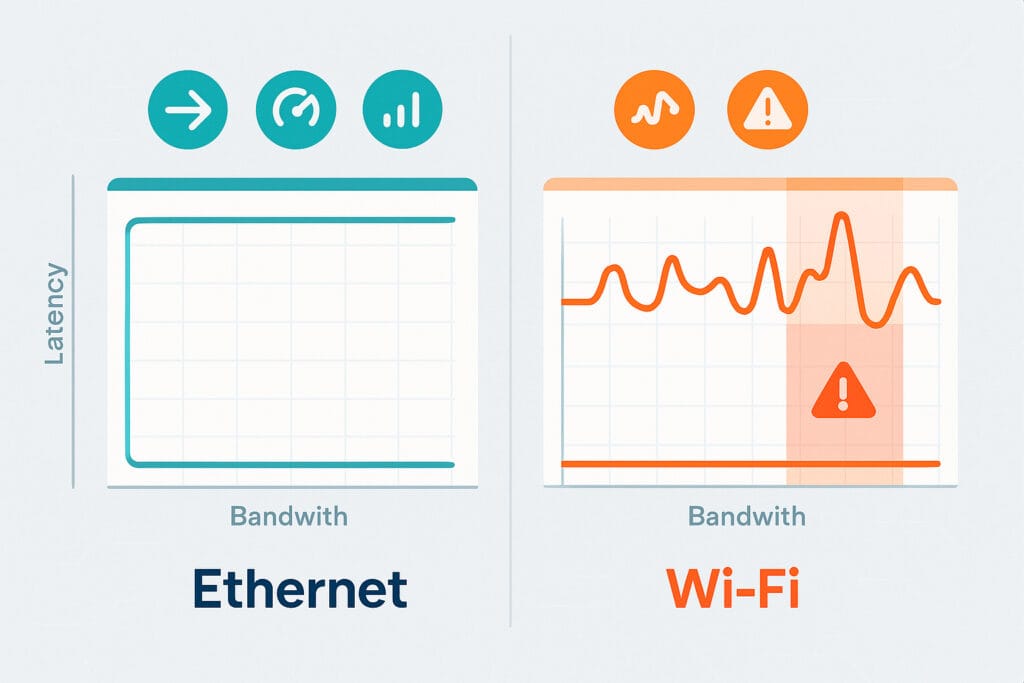
Ethernet (wired):
- Gold standard: predictable, lowest latency, zero Wi-Fi interference.
- Best for: Competitions, live streaming, multi-gamer homes, new router-centric setups.
- Typical latency: Sub-5 ms to local router; minimal jitter and packet loss15.
Wi-Fi:
- Generally ok for casual play with modern gear, but more variable.
- Wi-Fi 6/6E, 5 GHz and close proximity to the router perform best.
- Watch out for: Walls, microwave ovens, Bluetooth devices, and neighbors’ networks (interference causes spikes in latency/jitter).
- If using Wi-Fi, dedicate the band to gaming if possible.
Want the full breakdown of Wi‑Fi vs. Ethernet? We’ve put together an in‑depth guide you can check out here.
Stuck with Wi‑Fi? No worries, we’ve also created a step‑by‑step guide to help you squeeze every bit of performance out of your connection.
7. Final Takeaways and Recommendations
Cloud gaming depends on the invisible highways your data travels. Speed, latency, jitter, and packet integrity all shape how responsive your gameplay feels. A proper speed test checks not just how fast data moves, but how reliably it returns and how smooth the ride is.
For the most reliable experience:
- Test under real conditions — the same setup you’ll use for gaming.
- Read results in context — each metric affects gameplay differently.
- Troubleshoot step by step — fix issues methodically.
- Choose the best connection — wired if possible, or clean 5/6 GHz Wi‑Fi.
Owning your network means owning your fun. With a few tools, some testing, and practical tweaks, you can turn cloud gaming latency from a frustrating foe into a defeated boss.
FAQs
For smooth 1080p, aim for at least 25 Mbps down, <60–80 ms ping to the service, <5 ms jitter, and near-zero packet loss. For 4K, target 45–50 Mbps or more
Yes—your inputs, chat, and game synchronization run upstream. 5–10 Mbps is recommended, especially if streaming to Twitch simultaneously.
It can be, especially modern Wi-Fi 6/6E gear on uncongested 5/6 GHz bands, with strong signals and little interference. But wired Ethernet is always more consistent
Speed alone isn’t everything. Latency, jitter, router congestion, or packet loss can cause lag. Check speed test results for all metrics and troubleshoot accordingly.