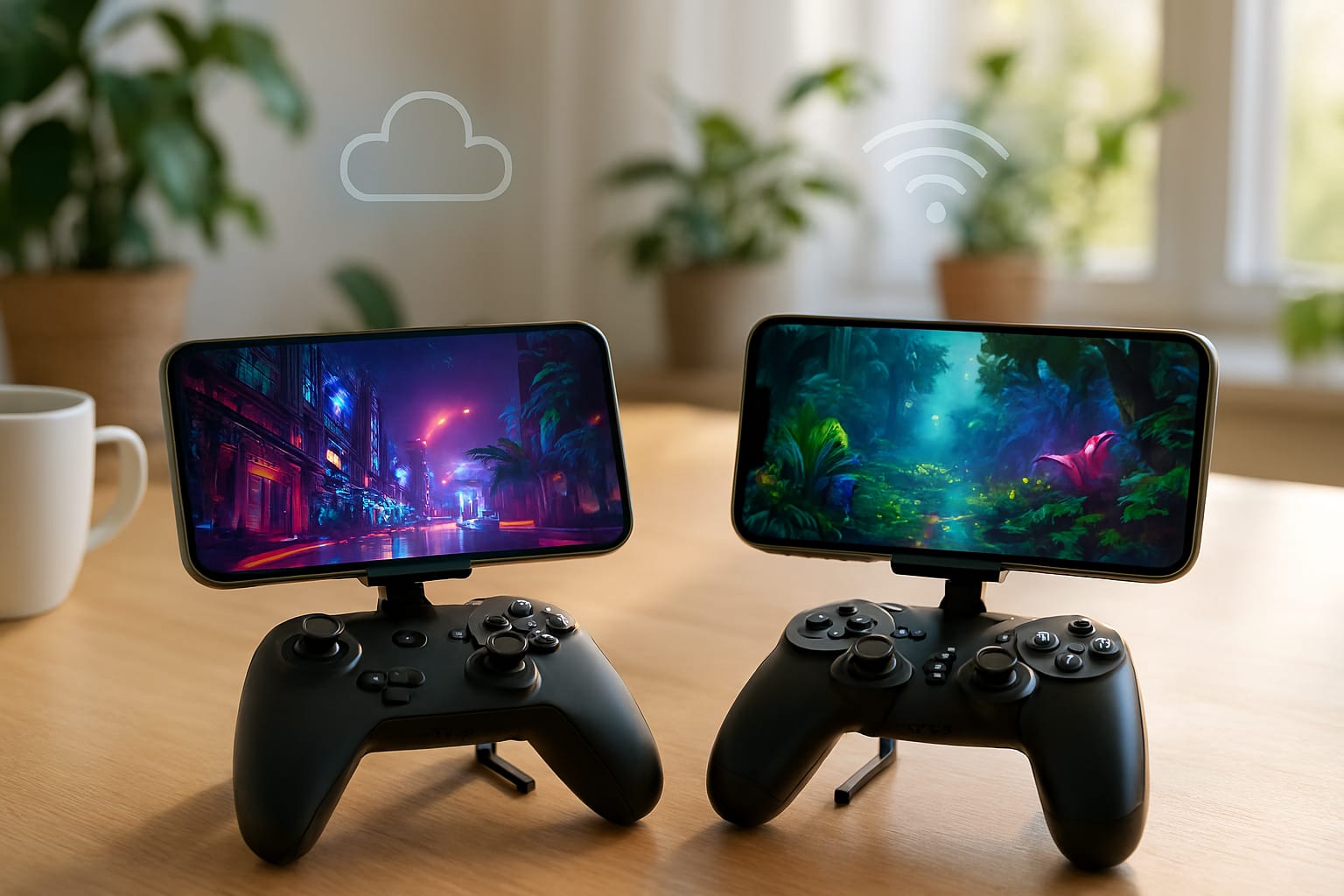
The cloud gaming revolution has decisively landed in the palms of your hands. Today, cloud gaming on mobile devices—from affordable Android phones to the latest iPhones and iPads—removes the costly, complicated barrier of high-end hardware. Instead, powerful servers stream games directly to your device, letting you play console-quality titles wherever you have a solid internet connection. Services like Xbox Cloud Gaming (part of Game Pass Ultimate), NVIDIA GeForce NOW, Amazon Luna, Blacknut, Boosteroid, Shadow, and more have expanded their reach and accessibility, with polished support and broad game libraries that now boast nearly seamless gameplay on mobile devices.
Why Choose Cloud Gaming on Mobile?
The Convenience Factor: Gaming Without High-End Hardware
Cloud gaming on mobile lets you stream blockbuster titles—once exclusive to powerful PCs or expensive consoles—using just your phone or tablet. The demanding graphics and number-crunching are handled by remote servers; your device simply receives a video feed, while your inputs are relayed back to the server. Think of it as “Netflix for games,” but with your actions instantly reflected on screen.
Key Benefits Compared to Console/PC:
- No Need for Upgrades: All graphical processing is done in the cloud. Even entry-level or aging smartphones can deliver beautiful graphics and smooth gameplay.
- Zero Downloads or Updates: Jump into games instantly; updates and patches happen on the server.
- Cross-Device Flexibility: Start a game on your phone, pick up on a tablet, and finish on a desktop, always with progress synced.
- Massive Game Libraries via Subscription: Access hundreds of games for a single monthly fee. Try new releases risk-free.
- Play Anywhere: Take console and PC experiences far beyond the living room or gaming desk—just add a stable connection.
Drawbacks to Consider:
- Internet Dependency: Cloud gaming requires fast, stable internet; if your connection drops, so does your game.
- Input Lag (Latency): Some delay is inevitable compared with local play, especially in fast-paced or competitive games.
- Subscription Costs: Access to the best features and games often comes with monthly or yearly fees.
Leading Cloud Gaming Services for Android and iOS (2025)
Here’s an overview of the most popular and reliable cloud gaming platforms for mobile devices in 2025, with a focus on features relevant to new and intermediate users.
[su_table responsive=”yes” alternate=”no”]
| Service | Supported Devices | How to Access | Resolution/FPS | Library Type | Subscriptions | Controller Support |
| Xbox Cloud Gaming | Android (12+), iOS (14.4+), Browsers, Smart TVs | Browser (Edge/Chrome/Safari), Xbox app on supported TVs | 1080p @ 60fps | Game Pass + “Stream Own Games” | Game Pass Ultimate ($19.99/mo) | Xbox, PS, others |
| NVIDIA GeForce NOW | Android (7.0+), iOS (15+), Browsers, Smart TVs | Native App (Android), Web on iOS | Up to 4K @ 120fps | Bring-your-own-game | Free tier, $9.99–$19.99/mo (Ultimate) | Wide range, incl. Backbone, Razer |
| Amazon Luna | Android (10+), iOS (15+), Fire TV, Browsers | Browser (Chrome/Safari), Luna app (Fire TV) | 1080p @ 60fps | Luna+ curated/Prime/Ubisoft | Luna+ $9.99/mo; Prime free basic | Luna, Xbox, PS, others |
| Boosteroid | Android (8+), iOS (14.5+), Browsers, Smart TVs | App (Android), Web (iOS, browser) | Up to 4K @ 120fps | BYO game or select library | €9.89–€17.89/mo | Most controllers |
| Shadow | Android (5.0+), iOS (14+), Smart TV, PC | App (Android), Web/iOS, Desktop | Up to 4K @ 60fps | “Cloud PC” (full Windows, any game) | $37.99+/mo | Any PC/console controller |
| Blacknut | Android (8.1+), iOS (14.5+), Browsers, Smart TVs | Apps (Android/iOS), Web app | 720p @ 60fps | All-inclusive, family-friendly | $15.99/mo | Many controllers |
| PlayStation Plus Premium | PC, PS4, PS5 (very limited mobile support) | Windows app, PlayStation console | Up to 4K @ 60fps (*) | PS exclusives+classics | $17.99/mo | PlayStation |
*Mobile streaming on PlayStation remains unavailable as of August 2025; all other services support mobile streaming.
[/su_table]
Platform Highlights
Xbox Cloud Gaming (Game Pass Ultimate)
- Runs in browsers on both iOS and Android (no app required).
- Massive, frequently updated library, including day-one releases and hundreds of console/PC games.
- Controller required for most titles; some touch control support.
- Features new “Stream Your Own Game” option for select owned titles, not just Game Pass.
- Pricing: $19.99/month (US), supports first-party titles plus EA Play and partner deals1011
NVIDIA GeForce NOW
- Play games you already own from Steam, Epic, Ubisoft, Xbox PC, or GOG.
- Up to 4K/120fps (Ultimate tier) with ultra-low input lag, leading the pack in streaming fidelity for competitive players.
- App available on Android, browser on iOS.
- Free tier available; $9.99/mo (Priority), $19.99/mo (Ultimate).
- Broad gamepad compatibility. Most PC games, but not every game on Steam/Epic is supported in the cloud app1314.
Amazon Luna
- Channel system: Luna+, Ubisoft+, Jackbox Party. Some access for Amazon Prime members.
- Access on Android (Chromium-based browser), iOS (Safari), Fire TV, and recently LG and Samsung TVs.
- Luna Controller offers ultra-low-latency “cloud direct” mode, but Bluetooth, Xbox, and PlayStation controllers also work.
- $9.99/mo for Luna+; Ubisoft+ channel for $17.99/mo162.
Boosteroid
- Run PC games you already own (Steam, Epic, etc.) or pick from a curated catalog.
- Android and iOS supported via app/browser, works on PCs, smart TVs, and more.
- Up to 4K/120fps. Sessions are unlimited in duration.
- Subscription starts at €9.89/month (better rates with annual plan)18.
Shadow
- Unique “cloud PC” model: a full Windows environment with powerful hardware.
- Install any game storefront or app, manage settings, stream anywhere.
- Works on Android, iOS, PC, Mac, smart TVs, and even Raspberry Pi.
- $37.99/month and up, depending on performance tier202.
Blacknut
- Strong all-ages/family game library (over 800 games, including racing, puzzle, adventure).
- App for Android (8.1+), browser-based for iOS (Safari).
- Supports a wide array of controllers, up to 5 user profiles per account, with built-in parental controls.
- $15.99/month after free trial; partnerships bringing native apps to the iOS App Store in parts of Europe and Asia21.
PlayStation Plus Premium Streaming
- Streams PS4, PS3 (and classics) to PC or PlayStation consoles, not mobile. No official support for iOS/Android as of late 2025.23
Minimum Device Requirements for Mobile Cloud Gaming
Before diving into setup, check that your smartphone or tablet meets these minimum specs for a smooth experience in 2025:
Android
- OS Version: Android 7.0+ (most services now recommend Android 10+ for best results)
- RAM: 2 GB minimum; 4 GB or more strongly preferred for lower lag and fewer crashes
- Processor: Dual-core (Quad-core ARM Cortex-A53 or newer is common baseline); Snapdragon 720G or better for top-tier gaming
- Display: 720p (HD) minimum; 1080p or higher for best visuals
- Storage: At least 500 MB free for cache/app data, though cloud gaming uses almost no local storage
- Bluetooth 4.0+ support: Required for most wireless controllers
iOS
- OS Version: iOS 14.4+ (for Xbox Cloud Gaming); iOS 15+ generally ensures compatibility
- Device: iPhone 7 or newer, iPad 7th gen or newer recommended; older devices may run but with more lag
- RAM: 2 GB minimum (4 GB or more is better for iPadOS)
- Display: Retina HD/Full HD; larger screens give a console-like feel
- Storage: Minimal, since games aren’t installed, but ensure space for session caching
General tips: High refresh rate screens (90–120Hz), OLED panels, and strong Wi-Fi radios further enhance the experience but are not strictly necessary.
Network Requirements: What Does “Cloud Gaming Ready” Internet Look Like?
Cloud gaming relies on low latency and high, stable bandwidth. Here’s what you need for each streaming quality tier (see below for plain-language definitions):
[su_table responsive=”yes” alternate=”no”]
| Resolution / FPS | Required Download Speed | Upload Speed | Target Latency | Notes |
| 720p @ 60 FPS | 10–15 Mbps | 1–3 Mbps | <50 ms | Entry-level, most stable |
| 1080p @ 60 FPS | 20–25 Mbps | 3–5 Mbps | <40 ms | Recommended for most users |
| 1440p @ 120 FPS | 35–40 Mbps | 5–10 Mbps | <30 ms | Only Ultimate/Premium plans |
| 4K @ 60–120 FPS | 45–100 Mbps | 10+ Mbps | <20–30 ms | Top-tier plans, TVs only |
[/su_table]
- Consistency over speed: Spikes, drops, or jitter can ruin sessions even if your ISP promises high speeds.
- 5GHz Wi-Fi: Always use 5GHz Wi-Fi if possible, as it’s less susceptible to interference and delivers higher throughput than 2.4GHz.
- Ethernet: For the absolute best results (especially on tablets/TVs), use a wired connection. This minimizes latency and packet loss.
Key Technical Terms in Plain Language:
- Bandwidth: How much data your connection can carry per second (higher is better).
- Latency: The time it takes for your button press to be reflected in the game, measured in milliseconds (ms). Under 50ms is excellent; over 80ms may feel laggy.
- Jitter: Fluctuation in latency. High jitter causes erratic controls; cloud gaming platforms need consistent timing.
- Packet Loss: When some data doesn’t make it through the network, leading to stuttering, freezing, or dropped sessions.
Check out the complete guide on bandwidth, bitrate, and streaming settings to boost your cloud gaming to the next level.
App and Browser Availability (Android & iOS)
Android
- Dedicated Apps: Most cloud gaming services offer a native Android app—search for Xbox Game Pass, GeForce NOW, Blacknut, Shadow, and Boosteroid in the Play Store.
- Web Access: Amazon Luna and Boosteroid also work in Chromium-based browsers (Chrome, Edge). GeForce NOW and Luna are optimized for Chrome.
- Controller Pairing: Use Bluetooth settings to connect official controllers; in-app guides walk you through pairing and testing.
iOS
- Browser-Based Play: Apple’s strict App Store policies mean almost all cloud gaming is browser-based (Safari). Microsoft, NVIDIA, Amazon, Blacknut, and Boosteroid offer fully operational mobile web apps.
- App Store Changes: As of mid-2024, Apple started allowing some comprehensive game streaming services in the App Store. Blacknut (through CLIQ) and others may appear as standalone apps, but most still rely on Safari plus “Add to Home Screen” web app mode for a near-native experience21.
- Controller Pairing: Use Bluetooth in iOS settings. Xbox/PlayStation controllers are natively supported; Backbone/Scuf are recommended for dedicated mobile use.
Subscription Plans & Pricing (2025 Snapshot)
The following table summarizes typical pricing as of August 2025. Promotions and trial periods frequently apply.
[su_table responsive=”yes” alternate=”no”]
| Service | Price (USD/EUR) | Key Library Access | Free Tier? |
| Xbox Cloud Gaming | $19.99/mo | All Game Pass + BYO select | Fortnite |
| GeForce NOW | Free/$9.99/$19.99 | BYO (Steam, Epic, etc.) | Yes, limited |
| Amazon Luna | $9.99/mo | Luna+, Ubisoft+ channel | Prime Lite |
| Boosteroid | €9.89–€17.89/mo | BYO (Steam, Epic) | No |
| Blacknut | $15.99/mo | “All inclusive” library | Free Trial |
| Shadow | $37.99/mo+ | Full Windows PC in cloud | No |
| PlayStation Plus Premium | $17.99/mo | PS library, PC and console | No |
[/su_table]
All prices and features may vary by region and time; family options, promotional rates, and bundled services (e.g., Luna access with Amazon Prime subscriptions) are increasingly common. Always check the platform’s official site for current offers.
Step-by-Step Cloud Gaming Setup on mobile devices
Android: Step-by-Step Cloud Gaming Setup
- Update Your Device:
- Ensure your phone or tablet runs Android 7.0 or later (ideally Android 10+).
- Update all system apps and your browser (Chrome/Edge).
- Install or Access Your Chosen Service:
- Xbox Cloud Gaming: Download “Xbox Game Pass” from Google Play, or open Chrome and go to xbox.com/play..
- NVIDIA GeForce NOW: Download the app from Google Play.
- Amazon Luna: Use Chrome, go to amazon.com/luna..
- Blacknut, Boosteroid, Shadow: Download their app or use the browser if directed.
- Sign up (if you haven’t already) and log in.
- Connect a Controller (Highly Recommended):
- Go to Android Bluetooth settings.
- Pair your Xbox, PlayStation, or certified mobile controller.
- For plug-and-play models like Backbone or Razer Kishi V2, just connect to your USB-C port.
- Network Check:
- Connect to a 5GHz Wi-Fi network.
- Use an app like Speedtest.net or Fast.com to make sure your connection meets or exceeds recommended speeds (see above).
- Launch and Start Gaming:
- Open your chosen cloud gaming app or browser page.
- Browse games, tap to play, and follow in-app prompts to map controls.
- Some platforms allow for touch controls on select titles.
Troubleshooting Common Android Issues:
- If games won’t load, clear app cache, update the app, or restart your phone.
- Lag/stutter? Move closer to your router, minimize background downloads, or try Ethernet via USB-to-Ethernet adapter.
iOS: Step-by-Step Cloud Gaming Setup
- Prepare Your Device:
- Update to iOS 14.4+ (preferably iOS 15 or later).
- Regularly update Safari to the latest version.
- Choose Your Platform:
- Xbox Cloud Gaming, GeForce NOW, Luna, Blacknut: Open Safari and visit the provider’s cloud gaming page (e.g., xbox.com/play, play.geforcenow.com, amazon.com/luna, play.blacknut.com).
- Add to Home Screen: Click the share icon, select “Add to Home Screen” for app-like launch behavior.
- Sign Up/Login:
- Create an account/subscription as required (see pricing table above).
- Connect Your Controller:
- Go to Settings > Bluetooth.
- Pair your Xbox Wireless, PlayStation DualSense/DualShock 4, Backbone, or Scuf Nomad controller.
- For the best experience, use a mobile-oriented controller like Backbone One or Razer Kishi V2.
- Network Check:
- Always connect to a strong, stable Wi-Fi network (5GHz preferred).
- Test bandwidth and latency as described above.
- Launch and Start Gaming:
- Open your cloud gaming shortcut or Safari page.
- Select a game, confirm and map controls, and enjoy.
Troubleshooting Common iOS Issues:
- If audio or input lags, try updating Safari, clearing cache, or toggling “Experimental Features” related to WebRTC.
- In some cases, disabling low power mode improves performance.
Comparison Table: Android vs. iOS Cloud Gaming Setup
| Factor | Android Cloud Gaming Setup | iOS Cloud Gaming Setup |
| App Availability | Dedicated apps for most services | Primarily browser-based (Safari) or web app; some native apps emerging |
| Minimum OS | Android 7.0+ (10+ preferred) | iOS 14.4+ (15+ preferred) |
| Controller Support | Bluetooth & USB-C, wide compatibility | Bluetooth/Lightning, iOS-native support |
| Network Advice | 5GHz Wi-Fi recommended | 5GHz Wi-Fi essential |
| Game Library | Full platform support | Rarely limited, but browser-only impacts some features |
| Storage Needs | Minimal; apps use little space | Minimal; browser cache only |
| Touch Controls | Available on selected platform/games | Available, but fewer titles support native touch |
| App Install | Play Store or APK | Add to Home Screen via Safari or download app if supported |
| Push Notifications | Supported with native apps | Generally not supported in browser mode |
| System Updates | Google Play & individual apps | iOS system updates + Safari browser |
🎯To wrap up
Android delivers a slightly more integrated experience thanks to dedicated cloud gaming apps, which often results in better performance, expanded features (like push notifications), and easier access to mobile-friendly updates and overlays. iOS, on the other hand, achieves feature parity with recent browser advancements, but you may encounter the occasional missing feature (like advanced notifications or deep system integration) compared to the Play Store ecosystem. Despite these nuances, both platforms are highly capable for cloud gaming when paired with a good internet connection and a supported controller.
Top Mobile Game Controllers
Why Controllers Matter: While touch controls work for some titles, nearly every premium cloud gaming service and AAA title is designed for gamepads. Using a controller unlocks console-quality gameplay, precision, and comfort, especially for shooters, racers, and platformers29.
- GameSir G8 Plus/Galileo: Best overall; Android/iOS support, customizable, sturdy; Bluetooth and USB-C options.
- Backbone One (2nd Gen): Plug-and-play favorite for both iPhone and Android; Xbox or PlayStation-themed editions.
- Razer Kishi V2 Pro: Compact, adjustable, available for both major OSes; Pass-through charging support.
- Scuf Nomad: Optimized for iOS with Bluetooth, customizable thumbsticks/triggers; high battery life.
- SteelSeries Stratus+: Super durable, long battery life for Android, includes mobile phone mount.
- GameSir X3/X4/X5: Cooling fans for long sessions, swap components, multi-device compatibility.
Setup Tips
- Always update controller firmware using manufacturer apps.
- Pair via Bluetooth (settings > Bluetooth > pair new device). Wired controllers offer lower input lag but need USB-C or Lightning connectors.
- Use phone clips/mounts for Xbox and PS controllers to secure your device.
- Make sure controller is charged before long sessions.
Pro tip: If you game mainly on a phone, consider controllers that integrate directly with your device for maximum comfort and reduced lag.
Performance Optimization Tips for Mobile Cloud Gaming
- Network Optimization
- Use the 5GHz Wi-Fi band; avoid crowded public Wi-Fi.
- Move closer to your router or invest in a mesh network.
- Avoid gaming during peak household usage; close background downloads/streams.
- On Android, consider setting up Wi-Fi Calling or a VPN only if your ISP throttles game traffic (test first).
- Device Optimization
- Close all unused apps; gaming while multitasking increases input lag and can cause crashes.
- Enable Game Mode or performance modes in your system settings; this optimizes CPU, memory, and disables most notifications.
- Keep OS and cloud gaming apps up-to-date.
- Visual & Battery Tweaks
- Lower screen brightness to reduce battery drain and heat.
- Disable battery saver during sessions; it can throttle performance too much.
- Invest in a phone cooler, or use a phone stand with a fan for long play.
- If supported, adjust in-game streaming settings (resolution, frame rate) to balance quality and bandwidth use.
- Controller & Input
- Calibrate thumbsticks and triggers in the companion app.
- Set up preferred button mappings or use profiles for different genres.
- Best Practices During Play
- Take breaks every hour to avoid eye/hand strain.
- Save progress often (cloud gaming saves are mostly automatic, but vary between platforms).
- Use wired headphones for better audio and less latency.
Best Practices for Long Mobile Cloud Gaming Sessions
- Comfort: Use ergonomic grips, a stand, and a cooling fan to manage device heat and hand fatigue.
- Battery Life: Keep brightness modest, close stray apps, and consider playing plugged in. A USB-C/Lightning pass-through charger is handy on many controllers.
- Thermals: Don’t block phone cooling vents. Take breaks to prevent overheating.
- Breaks & Health: Follow the 20/20/20 rule—every 20 minutes, look 20 feet away for at least 20 seconds to avoid eye strain.
- Hydration: Drink water routinely—dehydration is real during intense sessions.
- Connection Quality: If traveling, have a data-friendly plan or scope out solid Wi-Fi hotspots ahead of time.
📌Conclusion
Cloud gaming on mobile—whether Android or iOS—has reached a point in 2025 where it’s a practical, reliable, and fun way to play the latest and greatest games. With just a decent smartphone, a strong internet connection, and a good controller, you’re less than 10 minutes away from console-quality gaming anywhere, anytime.
Optimization is key: use a quality controller, optimize your device and network, and know the basics of troubleshooting. Follow the tips and steps here, and you’ll be streaming games like a pro in no time.
 GeForce NOW
  Xbox Cloud Gaming
  Amazon Luna
  Shadow
  Boosteroid
  PlayStation Plus
  AirGPU