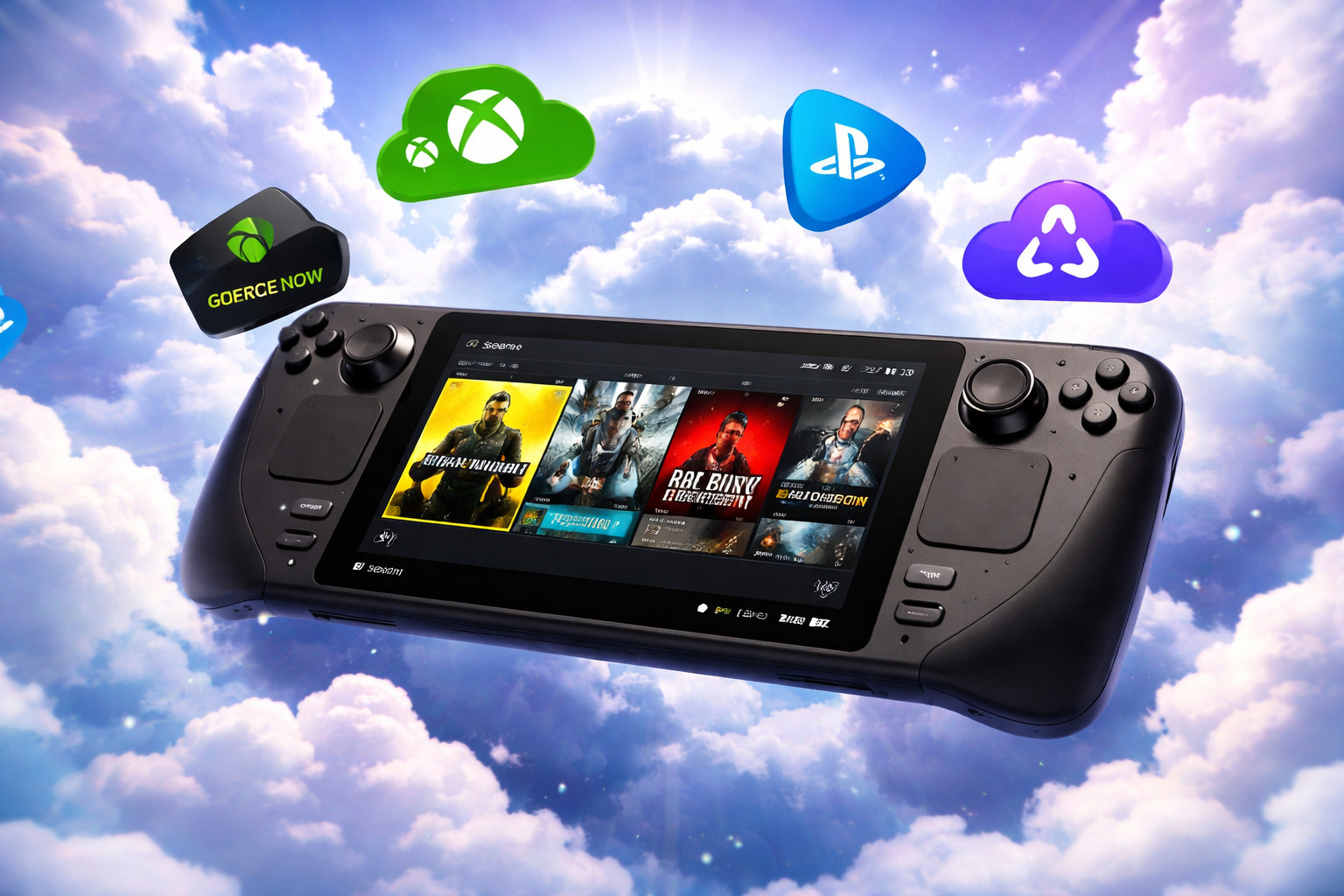
The Steam Deck is a powerful handheld PC that runs SteamOS, giving you access to your entire Steam library on the go. But its real magic is in its versatility: with a few tweaks, you can stream games from nearly any major cloud gaming service, unlocking thousands of titles that might otherwise be out of reach due to hardware or storage limitations.
Steam Deck Basics: Gaming Mode vs Desktop Mode
Before diving into cloud gaming, it’s important to understand the two main modes on your Steam Deck:
Gaming Mode
- Purpose: The default mode for playing games, optimized for performance and controller navigation.
- UI: Big Picture Mode (BPM), designed for handheld use.
- Adding Non-Steam Apps: To run cloud gaming services in Gaming Mode, you must first add them as Non-Steam Games via Desktop Mode.
Desktop Mode (the mode you’ll use for cloud gaming)
- Purpose: A full Linux desktop environment (KDE Plasma) for installing apps, browsers, and making system tweaks.
- How to Access: Press the Steam button, go to Power, and select “Switch to Desktop.”
- Use Cases: Installing browsers (Chrome, Edge), downloading third-party apps, managing files, and advanced troubleshooting.
Tip: You can switch between modes at any time. Most cloud gaming setups require Desktop Mode for initial configuration, but you’ll play in Gaming Mode for the best experience.
Cloud Gaming Platform Setup Guides
Let’s break down how to set up each major cloud gaming service on your Steam Deck, with step-by-step instructions, controller tips, and troubleshooting advice.
1. Xbox Cloud Gaming on Steam Deck
What You Need
- Steam Deck with the latest system update
- Microsoft Edge (Linux Beta) browser
- Xbox Game Pass Ultimate subscription
- Strong Wi-Fi (5GHz recommended)
- Optional: Keyboard and mouse for setup
🎮 Step-by-Step Setup
-
1
Switch to Desktop Mode
Press theSteambutton →Power→Switch to Desktop. Your Steam Deck will reboot into the Linux desktop environment. -
2
Install Microsoft Edge
Open the Discover Software Center (shopping bag icon 🛍️).
Search forMicrosoft Edgeand install the Flatpak version. Wait for installation to complete. -
3
Add Edge to Steam Library
Open the Application Launcher (Start menu), find Microsoft Edge, right-click it, and selectAdd to Steam. This makes Edge launchable from Gaming Mode. -
4
Grant Controller Access
Open Konsole (the terminal app) and enter the following command to allow Edge to access Steam Deck controller inputs:flatpak –user override –filesystem=/run/udev:ro com.microsoft.Edge⚠️ This step is required for controller support in Xbox Cloud Gaming. -
5
Create Xbox Cloud Gaming Shortcut
In Steam, right-click the newly added Edge shortcut →Properties.
In Launch Options, append the following flags to launch Edge in kiosk mode optimized for cloud gaming:–window-size=1024,640 –force-device-scale-factor=1.25 –kiosk “https://www.xbox.com/play”Rename the shortcut to “Xbox Cloud Gaming” for easy identification. -
6
Set Controller Layout
In Steam, go to .
Find your Edge shortcut, select it, and choose the layout: “Gamepad with Mouse Trackpad”. This enables full controller navigation in the browser. -
7
Return to Gaming Mode
Click the “Return to Gaming Mode” icon on your desktop.
Once back in Gaming Mode, navigate to your Library →Non-Steam Gamesto find your new “Xbox Cloud Gaming” shortcut. -
✓
Log In and Play!
Launch the shortcut, sign in with your Microsoft account, and start streaming your Xbox Game Pass library. Enjoy console-quality gaming on your Steam Deck! 🎮✨
- Custom Artwork: Add grid/hero images in Steam Properties for a polished library look.
- Official Guide: For more details, visit Microsoft’s support page: Xbox Cloud Gaming in Microsoft Edge with Steam Deck.
2. NVIDIA GeForce Now on Steam Deck
What You Need
- Steam Deck (Desktop Mode)
- GeForce Now account (free or paid)
- GeForce Now Linux installer (from NVIDIA)
- Optional: Keyboard and mouse
🎮 Step-by-Step Setup
-
1
Switch to Desktop Mode
Steam button → Power → Switch to Desktop. -
2
Download GeForce Now Installer
Open a browser and go togfn.link/download.
Download the Linux installer (GeForceNOWSetup.bin). -
3
Make Installer Executable
Open File Explorer, right-clickGeForceNOWSetup.bin→ Properties → Permissions → check “Is executable.”
Or, in Terminal:cd ~/Downloads chmod +x GeForceNOWSetup.bin -
4
Run the Installer
Double-click the file or run in Terminal:./GeForceNOWSetup.binFollow on-screen instructions. -
5
Return to Gaming Mode
Use the “Return to Gaming Mode” icon. -
6
Launch GeForce Now
Find it under Non-Steam Games in your Steam Library. -
7
Controller Settings
In Controller Settings, use “Gamepad with Mouse Trackpad.”
Adjust trackpad behavior for mouse clicks as needed. -
✓
Log In and Play
Sign in to your NVIDIA account and start streaming your PC games!
- Restart GeForce Now when switching between handheld and docked mode for correct resolution.
- Use the Steam Deck’s performance overlay to monitor streaming quality.
- Some games require in-game controller settings to be adjusted (e.g., Genshin Impact).
- Official NVIDIA Guide: How do I install GeForce NOW on Steam Deck?
3. Amazon Luna on Steam Deck
What You Need
- Steam Deck (Desktop Mode)
- Amazon Prime or Luna+ subscription (free games available for Prime members)
- Google Chrome or Microsoft Edge browser
- Optional: Luna Controller (Wi-Fi pairing for lowest latency)
🎮 Amazon Luna on Steam Deck: Step-by-Step Setup
-
1
Switch to Desktop Mode
Steam button → Power → Switch to Desktop. -
2
Install Google Chrome
Open Discover Software Center, search for “Google Chrome,” and install. -
3
Open Amazon Luna
Launch Chrome, go toamazon.com/luna, and sign in. -
4
Test a Game
Select a game from the Luna library and click Play. -
5
Add Luna to Steam
In Steam (Desktop Mode), click .
Select Google Chrome and add it. -
6
Create a Luna Shortcut
In Steam, right-click the Chrome shortcut, go to Properties.
In Launch Options, append:–kiosk “https://www.amazon.com/luna/play”Rename the shortcut to “Amazon Luna.” -
7
Return to Gaming Mode
Use the “Return to Gaming Mode” icon. -
✓
Launch and Play
Open your Steam Library, launch Amazon Luna, and start playing!
- Steam Deck controls work natively.
- For Luna Controller: Pair via Wi‑Fi for lowest latency. In Chrome, sign in to Luna and the controller will auto-connect.
4. Shadow PC on Steam Deck
What You Need
- Steam Deck (Desktop Mode)
- Shadow PC subscription (paid)
- Google Chrome browser
- Shadow PC Linux AppImage
☁️ Shadow PC on Steam Deck: Step-by-Step Setup
-
1
Switch to Desktop Mode
Steam button → Power → Switch to Desktop. -
2
Install Google Chrome
Open Discover Software Center, search for “Google Chrome,” and install. -
3
Download Shadow PC AppImage
Go to the Shadow PC website shadow.tech, download the Linux AppImage from the Resources section. -
4
Run the AppImage
Double-click the AppImage file and select “Execute.” -
5
Log In to Shadow PC
Use your Shadow PC credentials to log in. -
6
Check Connection
Run the “Check my connection” test in the Shadow app. -
7
Optimize Video Settings
In Shadow PC settings, go to → set Render toFFmpegfor best performance. -
8
Add Shadow to Steam
In Steam (Desktop Mode), click .
Select the Shadow AppImage. -
9
Return to Gaming Mode
Use the “Return to Gaming Mode” icon. -
✓
Launch and Play
Open your Steam Library, launch Shadow PC, and enjoy a full Windows desktop in the cloud!
- Shadow PC allows you to install any PC game launcher (Steam, Epic, GOG, etc.).
- Great for games not natively supported on Steam Deck (e.g., Destiny 2).
5. PlayStation Remote Play on Steam Deck
What You Need
- Steam Deck (Desktop Mode)
- PlayStation 4 or 5 on the same network
- Chiaki4deck or chiaki-ng app (open-source Remote Play client)
- PSN Account ID and Remote Play PIN
🎮 Chiaki4deck on Steam Deck: Step-by-Step Setup
-
1
Install Chiaki4deck
In Desktop Mode, open Discover Store, search for “Chiaki4deck” or “chiaki-ng,” and install. -
2
Add to Steam
In Steam (Desktop Mode), click .
Select Chiaki4deck. -
3
Connect to PlayStation
Ensure your PS4/PS5 and Steam Deck are on the same network.
Open Chiaki4deck; your console should be auto-detected. -
4
Get PSN ID and PIN
Useflipscreen.gamesto get your encoded PSN Account ID.
On your PlayStation, go to to get the 8-digit PIN. -
5
Register Device
Enter your PSN ID and PIN into Chiaki4deck and register. -
6
Enable Autoconnect
In Chiaki4deck, enable Autoconnect for seamless future sessions. -
7
Return to Gaming Mode
Use the “Return to Gaming Mode” icon. -
8
Controller Layout
Apply a Community Controller Layout for Chiaki4deck to map PlayStation touchpad and Home buttons. -
✓
Launch and Play
Open your Steam Library, launch Chiaki4deck, and stream your PlayStation games!
- Works for both PS4 and PS5.
- For best results, use Ethernet or strong Wi‑Fi on both devices.
- Community layouts ensure all PlayStation controls are mapped correctly.
Regional Availability
Cloud gaming support depends heavily on your location. Xbox Cloud Gaming and GeForce NOW offer the widest coverage across North America, Europe, and parts of Asia. Amazon Luna and Shadow PC are available in fewer regions, mainly the US, Canada, and select European countries. PS Remote Play works anywhere, as long as your PlayStation is accessible.
Always check official sites for the latest supported regions.
Subscription Requirements
Each service uses a different model. Xbox Cloud Gaming requires Game Pass Ultimate, while GeForce NOW has both free and paid tiers. Amazon Luna offers limited access with Prime, plus extra subscriptions for more games. Shadow PC is fully paid, and PS Remote Play is free but requires a PlayStation console.
Conclusion
The Steam Deck is more than just a handheld gaming PC it’s a gateway to the world of cloud gaming. With the right setup, you can play Xbox, PlayStation, PC, and even Luna games from anywhere, on a device that fits in your backpack. Whether you’re a Game Pass subscriber, a GeForce Now power user, or just want to try Amazon Luna’s free games, this guide has you covered.
you have to Remember to optimize your network, customize your controls, and keep your software up to date. Cloud gaming is evolving fast, and the Steam Deck is at the forefront of this revolution. Bookmark this guide, check back for updates, and happy gaming!
FAQs
Some services (like GeForce Now and Amazon Luna) offer free tiers, but most require a subscription for full access.
Google Chrome and Microsoft Edge are both excellent. Edge is officially recommended for Xbox Cloud Gaming and Luna.
Not required, but highly recommended for the best streaming quality and lowest latency.
Yes, the Steam Deck supports Bluetooth controllers, including Xbox, PlayStation, and Luna controllers.
Yes, as long as you follow official setup instructions and avoid untrusted third-party scripts.
You can stream your Steam library via GeForce Now (if supported) or using Moonlight/Steam Remote Play from your own PC.
For 1080p/60fps, aim for at least 25 Mbps download and <50 ms latency. For 4K, 40–50 Mbps is recommended.
Leave a comment below or contact us via the site’s feedback form.
Play PC Games Instantly
No downloads. No expensive gaming PC. Play your Steam, Epic and other supported games directly from the cloud.