Start typing to search across all articles, guides, and tools

No results found

Try different keywords or browse our tools above

Searching...

Setting Up Quality of Service (QoS) for Cloud Gaming

White dual‑antenna wireless router on wooden desk with glowing neon Ethernet cables and holographic cloud gaming interface, blurred dual‑monitor setup in background.

For cloud gamers, few things are more frustrating than lag, stuttering, or sudden disconnects during a crucial online match. Modern games demand stable, low‑latency connections, yet today’s home networks are often crowded with multiple users streaming, downloading, or video calling. In this environment, your game’s data packets end up competing for bandwidth.

This guide provides a clear, step‑by‑step walkthrough:

  • What QoS is and why it matters for gaming
  • How to configure QoS on popular routers (Netgear, ASUS, TP‑Link)
  • Advanced prioritization strategies for competitive players
  • Tips for monitoring and maintaining performance over time

Whether you’re a competitive gamer chasing every millisecond or simply want a lag‑free casual session, this guide will demystify QoS and help you get the most out of your home network.

What is QoS? How Does Quality of Service Work?
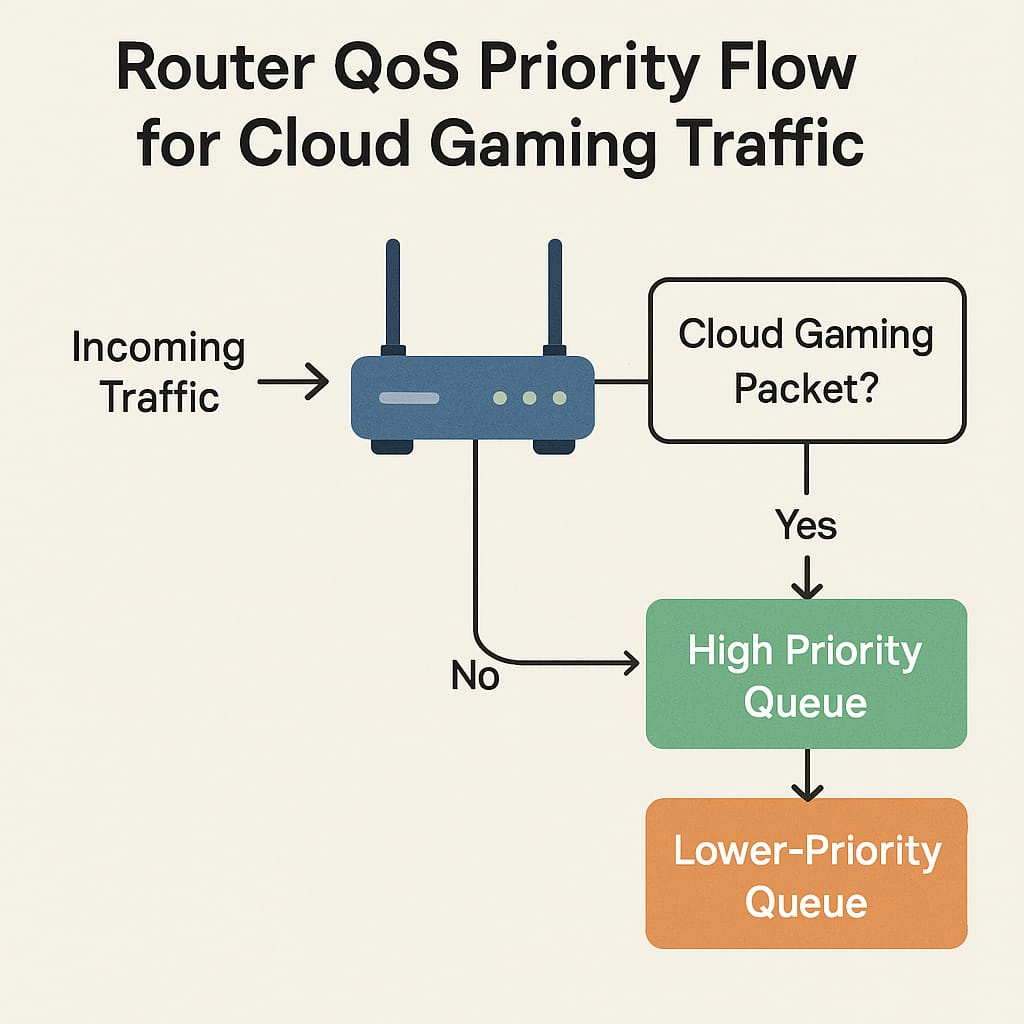
Router QOS priority flow for cloud gaming traffic

Quality of Service (QoS): What It Is

Quality of Service (QoS) is a router feature that lets you prioritize important traffic, like gaming or video calls, so it gets through first. Think of it as a traffic cop: your gaming packets get the fast lane, while background downloads wait their turn.

Without QoS, routers often split bandwidth equally, which can choke delay‑sensitive activities like gaming. With QoS rules, you can tell your router: “Xbox traffic first, Netflix later.”

Routers usually let you prioritize by:

  • Device: Pick your console or PC.
  • Application/Port: Target specific games or chat apps.
  • Traffic Type: Auto‑detect gaming, streaming, or VoIP.

A well‑tuned QoS setup reduces ping, stabilizes jitter, and prevents packet loss, all key for smooth online play.

Why Use QoS for Cloud Gaming

Cloud gaming is especially sensitive because all gameplay, video, and inputs stream in real time. Even tiny delays can cause lag spikes, rubberbanding, or disconnects.

QoS helps by:

  • Reducing lag/ping: Gaming packets go first.
  • Preventing packet loss: Keeps your connection steady.
  • Stabilizing jitter: Ensures consistent timing.
  • Managing congestion: Stops streaming or downloads from ruining your match.
  • Customizing rules: Prioritize consoles, PCs, or specific apps.

Best use cases:

  • Connections under 250 Mbps.
  • Households with multiple users online.
  • Even gigabit homes benefit during peak hours.

QoS Fundamentals: Key Concepts

  • Priority queues: Virtual “lines” where high‑priority traffic moves first.
  • Priority levels: Set gaming traffic to High or Highest.
  • Bandwidth limits: Reserve or cap bandwidth for devices.
  • Device vs. app priority: Choose by MAC/IP or by game ports (e.g., 3074 for Xbox Live).
  • DSCP tagging: Advanced option for power users, marking packets for consistent priority across networks.

Measuring Bandwidth and Knowing Your Needs

Measuring Bandwidth and Knowing Your Needs

Before setup, measure your actual bandwidth:

  1. Disconnect heavy network use.
  2. Connect a PC directly to the router via Ethernet.
  3. Use Speedtest.net or Fast.com.
  4. Run multiple tests throughout the day.
  5. Convert Mbps to Kbps (multiply by 1000).

Set QoS bandwidths at 80–90% of measured max. Setting too high prevents QoS from shaping traffic effectively.ly, if set too high, the router can’t “shape” traffic because it never creates a virtual bottleneck for prioritization.

Preparing to Configure QoS

  • Check compatibility: Ensure your router supports QoS.
  • Update firmware: Install the latest updates for stability.
  • Find router login: Common IPs are 192.168.1.1 or 192.168.0.1.

Step-By-Step: How to Set Up QoS for Gaming

Universal Steps

  • 1 Access router settings via browser or using your router’s IP address.
  • 2 Locate QoS settings (“Advanced” > “Traffic Management” > “QoS”).
  • 3 Enable QoS.
  • 4 Enter measured bandwidth (80–90% of actual).
  • 4 Prioritize devices/apps (set gaming PC/console to High or Highest).
  • 4 Save and apply changes.
  • Test and fine‑tune with ping tests or bufferbloat tools.

Detailed QoS Configuration: Popular Router Brands

Router QoS Setup Guide
Premium Gaming Router

Netgear Routers (Nighthawk and Similar Models)

Netgear’s implementation typically allows prioritization by device, application (by name or port), or even ethernet port. Their Nighthawk series offers “Upstream QoS”, optimized for reducing upload lag, which is key for gaming chat and action.

Steps:
1 Log in at http://routerlogin.net (or manufacturer default).
2 Navigate: ADVANCED > Setup > QoS Setup.
3 Click “Enable QoS,” then “Upstream QoS” (for gaming).
4 Enter Uplink Bandwidth Maximum, the measured upload speed (about 80–90% of your test results).
5 Use the “Speedtest” button in the router UI to auto-detect if unsure.
6 Click Apply.
7 Under QoS Setup Rule, you can:
  • Prioritize by application (select “Online Gaming”), device MAC address, or Ethernet port.
  • Set the priority (Highest, High, Normal, Low), then click Apply.
Netgear QoS interface screenshot and gaming tiers:
  • Highest: VoIP
  • High: Gaming
  • Normal: Web traffic
  • Low: Torrents
Manual mode allows individualized prioritization handy for advanced users.
Adaptive Technology

ASUS Routers (Adaptive QoS and Traditional QoS)

ASUS routers stand out with their “Adaptive QoS,” designed for both easy and customizable prioritization:

Steps:
1 Log in to your router’s UI (http://192.168.1.1 standard).
2 Navigate: Adaptive QoS (in the left sidebar).
3 Enable QoS and select type:
  • Adaptive QoS for drag-and-drop priorities (recommended).
  • Traditional QoS for custom rule creation.
4 For most, choose Games mode (“Games” as highest priority).
5 Drag devices or applications to reorder, or use “Customize” to set custom priorities.
6 Enter your measured bandwidth (less than the plan max).
7 Click Apply.
ASUS Traditional QoS offers advanced configuration, prioritize by port, protocol, device IP/MAC, and assign minimum bandwidth guarantees.
Bandwidth Limiter: Limit maximum usage for heavy traffic devices (up to 32 at once).
Note: Only one QoS mode can be active at a time.
Advanced Gaming Features

TP-Link Routers (QoS & Gaming Modes)

On TP-Link routers, QoS can be set by device or traffic class, with some offering “Gaming Mode” on higher-end (Archer/X series, etc.) hardware.

Steps:
1 Log in via web browser (192.168.0.1 or tplinkwifi.net).
2 Go: Advanced > QoS (may vary by model).
3 Flip the “Enable QoS” switch.
4 Enter upload and download speeds (measured values, 80–90%).
5 For Gaming Mode:
  • On supported models, select “Gaming Mode” the router will automatically prioritize gaming traffic.
6 For Device Priority:
  • Select your gaming console/PC, set as “High Priority,” and optionally set a duration.
7 Click Save (or Apply).
On newer routers with HomeShield/HomeCare, use the preset gaming profiles or configure manual rules for device/app priority.
QoS Router Comparison Table
Quick Reference Guide

Table: QoS Setup Steps by Router Brand

BrandWeb Login AddressQoS Setup LocationDevice/App PriorityAdditional Features
Netgear routerlogin.net Advanced > Setup > QoS Setup MAC, App/Port, Port Upstream QoS, gaming tiers, dynamic/manual modes
ASUS 192.168.1.1 Adaptive QoS (or Traffic Mgr > QoS) Device, App, Drag/Drop Adaptive (by use), Traditional (custom), Bandwidth Limiter
TP-Link tplinkwifi.net / 192.168.0.1 Advanced > QoS (or Basic > QoS) Device, Gaming Mode HomeCare/HomeShield presets, device timer, tri-band gaming

Advanced QoS Options

Some routers and tools go beyond the basics:

  • DSCP tagging: This is like putting a “VIP sticker” on your gaming packets so every device in the network knows they’re important. It’s usually found on enterprise‑grade routers (like UniFi or MikroTik), so most home users won’t need it unless they’re power users.
  • Client‑side software: Some gaming PCs and laptops come with software (like Killer NIC) that lets you decide which apps get priority. Think of it as setting rules right on your computer instead of the router.
  • Tri‑band routers: These routers have three Wi‑Fi bands. You can dedicate one (usually a 5GHz band) just for gaming devices, so they don’t have to fight with phones or smart TVs for bandwidth.

Monitoring and Troubleshooting

After setting up QoS, you’ll want to check if it’s actually helping.

  • Test effectiveness: Play a game and watch for smoother performance. You can also run a Speedtest or use tools like bufferbloat tests to see if lag is reduced.
  • Common issues:
    • If you set bandwidth too high, QoS won’t work properly.
    • If you mark everything as high priority, nothing is truly prioritized.
    • Old firmware can cause instability, so keep your router updated.
  • Best practice: Start simple. Prioritize just your gaming device first, then add more rules gradually.

Limitations of QoS

QoS is powerful, but it’s not magic.

  • It won’t make your internet faster, it just manages what you already have.
  • Router quality matters: Cheaper models may struggle with complex rules.
  • Wi‑Fi is less reliable: Even with QoS, wireless signals can be interrupted.
  • Mesh networks/extenders: These can complicate QoS because not all traffic passes through the main router.

Wired vs. Wireless Gaming

When it comes to gaming, wired Ethernet is king.

  • A cable connection gives you stable, consistent latency with almost no interference.
  • Wi‑Fi can work, but it’s more prone to hiccups. If you must use Wi‑Fi:
    • Stick to the 5GHz band for faster, cleaner signals.
    • Place the router close to your gaming device.
    • Avoid extenders, which can add lag.

Best Practices After Setup

Once QoS is running, keep it tuned:

  • Test regularly: Especially after firmware updates or router changes.
  • Adjust rules: As your household’s internet use changes, tweak priorities.
  • Coordinate with others: If family or roommates are streaming during your matches, QoS helps, but communication helps too.
  • Revisit settings: If you upgrade your router or internet plan, redo your QoS setup to match the new speeds.

Summary Table: Gaming QoS Setup Across Routers

Summary Table

QoS Setup Process by Router Brand

StepNetgear RoutersASUS RoutersTP-Link Routers
1. Access Router UI routerlogin.net 192.168.1.1 tplinkwifi.net / 192.168.0.1
2. Locate QoS Settings Advanced > QoS Setup Adaptive QoS / Traditional QoS Advanced > QoS
3. Enter Bandwidth Upstream/Downstream Bandwidth (80–90% of real world) Set broadband manually
4. Prioritize Devices/Apps MAC/App/Port/Ethernet Device, App, drag-and-drop Device, Gaming Mode/Timer
5. Save Settings Apply Apply Save
6. Test Adjust, Repeat Games, bufferbloat test Games, network monitor Games, streaming, bufferbloat

Conclusion

QoS is a crucial tool for any cloud gamer looking to minimize lag and improve online stability. By prioritizing gaming QoS is a powerful tool for cloud gamers who want to minimize lag and keep online play stable. By giving gaming traffic priority over streaming, downloads, or other household activity, you can protect your sessions from sudden slowdowns.

Remember:

  • Test your speeds first with SpeedTest or Fast.com before setup.
  • Prioritize only what matters, your gaming device(s) and essential services, to avoid “priority inflation.”
  • Prefer wired connections whenever possible, and keep router firmware updated.
  • Monitor and adjust regularly, QoS tuning is an ongoing process, not a one‑time fix.

The best part? Setting up QoS doesn’t require a technical degree. With a little careful configuration, you can take control of your home network and enjoy smoother, more reliable cloud gaming.

🏆 Game of the Month
Crimson Desert

On the unforgiving battlefields of Crimson Desert, there is no single path to victory. With every strike and move, forge your own way in a world where a split second can decide your fate in fast-paced, visceral battles.

⚔ Action RPG 🗺 Open World 🧭 Adventure
Find More Games
Crimson Desert
4.5 /5 Rating
GeForce NOW
Xbox Cloud Gaming
Amazon Luna
Shadow
Boosteroid
PlayStation Plus
AirGPU
GeForce NOW
Xbox Cloud Gaming
Amazon Luna
Shadow
Boosteroid
PlayStation Plus
AirGPU

Cloud Loadout — About the Author
Yassine Abbassi, Founder of Cloud Loadout

Yassine Abbassi

Founder & Lead Writer — Cloud Loadout

I’m Yassine — a cloud gaming enthusiast and technical writer with a background in web development and systems architecture. As the founder of Cloud Loadout, I’m dedicated to cutting through the noise and delivering clear, actionable guides for GeForce NOW, Xbox Cloud Gaming, PlayStation Remote Play, and more. My mission? To help gamers of all levels stream smarter, troubleshoot faster, and play without compromise.