Cloud gaming performance depends on more than just fast internet, it requires a finely tuned router. In this guide, we’ll walk you through expert-level yet beginner-friendly router settings that reduce input delay, prevent lag spikes, and prioritize your gaming traffic. Learn how to:
- Achieve Open NAT for seamless matchmaking
- Set up port forwarding and smart UPnP
- Use DSCP tagging to enhance QoS (Quality of Service)
- Configure popular routers like TP-Link, Asus, and Netgear
Whether you’re hosting multiplayer lobbies or streaming AAA titles from the cloud, this guide ensures your router gives your gamepad input the VIP lane it deserves.
Why Router Optimization Is Essential for Cloud Gaming Latency and Stability?
atency (ping), jitter, and packet loss are the three pillars of a good cloud gaming connection. Even with a high-speed broadband plan, a poorly optimized router can introduce spikes, congested queues, or unnecessarily strict firewall/NAT settings that choke real-time traffic. The impact is tangible: slow matchmaking, voice chat failures, rubberbanding, and that dreaded moment when your controller input arrives a beat behind the action.
By targeting the right router settings, you unlock:
- 🟩 Smoother gameplay with reduced lag and input delay
- 🟩 Faster connections to multiplayer and matchmaking servers
- 🟩 Flawless party chat and P2P connectivity
- 🟩 Higher streaming quality (up to 4K at 60Hz+) with fewer hiccups
- 🟩 – The ability to compete at an esports level from home
Open NAT for Cloud Gaming: What, Why, and How
What Is NAT, and Why Does “Open NAT” Matter?
Network Address Translation (NAT) is the router-driven process that allows all your home devices to share a single public IP, while controlling which traffic can initiate connections from the outside world. While NAT secures your network, it can create connection potholes for gaming, especially P2P or multiplayer sessions requiring inbound requests.
NAT types:
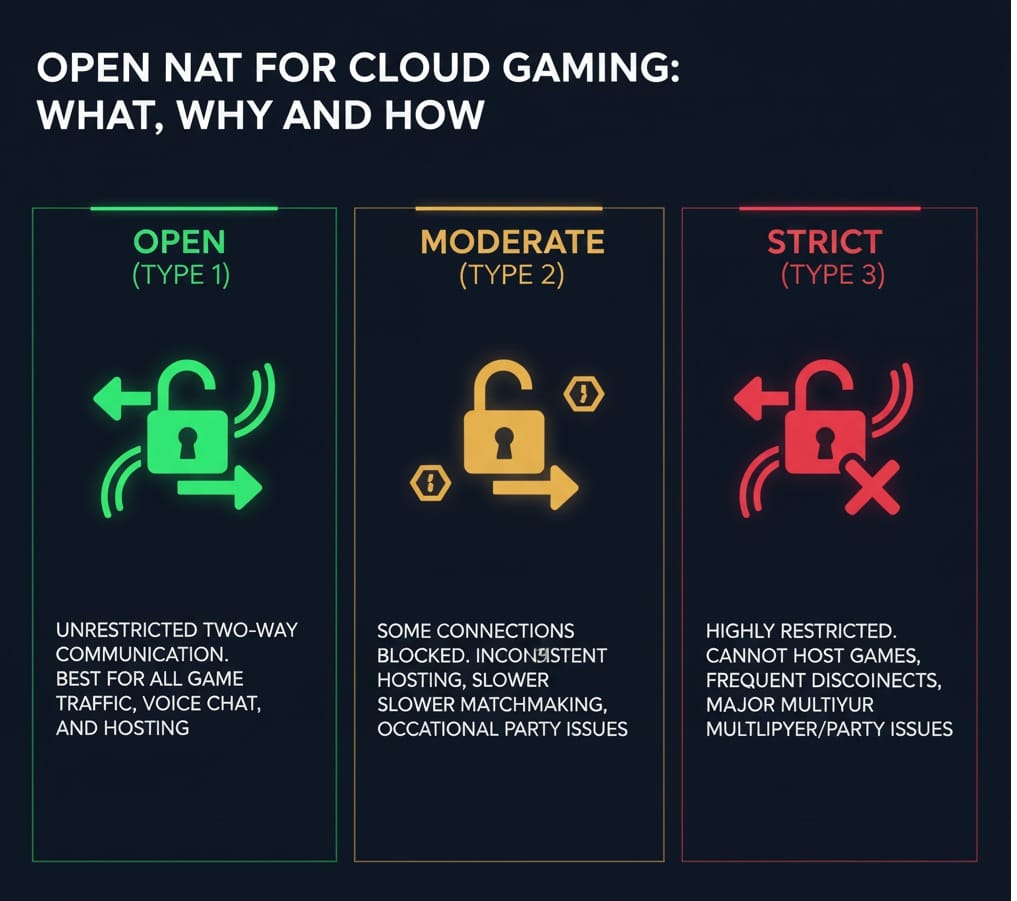
- 🟩 Open (Type 1): Unrestricted two-way communication; best for all game traffic.
- 🟨 Moderate (Type 2): Some connections may fail, slower matchmaking, hosting can be inconsistent.
- 🟥 Strict (Type 3): Cannot host games, often can’t join particular players, frequent disconnects.
bottom line: an Open NAT removes barriers for both outgoing and incoming game data, ensuring superior cloud gaming performance—especially for multiplayer, voice chat, party systems, and crossplay.
How to Check Your NAT Type
On Xbox: "Profile & System" > "Settings" > "General" > "Network Settings."
On PlayStation: "Settings" > "Network" > "View Connection Status."
On Windows PC: RunCmd, typeIpconfig, use your router web interface to inspect NAT/status.
Open NAT Setup on Common Routers
1. TP-Link Routers
TP-Link routers support Open NAT via several methods: enabling UPnP, creating virtual server (port forwarding) rules, or using DMZ where needed. Recent models (Archer AX series, Deco, etc.) have streamlined interfaces for NAT settings.
Step-by-Step:
-
1
Access your router’s admin interface (e.g.,
192.168.0.1ortplinkwifi.net). - 2 Log in with your credentials.
- 3 Navigate to NAT Forwarding > UPnP. Enable UPnP for automated port management.
- 4 Alternatively, go to Virtual Servers/Port Forwarding to set manual rules based on game and platform (see below for port lists).
- 5 Assign a static IP to your gaming device for consistency.
- ✓ Save and reboot router and device as needed.
💡 For troubleshooting strict NAT on Nintendo Switch, TP-Link users recommend using the DMZ feature cautiously—placing the console as DMZ host to attain Type A NAT.
2. Asus Routers
Modern Asus routers offer “OpenNAT” panels, especially in gaming-centric models (ROG, TUF, GT, RT series). Asus users benefit from:
- Pre-set profiles for common games/consoles
- Quick two-click rule creation
Step-by-Step:
-
1
Connect to your router’s GUI (
http://www.asusrouter.comor your router IP). - 2 Login, then click the OpenNAT tab.
- 3 Enable port forwarding.
- 4 Select from preset game/platform profiles or use “Manual” to define custom parameters.
- 5 Enter the internal IP for your device (set static for reliability).
- ✓ Save, apply, and confirm your rules.
💡 For games not included in profiles, use “WAN” > “Virtual Server”/“Port Forwarding” to create manual exceptions for advanced usage.
3. Netgear Routers
Netgear, with DumaOS (for Nighthawk and XR routers), provides both UPnP automation and granular, manual port forwarding. The Netgear admin panel guides you through attached devices, port mapping, and NAT status checks.
Step-by-Step:
-
1
Log in via the browser at:
http://www.routerlogin.netor using your router’s IP address - 2 Open Port Forwarding/Triggering. tab.
- 3 Choose “Add Custom Service” for your game/device.
- 4 Enter IP address, select the right protocol (“TCP/UDP/Both”) and input port numbers.
- ✓ Apply changes, reboot all affected devices.
💡 DumaOS also allows DMZ modes and gives diagnostic tools for NAT and connection type confirmation, including real-time network stats dashboards for competitive gamers.
UPnP vs. Manual Port Forwarding: What’s Best for Cloud Gaming?
Universal Plug and Play (UPnP) dynamically opens necessary ports, requiring no manual intervention—great for plug-and-play environments, changing devices, or where ease is valued. However, for gamers with multiple consoles/devices or those desiring maximal security and control, manual port forwarding remains the gold standard.
💡 Expert Recommendation:
- UPnP is favored for single consoles/devices in trusted home environments (with firmware updates and monitoring).
- Manual forwarding is essential for complex setups, cross-platform/multi-console environments, or for the best security/control balance.
Port Forwarding Explained: Step-by-Step Guide for Cloud Gaming Devices
The Basics
Port forwarding tells your router to send incoming traffic on a specific port to a single device. It’s required when your cloud gaming setup involves hosting, peer-to-peer connections, or troubleshooting strict NAT. For most cloud gaming use, it’s mainly about guaranteeing direct, uninhibited flows from your device to the gaming servers.
Before you start:
- Set a static IP/reserved DHCP for your gaming device.
- Log in to your router’s web interface (consult documentation for address; it’s usually on a sticker or in the manual).
Step-by-Step (Generic):
-
1
Find Device’s IP: Check your console or PC’s IP (often via network settings/command prompt(
ipconfig)). - 2 Router login: Log in via the browser a using your router’s IP address or the manufacturer’s router page.
-
3
Open Port Forwarding Settings: Locate
“Port Forwarding,” “Virtual Servers,”or similar menu. -
4
Add Port Forwards:
– Input the required port(s) (see table above).
– Select protocol ( UDP, TCP, or both).
– Enter the device’s internal IP address.
– Save and apply. - 5 Reboot: Restart your router and device for changes to take effect
- ✓ Test: Use our NAT checkers and online port check tool at the buttom 👇, or attempt multiplayer/cloud game sessions
Platform-Specific Port Lists
- Xbox: UDP: 88, 500, 3544, 4500; TCP/UDP: 3074
- PlayStation: TCP: 1935, 3478–3480; UDP: 3074, 3478–3479
- PC (e.g., Apex Legends): TCP: 1024–1124, 9960–9969, 27015, 28910, 29900; UDP varies per game
💡 Always verify current ports from official documentation, or game publisher support pages—the above are “core” but some titles require additional entries.
UPnP as an Alternative
UPnP, if supported by your router and console, can usually automate port management. It’s the quickest route for “Open NAT” on Xbox or PlayStation, just enable the switch in your router’s settings and reboot your device. For some games, or when multiple consoles are present, UPnP alone may not be sufficient; fallback to port forwarding or DMZ if needed.
When Is DMZ Needed?
DMZ (Demilitarized Zone) places a device outside your firewall, opening all ports. It’s a last resort if UPnP and port forwarding fail, use cautiously and never on a PC or device running sensitive workloads.
DSCP Tagging for QoS Optimization: The Cloud Gamer’s Hidden Weapon
What Is DSCP and Why Use It?
DSCP (Differentiated Services Code Point) tagging allows routers to mark packets as “high priority” for specific types of traffic, like gaming streams or remote gamepad input, by encoding a value in the IP header. Routers and managed switches with QoS read this tag and ensure your gaming traffic has preferential treatment ahead of bulk downloads, streaming, or background updates.
Benefits in Cloud Gaming:
- Minimizes bufferbloat, lag spikes, and jitter
- Ensures consistent, low-latency streaming, even on busy networks
- Delivers the smoothest possible cloud gaming session
QoS and DSCP Configuration on Home Routers:
TP-Link (Omada/Archer etc.)
TP-Link supports QoS based on device, application, or port. Advanced models (Omada, Archer/AX series) enable DSCP trust mode:
- Enable QoS: In router settings or via the management app.
- Configure Bandwidth Control: Set inbound and outbound limits matching your ISP plan.
- Enable DSCP Tagging:
- Tag outbound gaming traffic with high-priority DSCP values (e.g., EF 46 for gaming, AF41 for video; see table below).
- Map tagged packets to premium priority queues for minimal latency.
- Apply and Save: Test for improvements via latency-sensitive applications.
Asus “Adaptive QoS”
Asus routers offer “Adaptive QoS,” letting you assign gaming traffic to the highest-priority queue. Some allow for custom rules based on DSCP or application type (e.g., Games mode, VoIP, Streaming, etc.).
- Set “Games” or “Custom” as the top priority using drag-and-drop or presets.
- For traffic marking, newer firmware allows advanced port/DSCP associations.
- Save and monitor effects using the network tools/interface.
Netgear (Nighthawk, XR)
Netgear routers (especially with DumaOS) provide:
- Drag-and-drop device/application prioritization
- Port-based QoS rules, DSCP support on higher-end or Pro models
- Network statistics overlays to verify real-time impact
How To Enable:
Navigate to QoS/Traffic Management > Add rule (by IP/port or DSCP class). Assign “gaming” traffic to highest class for guaranteed bandwidth.
UniFi/Other Advanced Systems
UniFi controllers use Traffic Management to match apps/devices and apply DSCP tags:
- Set VoIP and gaming to DSCP 46 (Expedited Forwarding, EF)
- Video streaming as AF41
- Default/bulk is DSCP 0/BE
Benefits are immediate: less lag, no more dropped calls or stuttering streams, and improved performance even under heavy load.
Recommended DSCP Tags for Gaming (Cloud and Local)
💡 Higher values ensure preferential packet handling by QoS-capable routers and switches. Leading cloud gaming services (e.g., GeForce NOW) are best prioritized as EF or AF41.
Comparison Table: Recommended Settings by Router Brand
Troubleshooting & Testing: From Verification to Optimization
Even after setting up open NAT, port forwarding, and DSCP tagging, it’s essential to verify your network’s real-world performance and troubleshoot any remaining issues.
How to Verify NAT Type
- Use your console’s network test feature or navigate to “Test NAT Type.”
- PC users can inspect NAT behavior in game launchers or via router admin panels.
- If the type remains Moderate or Strict, double-check port rules, static IP assignments, and consider UPnP or DMZ as a fallback (with security considerations).
- Or use our simple tool right away 🙂
Measuring Ping and Jitter
- Use Cloudflare Speed Test, Cloud Loadout Latency Tester, or GameServerPing.com to check:
- Latency (Ping): <40ms for cloud gaming, <20ms for competitive edge.
- Jitter: <5ms is ideal; <20ms is acceptable for most titles.
- Packet Loss: <0.5% for cloud gaming, 0% preferred.
- Many routers now display real-time latency and utilization stats; use overlays in GeForce NOW and Xbox Cloud Gaming apps to compare before/after effects.
Testing DSCP/QoS Impact
- Simulate heavy network use (e.g., 4K streaming + gaming)
- Monitor if cloud gaming retains stable ping, low buffer bloat, and zero dropped frames
- Use router/app logs to confirm DSCP tags applied and prioritized as expected
Troubleshooting Checkpoints
- Double NAT: If you have two routers/gateways, place one in bridge mode or set up cascading port forwards/DMZ.
- Firmware: Always update router firmware for bug fixes and latest feature support.
- Background Traffic: Pause heavy downloads, schedule updates, and use QoS to relegate bulk traffic.
- Device Proximity: Prefer wired or 5GHz Wi-Fi; place gaming devices close to the router for optimal signal.
- ISP Issues: Contact your ISP if you have suspected port blocks, or to request a public/static IP if behind CGNAT.
Summary: The Ultimate Low-Lag Cloud Gaming Router Setup
Optimizing your router for cloud gaming in 2025 means blending the foundational steps (Open NAT, port forwarding) with advanced techniques (DSCP tagging, adaptive QoS, device prioritization). Leveraging features found on the latest TP-Link, Asus, and Netgear routers (and even pro setups like UniFi), you ensure your session remains smooth, regardless of how crowded your home network gets.
Key takeaways:
- Open NAT enables unrestricted game data flows, crucial for multiplayer, chat, and party systems.
- Port Forwarding (or UPnP where safe) ensures correct routing of cloud gaming traffic and faster, more reliable connections.
- DSCP Tagging & QoS place your gaming packets at the front of the queue, reducing lag even when your network is under heavy load.
- Confirm setup effectiveness by measuring NAT type, conducting low-latency ping/jitter tests, and monitoring for real-world improvement during actual gameplay.
- Keep your router updated, tuned, and monitored for peak 2025 performance.
Whether you’re competitive on GeForce NOW, exploring new worlds on Xbox Cloud Gaming, or streaming PS5 titles on remote devices, the right router configuration is your ticket to lag-free, next-gen cloud play. With these expert strategies, your home network becomes as much a part of your skillset as your gaming reflexes.
Optimize your home cloud gaming setup, don’t let the router be your weakest link.
For official, model-specific instructions and firmware updates, always refer to your router’s documentation (e.g., Asus Support, TP-Link Help Center, Netgear Knowledgebase). For professional or enterprise environments, consult network engineering resources for advanced DSCP/QoS implementations.